
The best WebP plugins for WordPress: convert and optimize images
WebP and AVIF can make WordPress images significantly leaner. Which solution fits depends less on the file format than on your website: How strong is the hosting? Should images leave your server? Is there already a CDN? And how large is the media library?
This comparison is oriented exactly around those questions. First you'll learn which kinds of WebP plugins for WordPress exist. Then you can decide whether local conversion, an external optimization service or an image CDN suits your setup better.
The short answer
If images should stay on your server, neo Optimize is a suitable local solution: WebP and AVIF are created on your hosting while the original files are preserved. For international sites with many image sizes an image CDN can be more sensible. For new setups AVIF is usually the light recommendation. WebP remains useful if your server cannot reliably produce AVIF or you need animations.
Which WebP plugin suits your website?
The following cases cover most WordPress websites. If two points apply at once, first decide whether images must remain local. That decision is much harder to change later than a quality level.
Images should stay on your server
neo Optimize creates WebP or AVIF locally with Imagick or GD. Original files and database remain untouched.
You want to convert existing images and losing the original is OK
Converter for Media creates WebP variants on the server and includes a bulk conversion. For AVIF you currently need the extended feature set.
Images should be delivered worldwide via a CDN
Optimole generates appropriate sizes and formats on request and delivers them via a CDN. For that image URLs and cache become more tied to the service.
You already use a performance suite
Even if a performance suite is already active, neo Optimize can make sense when WebP and AVIF are created locally and the original files should be preserved. Check first whether EWWW, Smush or Jetpack Boost already optimize images, control lazy loading, or use CDN URLs. Overlapping functions should be disabled.
Where WebP and AVIF can be created
There are four possible processing paths for WebP and AVIF:
- Before upload: You export WebP or AVIF yourself and upload the finished file to WordPress.
- On the WordPress server: A plugin uses GD or Imagick and stores modern variants alongside the original or in the cache.
- With an optimization service: WordPress sends the image to an external API and receives a compressed file back.
- On request via a CDN: The CDN generates the appropriate size and format when a visitor requests the image.
Local processing in WordPress
With a local solution the plugin decides in WordPress which image size is needed and creates the optimized file on the same server. neo Optimize works with cache copies. Original files and media library data remain unchanged. That reduces external data flows and makes switching easier, but requires a functioning image library and sufficient CPU time.
GD and Imagick on the server
GD and Imagick must actually be able to write the desired format. That a browser displays AVIF does not mean your server can produce AVIF. WordPress shows available formats under "Tools > Site Health > Status > Media Handling." WebP support is widespread on common hostings; you should explicitly check AVIF.
External API or cloud compression
Imagify and ShortPixel send image data to an external service. That saves your hosting CPU and makes complex compression easier to schedule. You need to clarify where files are transferred, how quotas are counted, which file sizes are allowed and whether WordPress thumbnails are counted individually. Backup behavior also differs.
Transformation and delivery via a CDN
A image CDN does not only store finished WebP files. From an original it can produce a separate variant for every required width, quality and browser support. The browser then loads the image from the CDN. This works conveniently and worldwide but increases dependence on cache, URL structure and provider.
Does local processing fit your setup?
With neo Optimize originals stay on your server. WebP and AVIF variants are generated as cache files.
WebP or AVIF: which is better for WordPress?
Light recommendation: AVIF. The format uses a more modern compression and can produce smaller files at comparable visible quality. neo Optimize therefore prefers AVIF by default if GD or Imagick can reliably and safely produce it on your server.
WebP is still a good choice, if your hosting does not support AVIF, you want conversion to use minimal CPU time, or you use animations. WebP is longer established in WordPress plugins, image tools and hosting packages and can therefore be easier to operate in some setups.
Test photos, screenshots, logos and transparent graphics separately. A quality level that looks good on a photo can visibly damage small text in a screenshot. A reliable comparison always uses the same pixel dimensions and does not judge only file size.
Both formats are widely supported by current browsers. Originals remain important however. Social crawlers, external feeds, email clients, cache proxies or misconfigured servers can treat modern variants differently than a normal browser.
File format and image size are two different things
A 3000 pixel wide WebP is still too large for a 400 pixel wide content area. So check dimensions, compression quality and srcset. Lazy loading is also a separate step. For that you can for example use neo Lazy.
Does WordPress already support WebP and AVIF itself?
WordPress accepts WebP uploads since version 5.8. Since WordPress 6.5 AVIF files can also be uploaded and processed, provided the server's image library supports AVIF. WordPress generates the usual image sizes, attachment data and srcset-attributes.
This is not an automatic conversion of your media library. WordPress does not automatically fully convert existing JPG and PNG files to WebP. A new JPG upload is also not generally stored additionally as WebP and AVIF in the stable core. For that you need a plugin, a custom build process or a CDN.
As of August 10, 2026 WordPress 7.0.2 is the current stable version. Features from a beta or an announced core version are not counted here as available. You can find the later status in the official WordPress release overview.
The technical background is documented by the Core Team in the posts about WebP support since WordPress 5.8 and about AVIF support since WordPress 6.5.
Do you want to generate WebP and AVIF without a cloud service?
neo Optimize processes images with GD or Imagick on your WordPress server. The original files remain unchanged.
WebP and AVIF plugins compared
The following selection is not a ranking. A CDN plugin solves a different problem than a local WebP converter for WordPress. What matters is whether the technical model fits your hosting, privacy needs, and media library. We intentionally do not list prices. Features and limits can change; the linked plugin pages and documentation are therefore the final authority.
Plugin 1: neo Optimize: local processing with untouched originals
neo Optimize processes images directly on your server. Imagick is preferred, GD is used as a fallback. Optimized variants are stored in the cache and adapted to the actual required display. Source files and media library data remain unchanged. After deleting the cache, variants are recreated on the next request.
This suits sites that do not want to use an external image API and need a clear rollback path. However, the computation stays on your server. AVIF only works if your image library can encode AVIF. If that support is missing, WebP is the reliable alternative. Find more details and the download on the neoOptimize product page.
Plugin 2: Converter for Media: server-side conversion and bulk processing
Converter for Media creates modern variants for new and existing images and stores them separately from the originals. Delivery depends more on server configuration than a pure cloud solution. Apache rules, Nginx configuration, MIME types, and write permissions must match. The free feature set currently focuses on WebP; AVIF is part of the extended offering.
The plugin is interesting if you want classic bulk conversion and can control server rules yourself. On managed hosting check first whether the required rules are allowed. Our Converter-for-Media-Check and the Alternatives to Converter for Media go into the differences in more detail.
Plugin 3: Imagify: cloud compression with background processing
Imagify shifts compression to an external service. New uploads can be processed automatically. For existing media there is a bulk optimization that runs in the background. That saves local CPU. Free usage is limited by a monthly data quota.
This approach is convenient on shared hosting. Before a large media library count how many thumbnail sizes WordPress generates per original and whether backups take extra space. More details are in the Imagify Plugin-Check and the Imagify alternatives.
Plugin 4: ShortPixel Image Optimizer: cloud service with multiple delivery paths
ShortPixel processes JPG, PNG, GIF, WebP and AVIF via an external service. The free account includes a monthly credit quota. Depending on settings WordPress thumbnails generated may also count. Before a bulk run decide on backups, thumbnail counting, and delivery method.
The many options are flexible but require careful setup. Our ShortPixel Plugin-Check and the ShortPixel alternatives help with comparison.
Plugin 5: EWWW Image Optimizer: local, API or CDN
EWWW combines local tools with optional cloud and CDN processing. Local WebP can work without a monthly image quota if hosting provides the required programs and permissions. AVIF and dynamic CDN delivery depend more on the provider's external services.
This is useful if you want to intentionally choose between local and external. Then document exactly which part is active. Otherwise it becomes hard later to tell whether an image comes from the uploads folder, an API, or the CDN. See also our EWWW Plugin-Check and the EWWW alternatives.
Plugin 6: Smush: image optimization as part of a larger performance suite
Smush combines compression, resizing, lazy loading and CDN features. The free optimizer currently has, among other things, a file size limit per image. Local WebP and AVIF delivery are part of the extended feature set. If you already use Smush you can bundle several tasks in one plugin.
Watch for overlaps with cache and lazy-loading plugins. Two systems that change the same image URLs or loading attributes make debugging unnecessarily hard. Details are in the Smush Plugin-Check and the Smush alternatives.
Plugin 7: Optimole: responsive image variants via a CDN
Optimole processes images in the cloud and delivers suitable variants via a CDN. Format, dimensions and quality can adapt to browser and device. Free usage is currently limited by monthly visits and is not counted like a classic local bulk conversion.
This model fits international sites and many responsive sizes. Before switching test how the site returns to original URLs, how cache purge works and what happens after hitting a limit. More on this in the Optimole Plugin-Check and the Optimole alternatives.
Plugin 8: Jetpack Boost: Image CDN in the Jetpack ecosystem
Jetpack Boost can optimize images via the Jetpack Image CDN and deliver WebP to supporting browsers. Processing does not take place on your server. This is a simple option if Boost is already installed and you want as few settings as possible.
The current documentation explicitly mentions WebP. You should not assume a manual AVIF option for the free Image CDN. Also test CSS backgrounds and dynamic page builder components, because a CDN does not always recognize them the same way as regular media library images.
Test local processing with WebP or AVIF
Originals remain intact, optimized variants end up in the cache and can be regenerated.
Which plugins are suitable for local processing?
Local processing makes sense if image files must not leave your server. It avoids API quotas and is easy to undo as long as originals are not overwritten. The downside is server load: every conversion requires CPU, memory and write operations.
neo Optimize is suitable if the output size should match the actual display and be created as a cache copy. Converter for Media focuses more on classic conversion of uploads and server-based delivery rules. EWWW offers more options but also requires more attention to which local and external features are active.
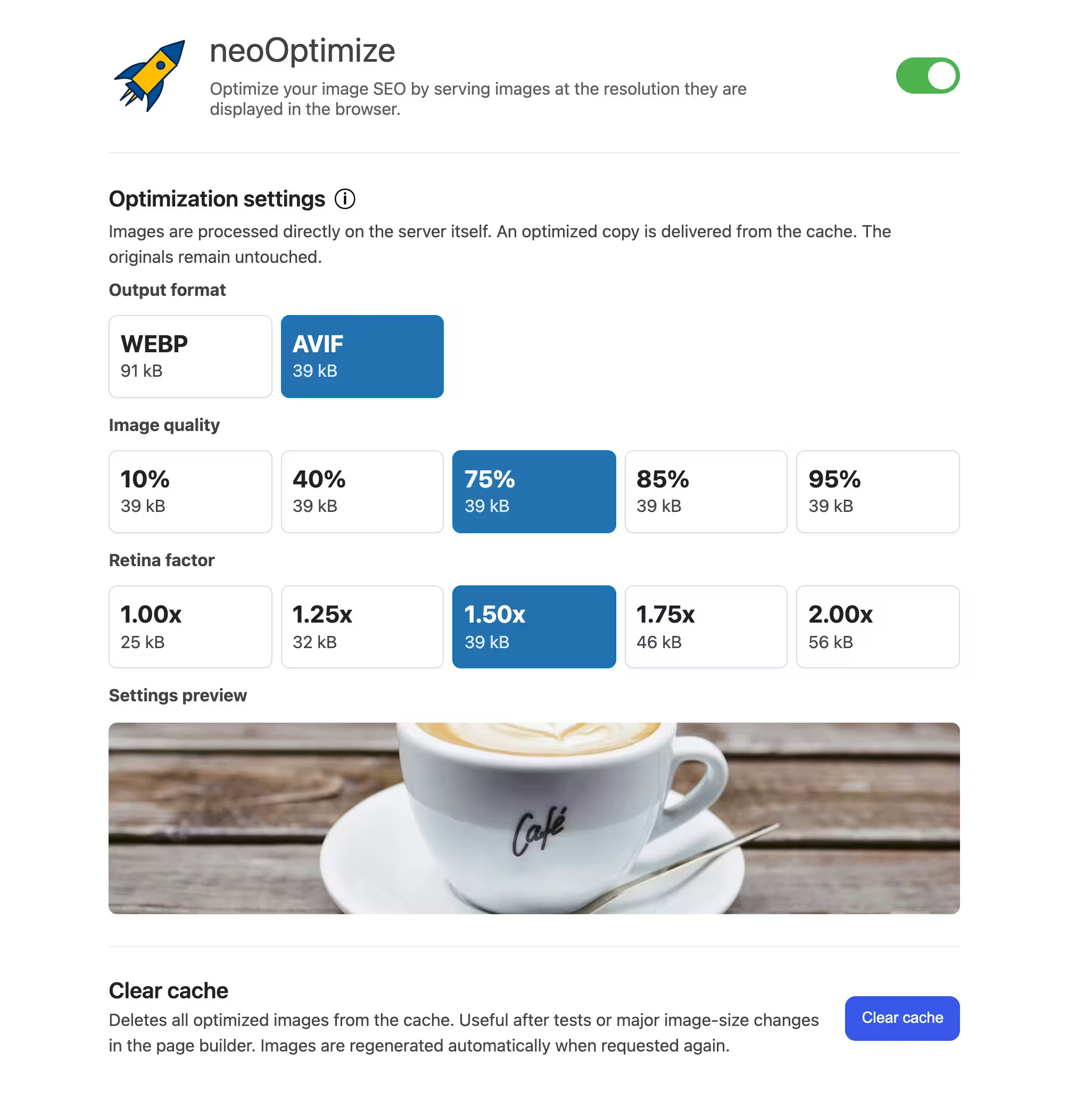
For every local solution check whether your server can write the desired format, whether originals are preserved and how variants are regenerated. After changing thumbnail sizes the process must still work. For large libraries a timeout should not force you to start over.
When is an image CDN worthwhile?
An image CDN can create a suitable combination of width, quality and format from an original on demand. Optimole is the clearest example of this model in this comparison. Jetpack Boost is a simpler option within the Jetpack ecosystem. EWWW and Smush also combine image optimization with optional CDN features.
Advantages are low load on WordPress, flexible responsive variants and worldwide delivery. Disadvantages appear when switching providers. CDN cache, rewritten URLs and stored page builder fragments can continue to point to the old service after deactivation. Document how to revert to original URLs and which caches must be cleared.
Test small first, then switch the media library
neo Optimize does not modify your original files. After activation open some typical pages first and check image quality, file format and delivery. If everything fits, further optimized cache versions are created automatically on the respective page requests.
What does "free" mean for a WebP plugin?
For local plugins free usually means: no monthly image quota but computing on your hosting. Cloud plugins often limit data volume or image count. A CDN can count visits or traffic. These models are hard to compare with a single number.
For local WebP without ongoing image quotas consider neo Optimize, the WebP feature set of Converter for Media and local EWWW functions. On a weak server a limited cloud service can still be the better free solution. Check file size limits, thumbnail counting, AVIF access, CDN traffic, backups and behavior after reaching a limit.
How to make the choice
Three questions are enough for the preselection
- May image files be transferred to an external provider?
- Does your hosting have enough power for a local conversion?
- Do you need an image CDN or just smaller files on your own server?
When you have answered these questions, usually only two or three suitable plugins remain.
Then it’s about the details:
- Existing assets: How many originals and generated sizes actually exist?
- WebP or AVIF: Is WebP sufficient or can the setup reliably produce AVIF?
- Originals and backups: Are sources left untouched, replaced, or backed up separately?
- New image sizes: What happens after a theme change or changed WooCommerce settings?
- Page builder: Elementor, Bricks and other builders store CSS backgrounds differently than normal
<img>-elements. - Multisite: Check storage quotas, network-wide activation and separate domains.
- Data protection: For external processing, provider, region and deletion path belong in the documentation.
- Ongoing effort: Consider thumbnails, new uploads, visits and CDN traffic.
If you need to organize many files, the media library is its own task. neo Library helps with the overview. The folder structure is also independent of the file format. Our guide shows how to remove date folders from WordPress media URLs.
Want to start locally?
Check server support, choose WebP or AVIF and test the preview on typical images from your site.
Safely convert existing images to WebP or AVIF
- Create a backup. Back up the database and the complete uploads folder. A database backup does not include image files.
- Test with a few images. Use photos, transparent logos, screenshots, large uploads and WooCommerce galleries. Staging is ideal for this.
- Keep originals. Enable backups or choose a cache model. Do not delete JPG and PNG while later rebuilding is unclear.
- Start bulk process in a controlled way. Monitor CPU, RAM, runtime, error rate and free storage. Split large libraries into batches.
- Clear caches selectively. This includes WordPress page cache, object cache, server cache, CDN and browser.
- Check important page types. Open homepage, posts, archives, product pages, sliders, lightbox and mobile breakpoints.
- Control network response. Relevant are status code, URL and
Content-Type: image/webprespectivelyimage/avif. - Document rollback. Record which setting, rewrite rule and cache level need to be changed to roll back.
WebP in WordPress without a plugin
You can generate WebP or AVIF before upload and use it directly in the media library. In a developer team the build process can also automatically create modern variants from JPG and PNG sources. Alternatively a reverse proxy or CDN handles the format choice.
The effort is not in the first conversion but in operation. New editor uploads, WordPress thumbnails, theme changes, srcset, MIME types, fallbacks and cache invalidation must match. Manual server rules must also consider the browser request in the cache key so the wrong client does not get an unsuitable variant.
For teams with a deployment pipeline and clear image guidelines this is a good approach. For typical editorial sites and shops a single responsible plugin is usually easier to maintain.
Common issues with WebP and AVIF
WebP was generated but not delivered
Check the actual network response. Rewrite rules are often missing, the page cache contains old HTML or a CDN does not know the new variant yet. An HTML minifier can also <picture>change markup.
WebP or AVIF URLs return 404
Then the HTML points to a variant that does not exist. Causes are aborted bulk jobs, wrong upload paths, missing write permissions or deleted cache files. Regenerate the variants and then purge caches.
The server sends the wrong MIME type
A .webpURL with text/html as content type is usually an error page or a wrong server configuration. For WebP it must return image/webp, for AVIF image/avif .
Images missing after cache purge
With on-demand conversion the server must be allowed to regenerate the variant. Check file permissions, PHP error log, image library and cache path. With a CDN the origin path may be invalid or blocked by hotlink protection.
Two plugins optimize the same image
A cache plugin, an image optimizer and a CDN can compress the same image one after another. That creates confusing URLs and visible artifacts. Assign one person responsible for format and compression and disable the function in other tools.
Image quality is too low
Do not use a single quality number for all motifs. Product photos, screenshots with text, illustrations and transparent graphics react differently. Always compare at identical pixel dimensions.
The original uploads are still far too large
WebP does not replace sensible dimensions. A huge original costs storage, backup time and compute power. Limit upload dimensions or generate appropriate variants without losing the needed master for later sizes.
Conversion runs into a timeout
AVIF encoding and many thumbnail sizes can overload shared hosting. Reduce the batch size, use background jobs or switch to external processing. A plugin should log errors and be able to resume later.
The CDN still serves old formats
Cache keys must consider format and relevant request headers. Purge the affected variants and check whether the CDN cache distinguishes between different browsers.
Test WebP issues only with a reversible setup
neo Optimize does not change original files or media library data. Cache variants can be deleted and regenerated on the next request.
Check WebP delivery in browser DevTools
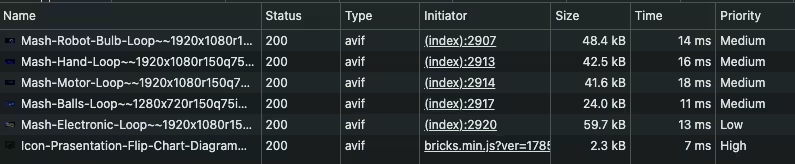
Open the developer tools, switch to Network and filter by Img. Reload the page without cache. Select the most important image and check the Content-Type under Headers. Under Preview you can see whether the file is intact. Initiator shows whether it was loaded from HTML, CSS or JavaScript.
Also check the rendered size in the Elements panel and the actual dimensions of the file. Only together do these values show whether the WordPress image was correctly converted, sensibly sized and actually delivered as WebP or AVIF.
Frequently asked questions
Does WordPress automatically convert JPG to WebP?
No. WordPress can upload WebP and generate responsive sizes from it, but it does not automatically convert an existing JPG or PNG media library fully into WebP. For that you need a plugin, a build process or a CDN.
Is WebP or AVIF better for WordPress?
AVIF can be more efficient for suitable images but often costs more compute power to produce. WebP is widely established and remains the pragmatic choice for many setups. Test your own motifs and keep a fallback.
Can I convert existing media library images?
Yes. Many plugins offer bulk optimization or generate variants on first request. Back up files and the database first, check storage and timeouts and test the rollback.
Should I delete the original JPG or PNG files?
Usually no. Originals are needed for new thumbnail sizes, quality changes, fallback and provider switches. A reversible cache or backup model is safer.
Does WebP automatically improve Core Web Vitals?
No. Smaller transfers can help, but LCP also depends on dimensions, srcset, prioritization, server response and JavaScript. Lazy loading on the visible LCP image can even be harmful.
Can I use two image optimization plugins at the same time?
Generally you should avoid that. Two converters, lazy-loading systems or CDNs can conflict. Assign one clear owner for conversion, compression and delivery each.
Does Elementor support WebP?
Yes, Elementor can display valid WebP and AVIF files. Still test background images, dynamic tags, galleries, lightbox and regenerated CSS files because these can be cached differently than normal media library images.
The right solution depends on where processing happens
A good WebP Converter for WordPress fits your hosting and editorial workflow. Local solutions give you control and avoid external image processing. Cloud plugins relieve weak servers. Image CDNs are strong at dynamic sizes and global delivery but require a clean cache and exit plan.
If originals are preserved and images should be processed on your own server without external quotas, neo Optimize is a sensible starting point. For very limited server resources or worldwide dynamic transformation, cloud or CDN is the more appropriate direction. In any case test real page types and then check the response in the browser.
Try neo Optimize
Local WebP and AVIF optimization with untouched originals and a cache that can be regenerated.
Status: August 11, 2026. Providers may change limits and features.

