

Move WordPress uploads out of date folders afterwards
In this guide we show how you can remove the subfolders from media URLs in WordPress afterwards. We present a one-click solution with the neo Rename plugin and compare alternative manual methods such as using WP-CLI or an .htaccess redirect. You also get tips on how to maintain your SEO ranking when moving files.
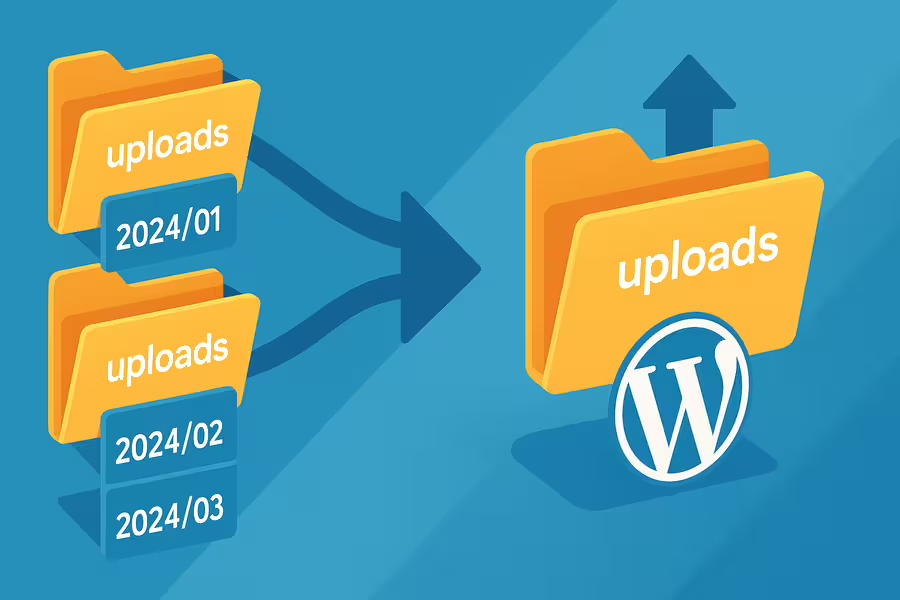
Short & to the point for a quick solution
- Install the neo Rename plugin
- In the backend under Settings > neo WP > neo Rename click the button "Move media from date folders to main uploads folder"
- Optionally the 301 redirects for SEO are created automatically
- Done! 🎉️
By default WordPress organizes uploaded files into year- and month-based folders (e.g. "wp-content/uploads/2026/08"). This option "Organize my uploads into month- and year-based folders" is enabled by default. Many site admins prefer shorter, cleaner URLs and want to remove the date-path components from media URLs. Simply disabling this option later is not enough: images already uploaded remain in their year/month subfolders and keep the old URL structure. This issue has already been discussed in the WordPress forum, on Reddit as well as on Stack Overflow and Stack Exchange.
One-click solution - dissolve the upload folder structure in WordPress afterwards
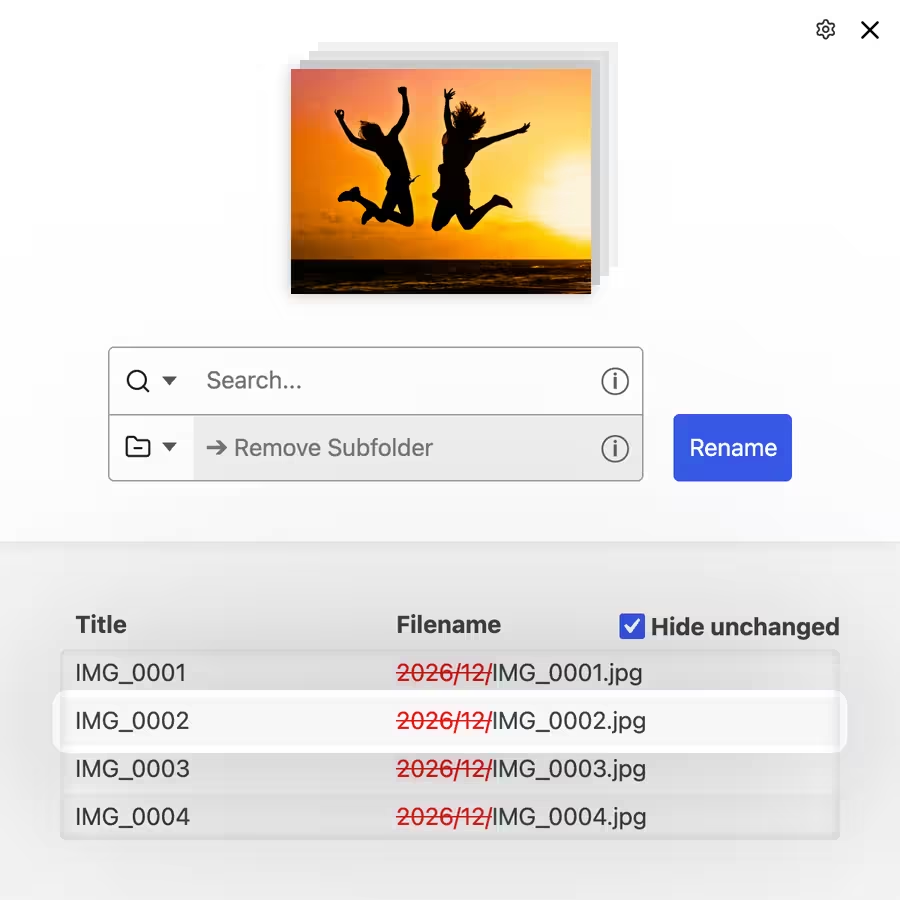
Move images with neo Rename
The fastest and simplest solution is the neo Rename plugin. With it you can move all existing uploads from the year/month subfolders into the main upload folder with one click. On the neo Rename settings page you’ll find a special button that dissolves the entire upload folder structure.
One click is enough and the plugin performs all necessary steps automatically:
- Move media files: All images, videos, PDFs etc. are moved from the subfolders (e.g. wp-content/2026/08/) into the main folder wp-content/uploads/. You do not need to work through FTP folders manually.
- Adjust database URLs: neo Rename finds all references to these files in the database (posts, pages, media metadata etc.) and replaces the old paths with the new path without the date. This keeps all images correctly embedded in posts and avoids broken links. The plugin handles all occurrences in the database including serialized data such as PHP arrays when replacing.
- Redirects for old URLs: If external sites or Google have already indexed the old media URLs, neo Rename can set up SEO-friendly 301 redirects. A request to the old URL (with year/month folder) will then be automatically redirected to the new URL without the date path. Search engines and visitors will therefore land on the correct image despite the restructuring – valuable for SEO and preserving existing backlinks. This does not need to be done manually.
- Disable WordPress setting: The plugin also turns off the WordPress option "Organize my uploads into month- and year-based folders" so that future uploads go directly into the main uploads folder and are no longer created in date folders.
All steps are performed safely & reliably in one go. However it is still recommended to make a backup beforehand.
What else can neo Rename do?
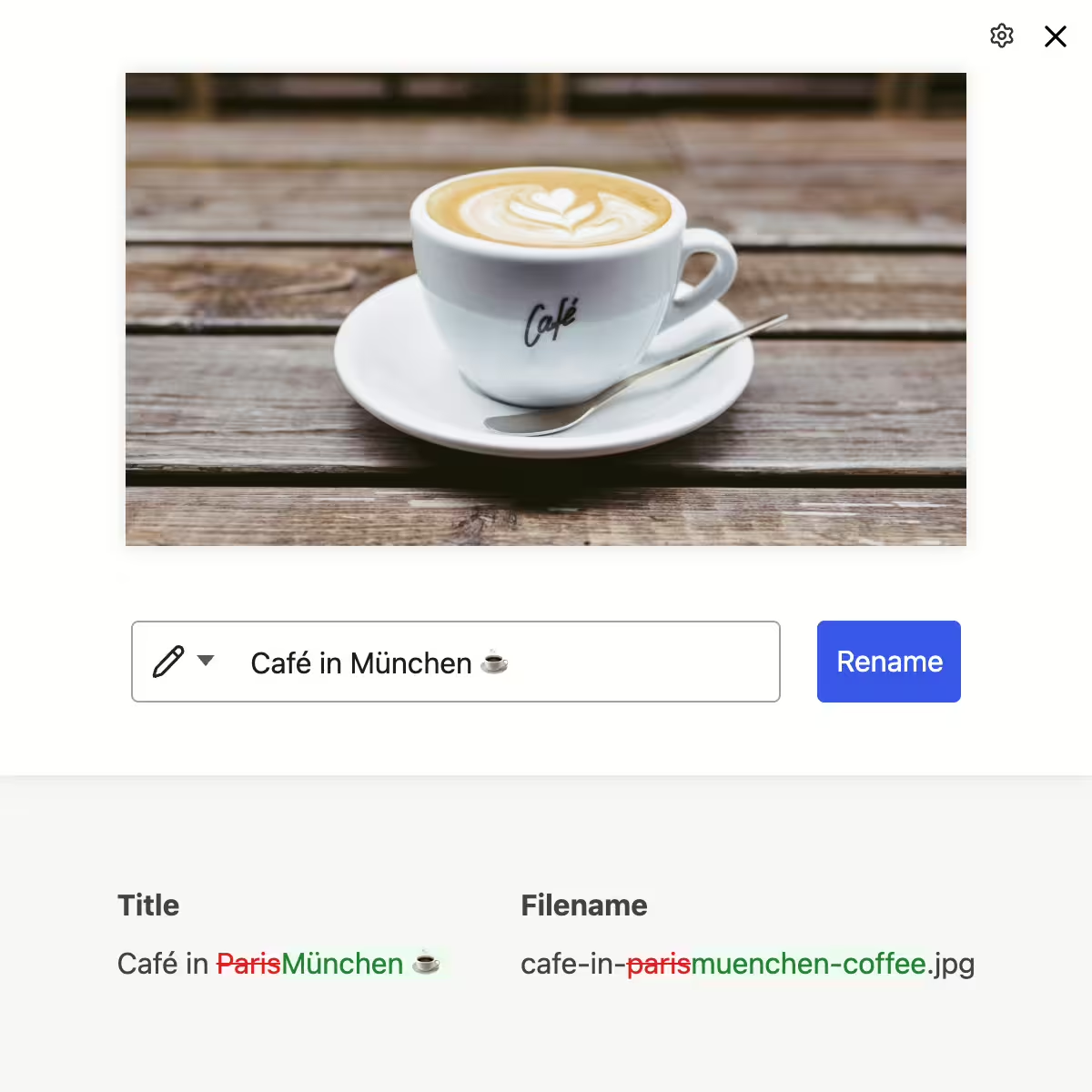
Rename your images and videos lightning-fast with AI and improve your website's SEO performance. The AI takes the image content and the website context around the image into account when generating names. All references are automatically updated across the entire database.
Thanks to live preview, search-and-replace functionality, batch processing and intelligent renaming rules you can optimize your media library in no time and increase your site’s visibility.
👑 Pro: SEO-friendly 301 redirects to the new image URL
All features of neoRename:
Why you won't need subfolders in the future?
With the combination of neo Rename and neo Library, manual folder sorting is a thing of the past. You can leave all uploads in the root directory and still find any image in seconds. The neo Library plugin assigns your media automatically intelligent tags without manual sorting. Since tags are not exclusive, an image can appear in multiple virtual collections at once. This is more flexible than any rigid folder structure.
Especially practical is that neo Library shows a dedicated intelligent tag for each of your posts. So you can see directly in which posts your image is referenced or which images are used in a post. Image references are detected not only in post content but also in ACF fields.
Try and download neo Rename directly
The neo Rename plugin includes all the features you need for a thorough cleanup of your media library - from safely moving all files to the main upload folder, to automatically updating all database references, to SEO-friendly 301 redirects. Test the plugin with the in-browser sandbox or download it directly.


neo Rename
Maximize your image SEO with AI efficiently. Free or with your own API integration.
Disable WordPress upload subfolders manually in settings
If you think about it before installing your WordPress instance, removing the date folders by turning off the corresponding option in WordPress is very easy. In the dashboard go to Settings > Media > Uploads. There you'll find the checkbox "Organize my uploads into month- and year-based folders". Uncheck it and save the settings. From then on WordPress will no longer place new uploads in subfolders, but directly in "wp-content/uploads".
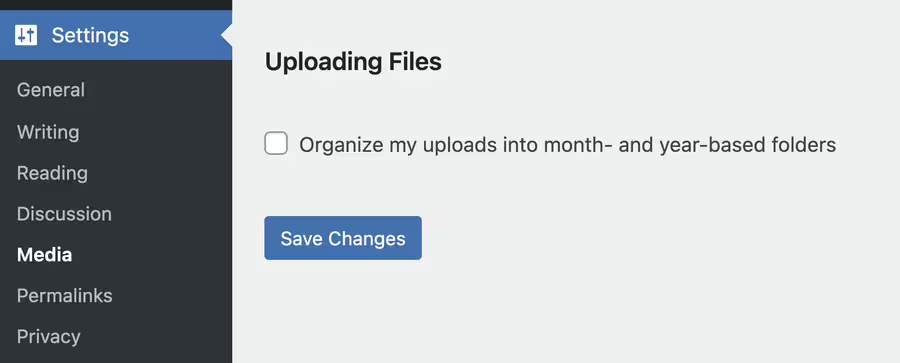
Important: This change does not apply retroactively. WordPress does not automatically move existing files. All previously uploaded media keep their original path (e.g. /uploads/2026/08/image.jpg). Nothing changes in the Media Library or in posts at first. That means old images will still have "/year/month/" in the URL while new uploads will be uploaded without that path. This creates an inconsistent structure unless further steps are taken. So if you want a consistent result, you must move existing files manually or use a tool such as neo Rename.
Why WordPress creates subfolders
WordPress has applied the year/month folders by default since version 2.7 because classic web servers used to have real problems with very large directories. On older hard drives and file systems (ext3, FAT, NTFS without journaling) listing a folder with tens of thousands of files took significantly longer, and some backup tools or FTP clients had hard limits on entries per folder. Chronological splitting ensured that each directory contained only a manageable number of uploads and access times remained stable.
There was also an organizational benefit: someone who blogged daily could quickly go to "/1990/12/" in the FTP directory tree and back up all December images at once. Especially in newsrooms without sophisticated media management this was a simple, understandable order.
The date-path structure brings some disadvantages: every image URL is unnecessarily lengthened by two segments, making it harder to read and more prone to typos. The folders implicitly reveal that your site runs on WordPress and mix technical information (year, month) with semantically irrelevant file paths.
Today the technical reasons are largely obsolete. Modern file systems (ext4, APFS, XFS) and SSD storage can manage hundreds of thousands of entries in a folder without noticeable slowdown. Websites are also usually delivered via caching layers, CDN, or object storage (S3, Wasabi & Co.), so the physical directory locally hardly matters anymore.
Solutions to remove year and month folders from file path & URL
Besides the convenient neo Rename method, there are several alternative approaches to tidy up file paths. Below we present different solutions – from plugin-based options to the developer method with WP-CLI. Important: Many of these approaches require you to physically move files and adjust the database. Theoretically, you can also "remove" the date path without reshuffling files (for example via a rewrite rule), but that only masks the problem and is recommended only in special cases. Nevertheless, we also cover this approach.
1) neo Rename - the one-click solution
We already described it in detail above: neo Rename offers the one-click solution specifically for this problem. Compared to the following methods, which sometimes require multiple steps, neo Rename is the most convenient and ideal if you want to reach the goal without technical effort. Advantages of neo Rename at a glance:
- One click, everything done: No switching between tools, no SQL, no manual work. The plugin button handles moving, find & replace in one go.
- No broken links: All internal links in WordPress are updated so that posts & pages immediately use the new paths. Optional 301 redirects also ensure that external links do not end up in a dead end.
- Additional features: neo Rename can do more (optimize filenames for SEO, bulk renames, restore original names, etc.), helping you keep a tidy media library long term.
- neo Library compatibility: With neoLibrary's filter and tag system folder structures become unnecessary - you can still find your media quickly. neo Rename and neo Library complement each other perfectly to bring order to large media libraries.
Conclusion: The plugin neo Rename is specifically developed to clean up WordPress media paths and makes the whole process beginner-friendly. So if your focus is on speed and safety, this solution is preferable.
2) Media File Renamer Pro - the manual route
An alternative plugin solution is Media File Renamer (by developer Jordy Meow). Its Pro version also allows you to rename media files and move them to other folders. You can proceed as follows:
- Preparation: First disable date-based uploads in WordPress as described above so that new files do not end up in subfolders again in the future.
- Using the plugin: With Media File Renamer Pro you can now reorganize your existing media. The plugin offers, for example, a bulk function to rename and move multiple files at once. You could move all files from a month folder to the main uploads folder. In the plugin interface select the relevant media and either assign new filenames or keep them and use the option to move them to the main directory.
- Update references: Media File Renamer updates references in posts automatically when renaming. So if you move files to a different path, the plugin should update all occurrences of the URL in posts accordingly. Check the result spot-check: Does the image still display in the post? Is the URL correct?
- Redirects: As far as we know, Media File Renamer does not create automatic redirects from old to new URLs. That means external links or direct calls to the old paths would produce a 404 error. You would therefore need to handle redirects separately (for example with a redirect plugin or via .htaccess).
Assessment: Media File Renamer Pro is powerful and can also perform renaming/moving. However, it requires more manual steps and supervision. You may need to proceed folder by folder and monitor the result. With many media files this can be time-consuming. Also be careful: if two files from different month folders have the same name, moving them into a common folder would cause a conflict. In such cases you would first need to rename one file to ensure unique names. So make sure there are no duplicate filenames before consolidating everything into one folder.
Conclusion: For advanced users Media File Renamer Pro is an option to do the “remove month folder” job. If you already use the plugin you can try the manual way. Otherwise neo Rename offers a purpose-built, simpler solution.
3) Media Library Folders – drag-and-drop folder management as a middle ground
If you want to get rid of date folders but still keep a real directory structure, Media Library Folders (MLF) offers a pragmatic compromise. The plugin adds a left folder sidebar to the WordPress media library and physically moves files on the server instead of creating only virtual categories. That way URLs stay clean while still being logically sorted by topic.
Features at a glance:
- Create folders via drag & drop: A folder management similar to Windows Explorer.
- Physical moving: When moving, MLF corrects all references in posts & pages automatically.
- Undo & bulk actions (Pro): Undo last action; move multiple files/folders at once.
- Multiple assignment (Pro): An image can appear in multiple folders.
- Server sync (Pro): FTP-created folders appear in the backend – practical for very large libraries.
The biggest advantage compared to purely “virtual” folder plugins: the folders really exist on the filesystem. That lets you back up images via FTP or copy them to CDN storage without losing the folder structure. For editorial teams that like using thematic folders ("/products/", "/team-photos/" etc.) this is a familiar workflow and helps prevent filename collisions.
However, MLF does not create 301 redirects for old paths. If you come from a year/month structure, you’ll need to handle redirects yourself via a redirect plugin or .htaccess – or use the one-click solution neo Rename, which includes redirects. Also, drag-and-drop sorting can take some time with thousands of images; there is no automatic tagging like in neo Library.
4) WP Original Media Path - adjust upload path
The plugin WP Original Media Path takes a slightly different approach. It lets you change the WordPress uploads folder - something that was possible in core until WordPress 3.5. With this plugin you can, for example, set your media to live under "wp-content/media/" instead of "wp-content/uploads/", or even use a subdomain for media. This affects the base uploads path. Important to know: WP Original Media Path is not retroactive - it does not automatically adjust existing entries. But you can use it to set up a new consistent structure and then switch manually. One possible procedure:
- Install the plugin and set the new path/URL. You could keep wp-content/uploads (if you only want to remove the subfolders) or choose an entirely new path (e.g. wp-content/uploads_all or wp-content/media). Save the setting. WordPress writes the new path to the options (database) – all future uploads will go there.
- Move files: Now move the contents of the old uploads folder to the new location via FTP or shell. If you only want to eliminate the year folders and stay in the same main path, that means: move all files from uploads/YYYY/MM/ subfolders directly into uploads/. (You can delete the empty year folders afterward.) If you chose a completely new path, move the entire directory accordingly.
- Database replace: Now you must adjust all references in the DB so WordPress finds the media under the new path. As described in the plugin docs, a search-and-replace operation is unavoidable. Search for the old base path (e.g. wp-content/uploads/2025/08/) and replace it with the new path (e.g. wp-content/uploads/). Practically this can be done with a plugin like Better Search Replace or WP-CLI. Remember to account for serialized data.
After these steps all media are available at the new path. Existing content points to the new URL. WP Original Media Path has informed WordPress of the changed path; you must handle the rest as with manual methods.
Use case: This plugin makes sense if you want, for example, a completely different storage location for uploads, such as a different directory or a separate domain/CDN. For simply removing the date folders within the same main folder it may be overkill, since the standard path (uploads) is retained. You could use WP Original Media Path to move all uploads into a subfolder "media" instead of "uploads". Important: the plugin does not work with Multisite.
5) WP-CLI & Better Search Replace - developer variant
For technically skilled users there is the option to remove the date folders without special plugins. For this you must move the files manually and adjust all database entries:
- Database backup: Be sure to create a DB backup first! A wrong search & replace can render the database unusable. Safety first.
- Move files manually: Use FTP with FileZilla or SSH with Termius or a script to move files from the year/month folders into the main uploads/ folder. Be very careful about filename conflicts. If two files share the same name (e.g. image.jpg in "2023/03/" and again in "2026/08/"), they cannot both coexist in "uploads/".
- Database search & replace: Now all references in the DB that point to the old paths must be rewritten. This mainly affects the post_content column of posts and pages where images are embedded via img tags. In addition, attachment metadata in wp_postmeta - the _wp_attached_file entries - must be adjusted; they store the path relative to the upload folder, e.g. "2026/08/image.jpg". In rare cases widgets, menus or theme options also reference images whose paths must be updated.
The most comfortable way is with the Better Search Replace plugin or via WP-CLI command. Example WP-CLI command:wp search-replace '/wp-content/uploads/2025/08/' '/wp-content/uploads/' --skip-columns=guidThis would replace occurrences of the path string in all tables and skip GUIDs. You would need to run this command per year/month combination or with regex (WP-CLI supports --regex). Alternatively use Better Search Replace in the WP backend, select all relevant tables and search for /wp-content/uploads/2026/08/ and replace with /wp-content/uploads/. Repeat this for all existing year/month combinations. Serialized data: Better Search Replace handles serialized PHP data, which is important so that e.g. widget configurations or _wp_attachment_metadata are not corrupted. WP-CLI's search-replace also respects serializations (as long as you do not use regex mode).
In the wp_posts table each attachment post has a GUID entry with the original URL. It is recommended not to change these GUIDs, as they serve only as an internal unique identifier (and are used, for example, for RSS feeds). If you run a general search & replace operation you would hit the GUIDs as well. If possible exclude the GUID column (Better Search Replace does this automatically in the standard run). WP-CLI offers --skip-columns=guid for that. In doubt it is not the end of the world if the GUID is changed, but it should remain consistent and unique. - Clear cache: If you use a caching plugin like WP Fastest Cache or a CDN, clear the cache so the newly linked images are delivered immediately.
- Check: After the run verify that media now load correctly without date folders. Especially in posts: do all images work? A quick way is to open the page and check the browser console for 404 errors. Thumbnails should still be visible in the media library. Also disable the browser cache in the developer console.
This manual method ultimately achieves the same result as the plugin solutions, but requires high care and experience. Advantage: You don’t need extra plugins (except maybe Better Search Replace, which you can remove afterward) and you have full control. Disadvantage: It is error-prone - a wrong search term or missed step can lead to broken images. And it is time-consuming, especially with many folders and files.
6) .htaccess rewrite rule (redirect without moving)
If you do not want to move the files but still want to change the public URL structure, you can work with rewrite rules. One solution is to automatically redirect visitors from a requested URL with a date path to the corresponding URL without the date path or vice versa. Two approaches:
- Variant A: files were moved, redirect old URLs: This matches the manual method supplemented by a .htaccess redirect rule. Suppose you moved all files into the main directory. Now create an .htaccess in wp-content/uploads/ with the following content:
RewriteEngine On
RewriteBase /wp-content/uploads/
RewriteCond %{REQUEST_FILENAME} !-f
RewriteCond %{REQUEST_FILENAME} !-d
RewriteRule ^([0-9]{4})/([0-9]{2})/(.*) /wp-content/uploads/$3 [L,R=301]
This rule does the following: If no real file is found under uploads/YYYY/MM/Filename, send a 301 redirect to /uploads/Filename. The placeholders
([0-9]{4})and([0-9]{2})captures year and month numbers, $3 stands for the filename possibly with a following path (in case future subdirectories exist in the filename). For example requests to /uploads/2026/08/menu.pdf are redirected to /uploads/menu.pdf. The [R=301] status ensures it is a permanent redirect (good for SEO). This solution is very elegant to catch existing external links or search engine index entries of the old URLs and point them to the new paths. It should be placed in the uploads directory (not in the main .htaccess) so it takes effect before WordPress. - Variant B: keep files in subfolders, internally rewrite to new short URLs: This is the reverse case: you leave files physically where they are (in 2026/08 etc.) but want to display “short” URLs on the site and to visitors. That means you would need to change post content so it references images without the date-path. For those links to work without moving files you need an internal rewrite rule that resolves a request to /uploads/image.jpg to the actual file location /uploads/2026/08/image.jpg. This is more complicated because the server would have to determine which year folder the file is in. Writing a global rule for that is not trivial - you would have to try all year/month combinations or have a fixed logic. If filenames are unique you could try to find the correct path via RewriteMap or a script, but that goes beyond standard .htaccess rules. In short: this variant is possible but complex and error-prone. In practice it is rarely used. It is easier to move the files or choose another approach above.
Use .htaccess redirects mainly as a supplement to catch old URLs after restructuring (Variant A). That preserves the SEO juice of your images and prevents 404 errors. If you use neo Rename, you do not need to worry about this. The plugin can add the redirects automatically.
FAQ & Troubleshooting
Backup & Security - Do I need to make a backup before changing the folder structure?
Yes, absolutely! Changes to file paths and the database are potentially risky. Create a full backup first (database and wp-content). That way you can restore the site if needed. Plugins like Better Search Replace explicitly warn against working without a backup.
Filename conflicts - What if files with the same name exist in different monthly folders?
If you consolidate all files into one folder the filenames must be unique. Check whether, for example, image.jpg exists in 2023/03 and in 2026/08. If so, you should rename one of them (e.g. image-2.jpg) before merging. Tools like neo Rename or Media File Renamer can help because they allow mass renaming. Without this preparation a file may overwrite another during the move, which can cause data loss!
Multisite specifics: Does this also work with WordPress Multisite?
In Multisite setups each subsite has its own upload path (uploads/sites/...). The "Organize into month/year folders" option exists per site. You would need to handle each site separately. Also, do not put different sites into a shared folder on Multisite. Keep the separation by site to avoid collisions.
SEO impact: Do year numbers in the image path affect my SEO ranking?
No. Folder names do not affect SEO. More important are the filename itself (keyword relevance), alt texts, pagespeed, etc. Removing the year folders therefore neither gives a direct noticeable SEO boost nor harms it. It is primarily a matter of aesthetics and organization. Just make sure to set redirects so existing index entries do not break - otherwise you could see SEO losses.
External links & Redirects: What happens to old image URLs that are already embedded elsewhere?
Without measures they would 404 once you move the files or change paths. That is why redirects are so important. The neo Rename plugin handles this automatically with 301 redirects. If you work manually, set up a .htaccess redirect rule (see above) or use a redirect plugin to point old URLs to new ones. Make sure the redirects are permanent (301) so Google picks up the change. With properly configured redirects your images keep their Google juice and users following old links land on the new address seamlessly.
Rollback: Can I undo the change?
In theory yes, but not with a single click. You would need to move the files back to their original folders and adjust the DB entries again (or restore from backup). The Pro version of neo Rename offers an undo function for individual renames, but a full rollback of the folder structure also requires a backup. So think it through beforehand and ideally test in a staging environment whether everything works.
Troubleshooting: What if individual images are missing or load incorrectly after the change?
Proceed systematically. Check the image path in the page HTML (is it correct or still pointing to an old folder?). Check the database entries for an affected image (wp_posts and wp_postmeta for the attachment ID). If they still contain year folders you may have missed a search/replace pass. Also check write permissions in the uploads folder (the uploads/ folder should remain writable by WordPress, typically 755). If unsure, you can run a plugin like Regenerate Thumbnails. This plugin regenerates new thumbnails based on the paths stored in the DB. If that fails, something is still wrong with the path settings.
Useful links on "WP uploads without subfolders"
- Stack Overflow – Remove date from media and image URLs
- Stack Exchange – What is the best practice for renaming Wordpress media files?
- Stack Exchange – Remove /Year/Month from uploaded media
- Stack Exchange – Effects when toggling the folder option
- Stack Exchange – Disable year/month folders for future uploads
- Reddit – Move files into flat folders & update postmeta
- Reddit – Discuss pros and cons of date folders
- Reddit – Adjust upload folder in WordPress
- WordPress.org Support – Organize uploads into month/year folders
- WordPress.org Support – Media always uploads into wrong month/year folder
- WordPress.org Support – Multisite: adjust folder option per site
- WordPress.com Forum – Media ends up in wrong month folder
- WPDE.org – Move WP uploads afterwards
- WordPress Core Trac – Ticket #34759: Disable option by default?
Conclusion
Removing year and month subfolders from media URLs can be achieved in different ways. For anyone who wants to be on the safe side, the one-click solution with neoRename is recommended. It saves you time and minimizes sources of error. But regardless of the chosen path, plan carefully, make backups and think about redirects to avoid SEO losses.
At the end of the day it is mainly an aesthetic/organizational decision whether you want to keep the date structure. WordPress gives you the choice here. If you choose cleaner upload URLs, you now have the appropriate solutions at hand.
The neo Rename plugin (part of the neo WP plugin suite) takes the work off your hands and also offers many features to optimize your media library - from bulk renaming to SEO redirects. Together with the other tools in the neoUniverse (neo Library, neo Replace, neo Optimize etc.) you have everything to take your WordPress media management to a new level.

