
Organize the WordPress Media Library with and without plugins
As your WordPress media library grows, the time sink isn’t uploading but finding things again: What was the file named? Who uploaded it? Where is it used? And which version is current?
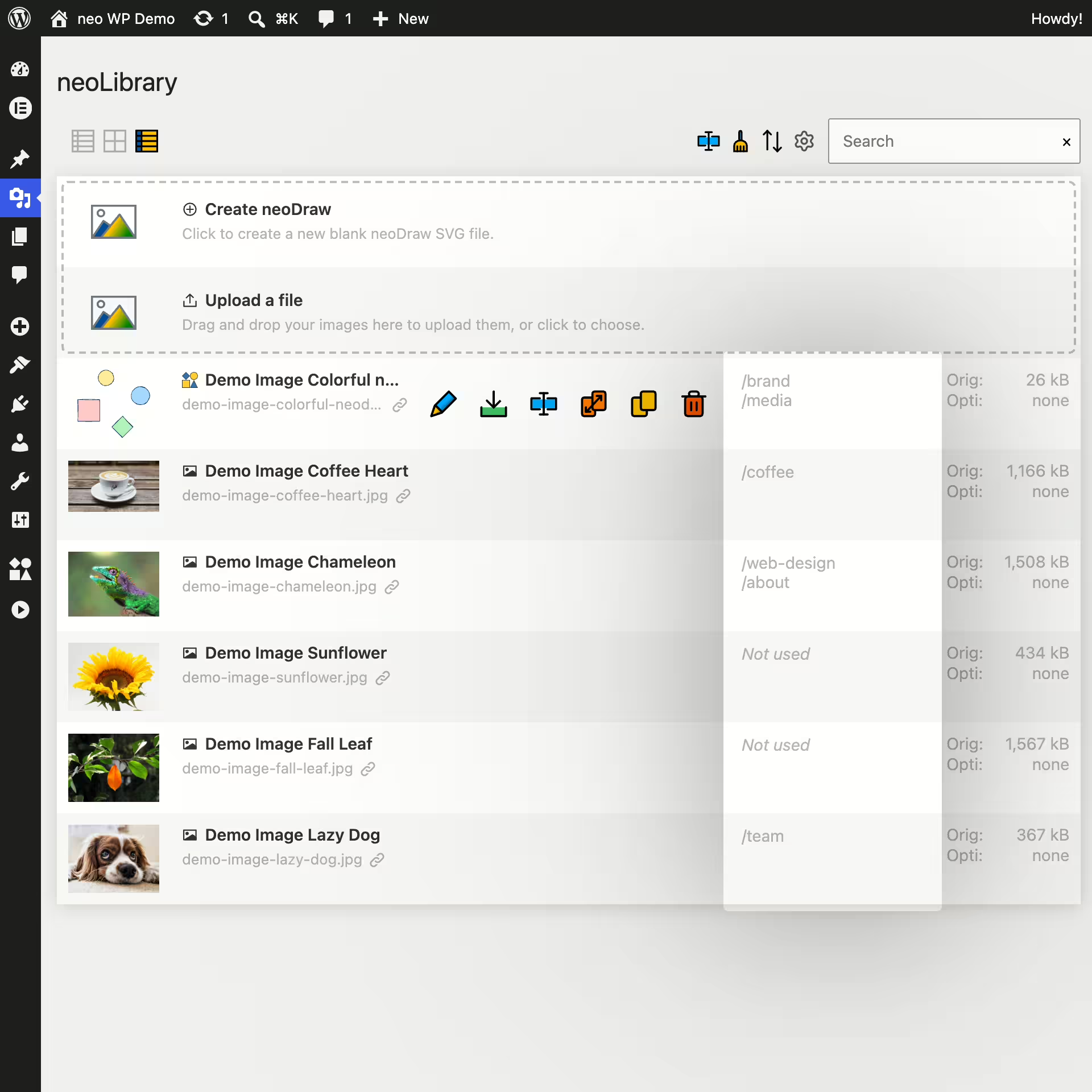
A WordPress Media Library Manager should answer these questions without turning media management into its own filing project. neo Library extends WordPress with a searchable list, sorting, detected usages, previews, drag-and-drop uploads, and direct file actions. This guide shows you how to organize the WordPress media library with and without plugins.
The short answer: If you want to find media faster, search by title, filename, author, or URL, and check detected usages directly, neo Library is our top recommendation. The free version works with your existing library without requiring you to create a new folder structure first. Descriptive filenames and clear upload rules make searches more reliable.
Small website
Minimal setup and fast search are more important than a complex organizational system. Existing files should be findable without introducing a new filing logic.
Editorial
Shared naming rules, clear responsibilities, and a search for editorial terms help reuse existing media and avoid duplicates.
Large media library
Flexible search, sensible sorting, and quickly accessible previews are crucial. Thousands of files should not first need to be sorted manually.
Agency or shop
Product and client media must be quickly findable. Before replacing, renaming, or deleting, a visible notice about known usages is also important.
How neo Library supports these workflows:
- Get started immediately: The existing WordPress media library is shown directly in an additional overview.
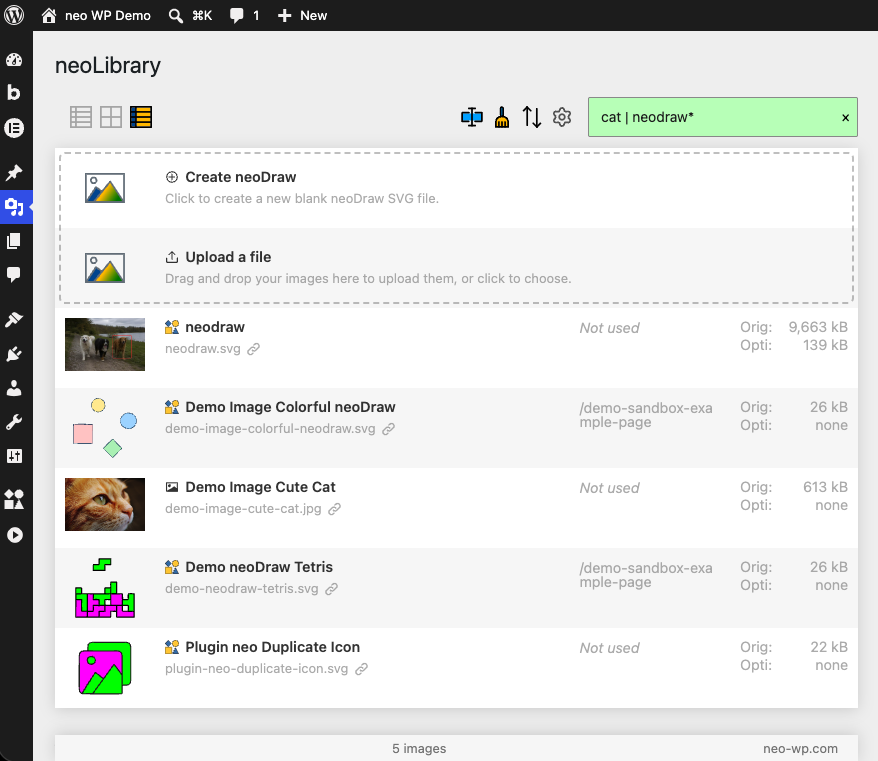
- Use more search paths: Search by title, filename, author, or URL instead of only by upload months.
- Overview large collections: Sorting, preview, file size, and additional information are available in the same view.
- Prepare changes better: Detected usages and direct media actions are available right at the file.
Why the WordPress media library quickly becomes confusing
WordPress Core has a grid and list view, a simple media search, and filters by date and media type. For few uploads this is sufficient. With a grown media collection, however, it often lacks exactly the information important before making changes: a compact media overview, flexible search fields, and clearly visible detected usages.
A file can appear in multiple posts, a page builder, a custom field, or a theme setting. Searching by upload months is hardly helpful when you remember the filename or project but not the month.
Which features really help day to day
A good Media Library Manager shortens recurring tasks instead of just adding another navigation layer. For search, sorting, preview, and detected usages, neo Library consolidates these tasks in an additional media overview.
- Find files by multiple attributes: Searching by title, filename, author, and URL helps with product numbers, campaign names, client codes, and old file paths.
- Check usages before changing: Detected locations should be visible directly on the media file before it is replaced, renamed, or deleted.
- Sort by relevant timestamps: Upload and modified dates are usually more helpful than simply navigating monthly archives.
- Assess files directly: Preview, file size, and additional information prevent unnecessary switching to individual attachment pages.
- Upload new media via drag and drop: Upload and subsequent review can happen in the same media overview.
- Continue using the classic library: An additional view should complement the existing grid and list views, not make them inaccessible.
Four rules that make any media library better
- Name files clearly before uploading. From
IMG_8042-final-neu-2.jpgbecomes for examplesummer-campaign-running-shoe-blue-side.jpg.You can rename already uploaded media in a controlled way with neo Rename. - Write alt texts for accessibility. Internal abbreviations belong in filenames or editorial fields, not in the alt text. neo Alt helps you review and edit alt texts.
- Search before uploading a new file. Find the existing file first and avoid another copy of the same logo or product image.
- Check a backup and known references before deleting or replacing. A detected usage is a helpful indicator, but not automatic proof that every technical reference has been captured.
If the core search is no longer enough: neo Library searches title, filename, author, and URL. You also see detected usages directly next to the file.
Do you even need WordPress media folders?
Many users search for WordPress Media Library Folders, because they cannot quickly find files in the default view. A folder tree is not automatically the best solution: it must be created, explained, and maintained. If filenames, titles, authors, URLs, and known usages are your main clues, a search-based media management may suffice.
Only if your team strictly works with a fixed hierarchy should you distinguish between virtual assignments and real file paths.
Virtual media folder
An additional hierarchy that must be maintained permanently
Campaign / Summer is a database assignment. The file remains, for example, under /uploads/2026/08/shoe.jpg. The folder view only helps if everyone involved follows the same storage logic.
Alternative: A cross-field search does not require prior sorting and is better suited if your team mainly finds files by name, author, or URL.
Physical file path
Part of technical delivery, not daily media search
If a file is moved for example to /uploads/products/shoe.jpg stored URLs, thumbnails, CDN entries and external links can be affected.
Not necessary for the organization: Pure search and sort functions do not change upload paths. Physical moves always require a separate migration and backup process.
Folders only answer the question of which hierarchy a file was placed in. A search-based media overview answers other questions: What is the file called, who uploaded it, when was it changed and where is it used? If you want to remove physical date folders regardless, use the separate instructions for moving images out of year and month folders.
WordPress Media Library plugins compared
Which plugin fits depends on the actual problem. neo Library focuses on search, sorting, preview, detected usages and direct media actions. Other candidates are mainly relevant if you explicitly need taxonomies, a fixed folder tree, galleries or detailed folder permissions. Therefore there is no general ranking, but a distinction by functional focus. Feature set and maintenance status were checked on August 10, 2026 based on current product pages and WordPress.org entries.
neo Library
neo Library is available for free and replaces the folder tree with a searchable overview. The current version searches by filename, title, author and URL, sorts for example by upload and modification date and shows detected usages. Drag and drop upload, previews and file actions are in the same view. Rename, replace or duplicate rely on the neoWP modules you have installed.
Suitable for: Websites that want to find media by name and actual usage. The classic grid and list view remain available.
How it works: The searchable overview works without pre-maintained folders or tags. This suits teams that find media by names, authors, URLs and detected usages.
FileBird
FileBird is available as a freemium plugin and adds virtual main and subfolders, drag and drop, folder search and migration from several other organizer plugins to the core library. According to the current WordPress.org entry the free version allows unlimited main and subfolders. Certain sortings, ZIP downloads and deeper integrations belong to the premium model.
Suitable for: Users who want a familiar folder tree directly in the media library and editor.
Lock-in: Files and URLs remain without the plugin. The associations are only visible as folders again after reactivation or migration.
Real Media Library
Real Media Library uses a freemium model and also works with virtual assignments. Besides drag and drop the plugin has folders, collections, galleries and shortcuts that can make a file appear in another folder as well. The free version supports unlimited main folders; additional hierarchies and features depend on the model.
Suitable for: Image-heavy websites that want to derive galleries from their organization.
Disadvantage: The free version is limited to main folders. For subfolders and additional hierarchy features the extended model is required.
Media Library Organizer
Media Library Organizer is available as a freemium plugin and combines unlimited virtual folders and subfolders with drag and drop, sorting, export and presets for attachment metadata. The premium edition adds among other things an advanced search and additional taxonomies. Folder data is stored separate from the files; deactivation does not move or delete uploads.
Fits: Editorial teams that want to connect folders with recurring metadata rules.
Check: Which advanced search, taxonomy, and automation features you need and which plan includes them.
Enhanced Media Library
Enhanced Media Library uses a freemium model and is not a classic folder manager. It extends attachments with categories, tags, custom taxonomies, and additional MIME-type filters. That is flexible because an image can be assigned to multiple terms.
Fits: Taxonomy-based archives, provided compatibility is confirmed in your setup.
Maintenance note: The stable version had not been updated for about two years at the time of review and was only tested up to WordPress 6.5.9. For a new production installation, a staging test is therefore especially important.
Media Library Assistant
Media Library Assistant is available for free and targets users who want to see and edit many metadata fields. It supports standard and custom taxonomies, attachment categories and tags, custom views, additional columns, as well as Quick Edit and Bulk Edit. Shortcodes and metadata mapping play a bigger role here than in simple folder plugins.
Fits: Documentation portals, archives, and technical editorial teams with tags, custom fields, or IPTC/EXIF workflows.
Limit: The interface is feature-rich and requires familiarization. If you only want to drag files into five folders, FileBird is usually more direct.
Folders
Folders by Premio is available as a freemium plugin and organizes not only media but also pages, posts, and custom post types in virtual folders. The free version offers unlimited folders and drag and drop. The plugin can replace media; dynamic folders and extended WooCommerce features are part of the premium model.
Fits: Agencies that want to structure long page and post lists in the backend in addition to the media library.
Check: Roles model, multisite behavior, and required WooCommerce features in a test installation.
WP Media Folder
WP Media Folder is a premium suite and the most comprehensive commercial solution in this selection. It has virtual folders, multiple folders per media item, filters by size and dimensions, user and role permissions, server import and synchronization, and documented integrations for WooCommerce and several page builders. Cloud and gallery features are sometimes offered as add-ons.
Fits: Agencies and shops that actually use access rights, server sync, or cloud connections.
Lock-in and effort: Check in advance which folder, permission, and cloud data are exportable. More features mean more configuration and more migration points.
Start without a migration project: Install neo Library with your existing media library and search for some files that were previously hard to find. You do not need to change upload paths or build a folder structure first.
Which media library manager fits which requirements?
Search, preview and known usages
If you want to find media faster and check before changing, neo Library combines title, filename, author and URL search with sorting, preview and detected occurrences.
Taxonomies and extensive metadata
Media Library Assistant focuses on attachment taxonomies, extra columns, quick edit and bulk edit. That fits archives that need to assign files to multiple subject terms.
Permissions, cloud services and integrations
WP Media Folder documents extensive permission, server-sync, cloud and page builder features. Check this solution if exactly those integrations are required and the extra configuration effort is justified.
A strictly imposed folder hierarchy
FileBird, Real Media Library, Media Library Organizer and Folders represent different virtual folder workflows. Such a manager only makes sense if your team actually maintains the hierarchy and needs it in its media modules.
How to evaluate a WordPress Media Library Manager
Start with the tasks that currently take time. Do not install multiple organizers in parallel because they can change the same media view, toolbar or taxonomy.
- Does search find the fields and terms your team actually uses?
- Can you see where the media is used before making a change?
- Can you meaningfully sort by upload and modification date?
- Are preview, file size and required actions accessible without many detail pages?
- Can you use existing media immediately without reuploading or reclassifying it?
- Does the classic WordPress media library remain accessible?
- Do you need taxonomies, galleries or permissions at folder level?
- Does the plugin send media or metadata to external services?
- Do files and URLs remain unchanged after deactivation?
- Is the model free, freemium or premium, and which actually needed feature is in which tier?
Pragmatic test: Install exactly the candidate on staging whose focus matches your problem, and work with 50 real media items from different years. For search, sorting and detected usages you can test the free version of neo Library. If your team finds the files it needs without a new storage logic, you do not need an additional folder manager.
Filenames for better media search
Any search can only evaluate information present in your library. Use predictable terms in filename and title. The following areas are not folder recommendations but examples of words your team can later search directly. neo Library considers title and filename among others.
Brand
Use terms like brand, logo, dark or horizontal. This lets you later find the dark horizontal logo variant specifically.
Product
Add product family, model, SKU, and view. A shared name element groups all side views of a specific product together.
Blog
Use topic or content series instead of just the publication date. The image will remain discoverable years later by a content term.
Campaign
Combine campaign, channel, and variant. Searching the campaign name will then return the related assets.
Documentation
Add function, interface, and step. This allows similar screenshots to be clearly distinguished.
Archive
Clearly mark outdated assets in the title or filename. That way you can review them intentionally without moving active files into a physical archive folder.
A predictable pattern works better for filenames than spontaneous abbreviations:
project-topic-asset-variant.ext
summer-campaign-running-shoe-blue-side.webp
brand-logo-dark-horizontal.svg
documentation-checkout-settings-step-03.png
Keep filenames short, descriptive, and stable. Use hyphens between words. This lets you combine multiple terms and narrow down similar media faster. If you change existing URLs afterward, use a controlled process with reference checks and redirects. The neo Rename Media Renamer is designed for such tasks.
Workflow: upload, find, review and maintain
1. Prepare
Secure the original and choose a searchable filename. Project, topic, and variant should work later as clear search terms.
2. Upload
Upload the file by drag and drop and then check title, preview, and metadata. neo Library consolidates these steps in a media overview.
3. Rediscover
Search by title, filename, author, or URL and reuse an existing asset instead of uploading a second copy.
4. Check usages
Open detected occurrences before you replace, rename or remove a media item. The usage overview in neo Library provides directly accessible hints for this.
5. Maintain
Sort by modification date, review older assets and delete only after backup and additional reference checks.
Common mistakes in media management
- Searching only by upload month: Instead use meaningful parts of the title, filename, author or URL.
- Reuploading a file because it is not immediately visible: First search for the project, product number or part of the filename and avoid duplicates.
- Confusing "unassigned" with "unused": Check detected usages and additional technical occurrences before you delete.
- Using alt text as an internal tag field: That harms accessibility. Use searchable filenames and titles for internal retrievability.
- Enabling multiple organizers at the same time: Overlapping views, filters and taxonomies make operation and troubleshooting harder.
- Moving physical files without a migration process: This can break URLs, thumbnails, CDN entries and external references.
- Deleting originals without a backup: An optimized WebP does not automatically replace the editable source file.
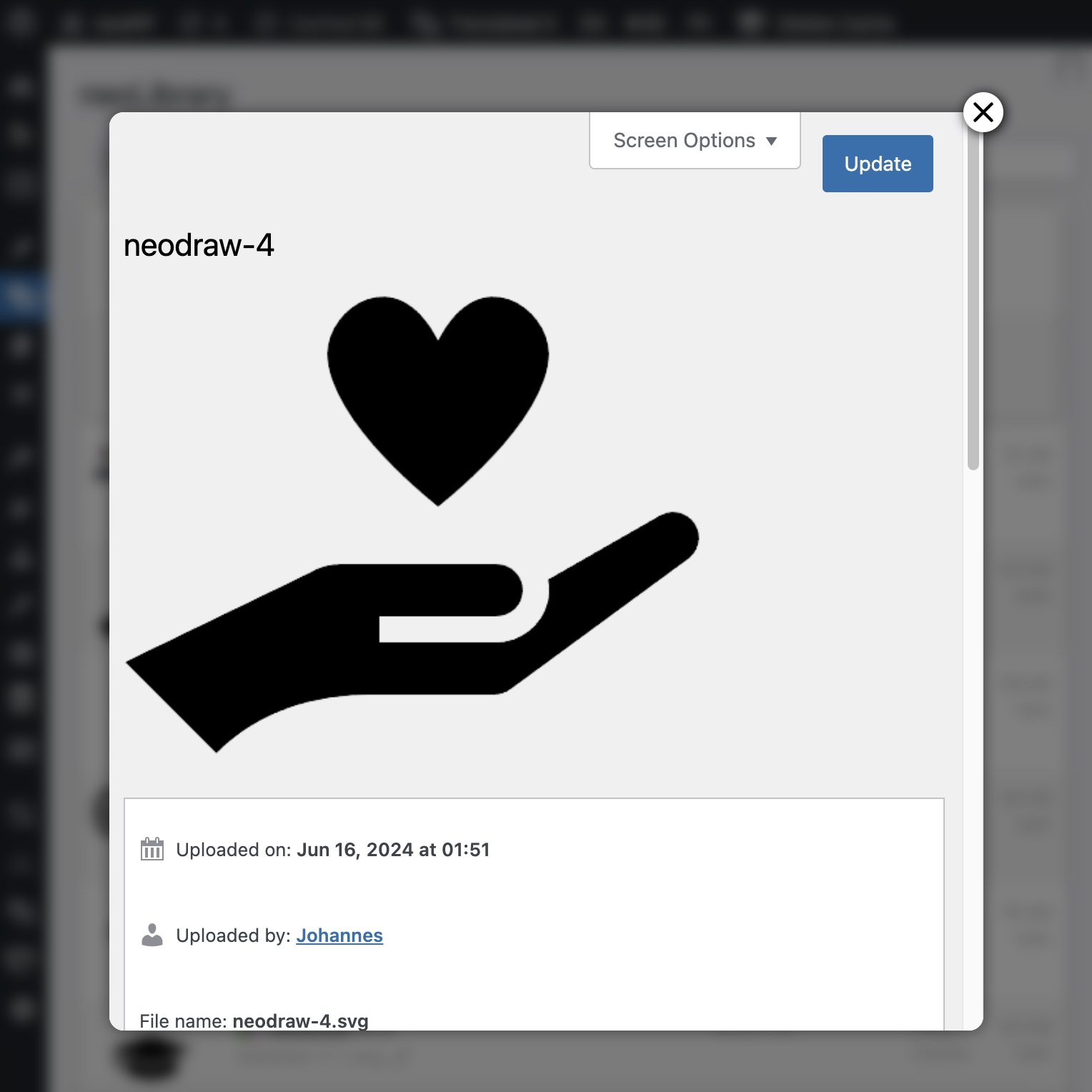
Test your own collection. Install neo Library for free, search for a few hard-to-find files and check their detected usages. The classic WordPress media library remains accessible.
Frequently asked questions about the WordPress media library
Can WordPress create media folders without a plugin?
WordPress core can store uploads physically by year and month but does not offer freely named editorial media folders. If you only want to find files faster and check known usages, a search-based media overview without prior sorting may be sufficient.
Are folders in media library plugins real server folders?
Usually not. FileBird, Real Media Library, Media Library Organizer and Folders typically work with virtual database assignments. This extra layer is not necessary for a pure search, sort and usage overview.
Does neo Library change image URLs or upload paths?
The search, sort and overview functions do not move files. Separate actions to rename or replace can affect URLs or file contents and should be used with backup and reference checks.
What happens if I deactivate neo Library?
Your media remains in the WordPress Media Library. The additional view, search and usage overview will no longer be available after deactivation.
Can I manage images I already uploaded?
Yes. A media library manager can work with existing attachments. For neo Library you do not have to reupload files or migrate them into a new structure beforehand.
Which media library manager is suitable for WooCommerce?
To find product images by filename, title, author or URL you can test neo Library with your existing shop inventory. If you need special permissions, cloud synchronization or WooCommerce folders, check those special features separately in your theme and page builder.
How do I safely clean up a large media library?
Start with search and sorting, standardize new filenames and check known usages. Delete duplicates or seemingly unused media only after backup, additional reference checks and a frontend test.
neo Library makes media findable without a new storage logic
Most messy media libraries do not first need a complicated folder tree. They need a view where filenames, authors, previews, sorting and known usages are quickly accessible. The plugin focuses exactly on these tasks.
Test the free version with your real inventory: search for some old product images, check the locations of a frequently used logo and sort by upload or modification date. If these tasks become faster, you have improved daily media management without rebuilding your library first.
For search, usage checks and direct media actions: Download neo Library for free and test it with your existing WordPress Media Library.
Plugin review status: August 10, 2026. Sources: official WordPress documentation, WordPress.org plugin pages, vendor documentation and current neo-Library code. Feature set may change; check the current documentation of the chosen plugin before installation.

