
Media Library Organizer for WordPress: organize the media library
You’re looking for a Media Library Organizer for WordPress because your media library now causes more work than it saves. That usually happens long before tens of thousands of images are stored. A filename is no longer known, the same graphic was uploaded multiple times, or no one knows on which page an older photo is still embedded.
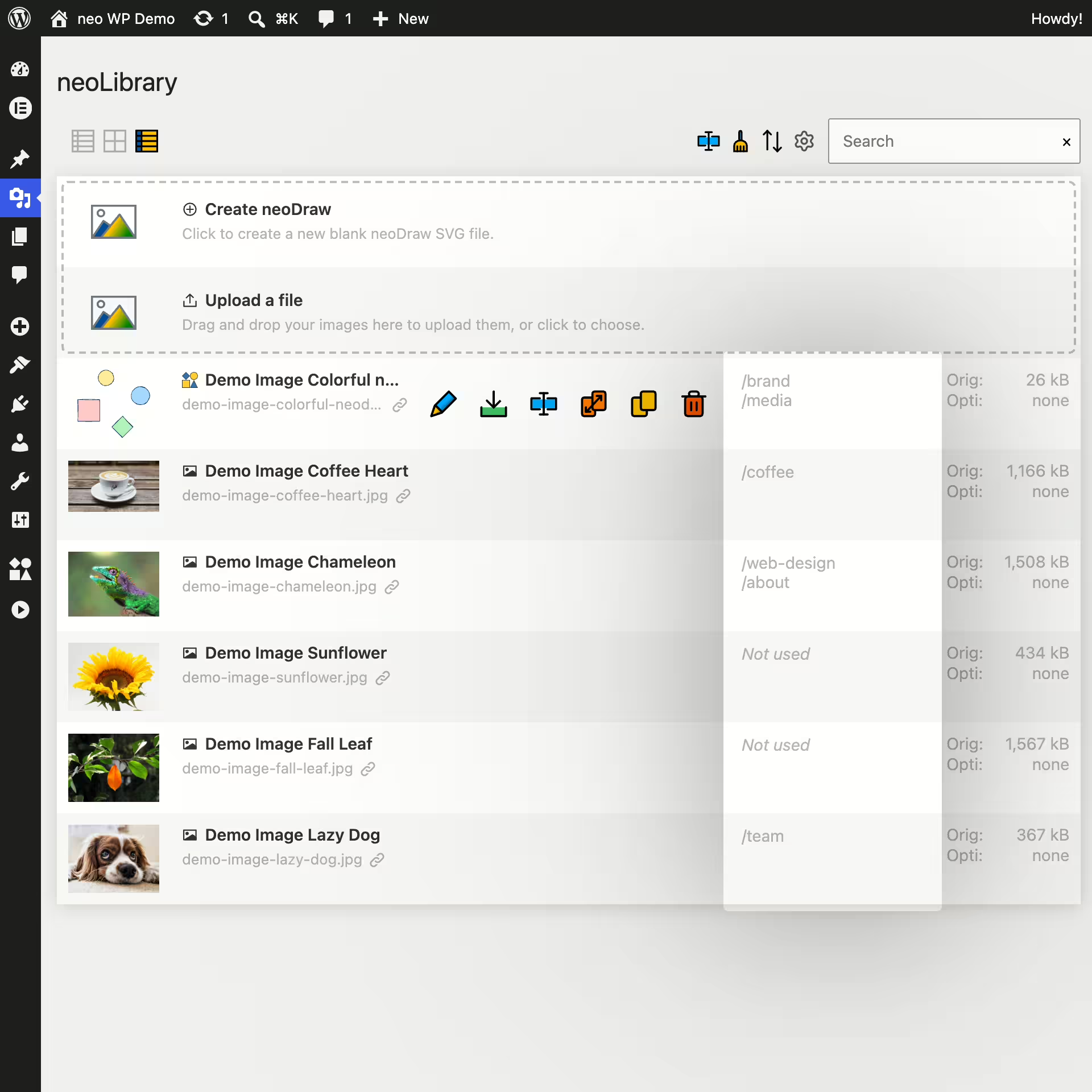
neo Library addresses exactly this. The WordPress Media Library plugin gives you a dedicated media overview with fast search, multiple sorts and a usage report. Images, videos, PDFs and other uploads can be opened and managed from the same row. That way the media library stays traceable without you having to first sort each image into a self-built folder tree.
Why the normal WordPress media library quickly becomes confusing
WordPress stores uploads reliably but offers only a simple grid and list view for daily media management. The default search helps if you know part of the title. However, it does not answer one of the most important questions directly: where is this file used?
That is exactly what many users search for with terms like media library organizer, WordPress media manager, image organizer plugin or organize WordPress media. You want to spend less time scrolling. Often it’s about concrete tasks: replacing an old logo, identifying unused images, finding a PDF again or checking before deletion whether a photo is still in a post.
Folders can help as long as everyone involved understands and consistently maintains the same filing logic. In editorial teams, agencies and grown websites that is rarely the case long-term. A product image, for example, can belong to a brand, a campaign and several posts at the same time. A single folder poorly describes that relationship.
What a good WordPress Media Library Organizer should do
A media organizer is useful when it shortens common workflows. A pretty folder bar alone is not enough. Before choosing a WordPress Media Library plugin, pay attention to these points:
- Make files findable: Search should consider filename, media title and other meaningful fields. Sorting by date, title or URL helps narrow results.
- Show context: For an older image it must be visible whether and where WordPress references it. That is more important than its folder color before replacing or deleting it.
- Edit media directly: Preview, metadata, download and file actions should be in one place. Every extra switch to another backend menu costs time.
- Cover multiple file types: A WordPress media library often contains images, videos, audio, PDFs and ZIP files. An image organizer that only meaningfully displays JPG files solves only part of the problem.
- Handle uploads clearly: Drag and drop, a queue and visible progress are more helpful for many files than a dialog that seems to stall during processing.
- Respect existing URLs: Pure searching and sorting must not change media paths. Once a file is renamed or replaced, the action must be deliberate.
neo Library organizes WordPress media without folder obligation
neo Library can replace the classic media library as the preferred media view. The previous list and grid views remain reachable via a toggle. So you’re not tied to a new view if you need the familiar WordPress dialog for a single task.
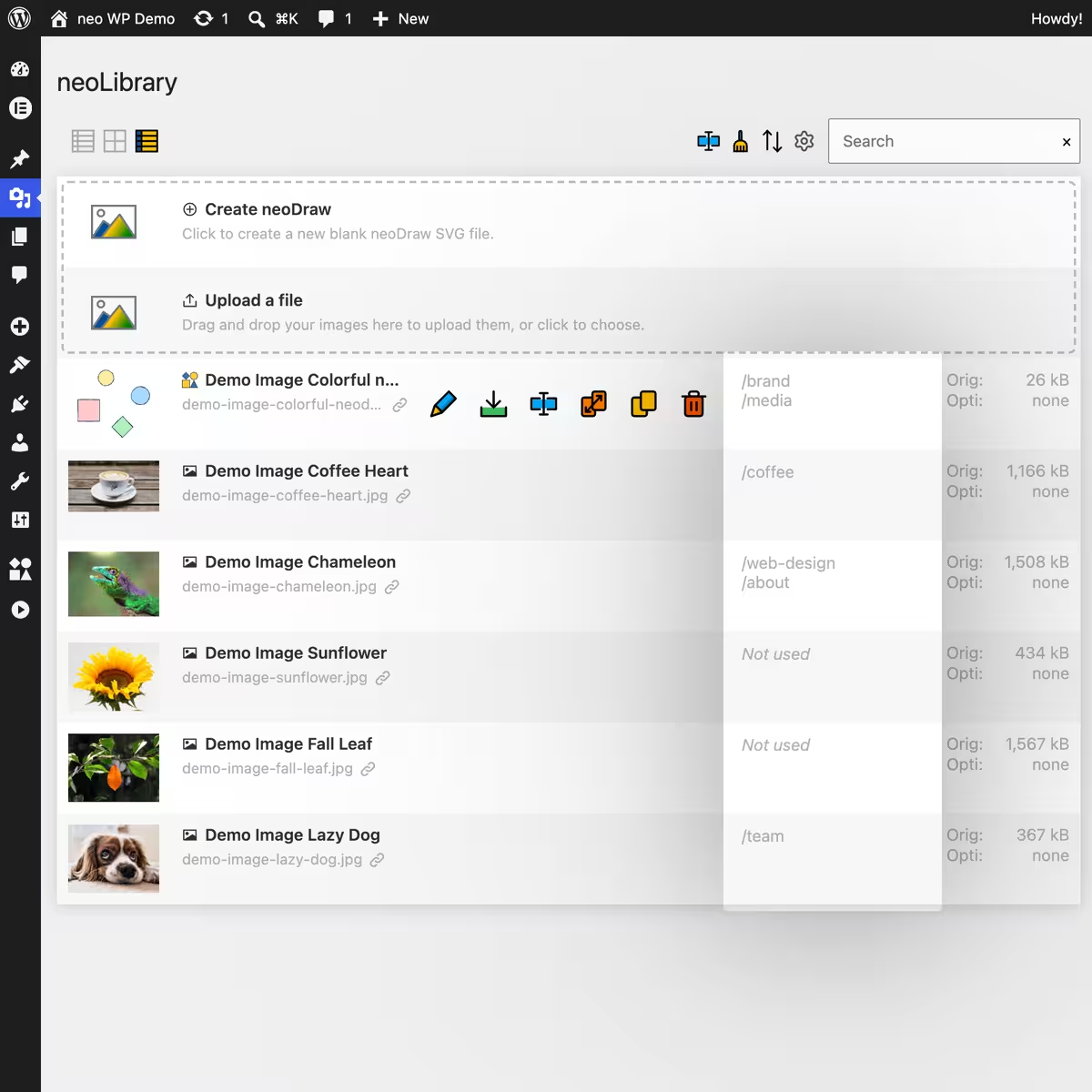
neo Library shows all attachments in a continuous overview. Visible rows are built on demand so previews and additional info don’t have to load at the same time. Each row links preview, title, relative upload path, file actions, detected usages and file sizes.
The current concept does not use a virtual folder tree. This is an intentional distinction from classic Media Library Folders: you find media by name, sorting and actual usage on the website. If your team absolutely needs a fixed hierarchy like Client / Campaign / Month if you need that, a folder plugin is more suitable. If you mainly want to know which image you’re looking at and where it’s used, neo Library shows its strength.

Find images by filename, title, author or URL
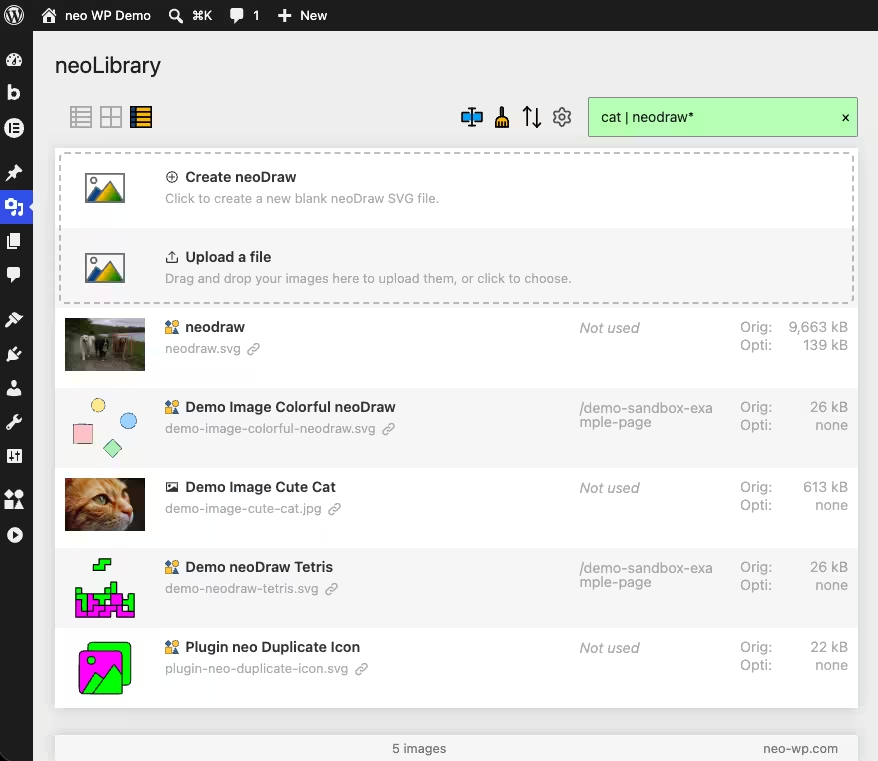
neo Library’s search checks the filename, the WordPress media title and the author. A full image URL can also be searched. Matches appear while you type, without needing to load a new results page.
For larger media libraries the search operators are handy. A space connects terms as an AND search. With | you search for alternatives, with * for variable character sequences. The input cat | neodraw* therefore finds media that either match "cat" or have a corresponding photo name. The last five searches remain stored as suggestions in the browser.
In addition the WordPress media library can be sorted by upload date, modified date, title or URL. The chosen sorting is remembered by the browser. Especially for regularly recurring media work this is more pleasant than having to reset the same filter after every page load.
Where is the image used?
The most noticeable difference to many WordPress Media Library organizers is in the usage column. neo Library searches for the file URL in the WordPress database and links recognized posts directly. A click opens the respective page in a new tab. Matches outside of a clearly assignable post are grouped as "Found elsewhere" and can be checked in a detail view.
This way you can see faster whether an image appears in a post, a page or a saved field. References in database contents such as ACF fields can also become visible. If the search finds no reference, neo Library shows "Not used."
This display is a well-founded decision aid but not a free pass to delete blindly. Themes, external applications or dynamically generated URLs can use files without storing a normally recognizable reference in the database. So check important media once more before you remove them permanently.
Manage media directly in a row
An organized media library lives from being able to edit found files immediately. neo Library provides the most important actions directly next to the media:
- Open preview: Images appear large in a popup. Videos are shown as a preview, audio, PDFs, text files, ZIP files and other uploads get appropriate file-type displays. With Ctrl- or Cmd-click you open the original file in a new tab.
- Copy URL and download file: The relative path remains visible, the full URL lands in the clipboard with a click. Downloads start directly from the media row.
- Edit metadata: A detail dialog opens the WordPress attachment data. There you edit alt text, caption and description. neo Library adds clear hints about where WordPress uses these entries. The upload date can also be changed.
- Rename file: With the complementary neo Rename Plugin you can adjust title, filename and slug. For multiple files there is a bulk rename action.
- Replace file: neo Replace swaps the media and then updates the row with a new preview, size and changed date.
- Duplicate: neo Duplicate creates a copy of the attachment if you want to edit a variant instead of the original.
- Delete: The file can be removed from the overview. The previously visible usage information helps with verification.
Compare original size and optimized files
Large uploads are hard to judge in a WordPress media library if you have to open each file individually. neo Library shows the original size directly in the overview. If neo Optimize is active and cache files are present, additionally the smallest and largest optimized version appear.
That makes oversized images stand out faster.
Upload multiple files via drag and drop
Add new media by dragging it directly onto neo Library or select it via the file dialog. Multiple uploads appear in a visible queue. Up to four files are transferred in parallel; each row shows upload progress, processing, success or a specific error message.
The title is cleaned from the original filename on upload. The order of selected files remains traceable even if a small upload finishes before a large file.
Comparison with FileBird, Real Media Library and Media Library Organizer
If you google "media library organizer" you first find several folder-based plugins. Media Library Organizer creates folders and subfolders, supports drag and drop and can export folders as ZIP. FileBird organizes media in virtual folders without changing image URLs when moving within that structure. Real Media Library also works with folders and adds collections and galleries.
These plugins are good choices when the folder tree is the main selection criterion. neo Library follows a different focus. The media overview combines search, usage information, file actions and size control. You do not need to explain to a team whether the new header image should be stored under "Design", "Website" or "Marketing". It is found by its name or by the post that uses it.
Who neo Library is especially suited for
neo Library is aimed at people who regularly work with a grown WordPress media library. This includes agencies with lots of client content, editorial teams with recurring image motifs, shop owners with product media and website managers who need to tidy up an existing installation.
The benefit becomes especially clear when multiple people create uploads or use the same media in different areas. Instead of relying on the original uploader's memory, the view provides file path, author and detected usage locations. Solo users also benefit once searching, replacing or checking happens more often than pure uploading.
Organize the WordPress media library with neo Library
To get started you do not need a new folder structure and you do not have to migrate existing attachments. Install the Media Library Organizer and work through the media library using real tasks.
1. Download and install neo Library
Download neo Library from the neoWP download page. Open in WordPress Plugins > Add New > Upload Plugin, select the ZIP file and activate the plugin.
2. Open neo Library as the media view
Open Media > Media Overview. neo Library can be loaded as the preferred view. Use the icons in the header to switch back to the classic WordPress list or grid if needed.
3. Start with a concrete search term
First search for a known filename, project name or author. If you have multiple variants, try the OR search with |. Then sort by title or URL if you want to see similar files side by side.
4. Check usages before making changes
Open the linked posts from the Usage column. For "Found elsewhere" it is worth taking a look into the database detail view. That way you know before replacing or deleting which content may be affected.
5. Edit or clean up the file
Open the metadata for a missing alt text, download the file or use the appropriate module to rename, replace and duplicate. Delete unused media only after checking. That is slower than a blanket mass deletion but prevents costly mistakes.
A media library stays tidy through small habits
Even the best media manager can only compensate for bad upload habits afterward. Give understandable filenames before uploading, maintain the alt text according to the actual image content and replace an existing file only when the exact same graphic is really being updated. An almost identical new file with the addition final-new-2 makes later searches unnecessarily difficult.
Use the usage evidence regularly. Files without a recognizable reference belong on a review list, not automatically in the trash. For large cleanups you should also have a backup. WordPress plugins and themes can store media in their own ways.
Frequently asked questions about the Media Library Organizer
What is a Media Library Organizer for WordPress?
A Media Library Organizer extends the WordPress media library with better features for searching, sorting and managing images, videos, PDFs and other uploads. neo Library additionally shows detected usages of the files.
Does neo Library create folders in the WordPress media library?
No. The current neo Library works without a manually maintained folder tree. Files are found via search, sorting and their detected usages. If virtual Media Library Folders are your main goal, a specialized folder plugin is a better fit.
Does neo Library change media URLs when organizing?
Search and sorting do not change a file URL. A URL can change if you explicitly rename a file with neo Rename. In that case check the offered rename functions and redirects.
Can neo Library find unused images?
neo Library shows "Not used" when the database search finds no reference to the file. That is a good starting point for cleaning up. Still manually check important files because dynamic theme outputs or external systems can be outside the detected database references.
Does neo Library support videos, audio and PDF files?
Yes. In addition to images neo Library also displays videos, audio, PDFs, text files, ZIP files and other WordPress uploads with a suitable preview or file type indication.
Is neo Library suitable for a large WordPress media library?
neo Library shows media in a continuous overview and renders visible rows on demand. Search and sorting help find a specific file in extensive collections. Actual speed depends, as with any WordPress media manager, on server, database size and installed plugins.
Download neo Library and clean up the media library
Install neo Library, open your existing WordPress media library and start with the file you couldn’t find today. Search, usage evidence and direct media actions will then be available in a combined view.

