
Rotate images in WordPress: free alignment with neoDraw
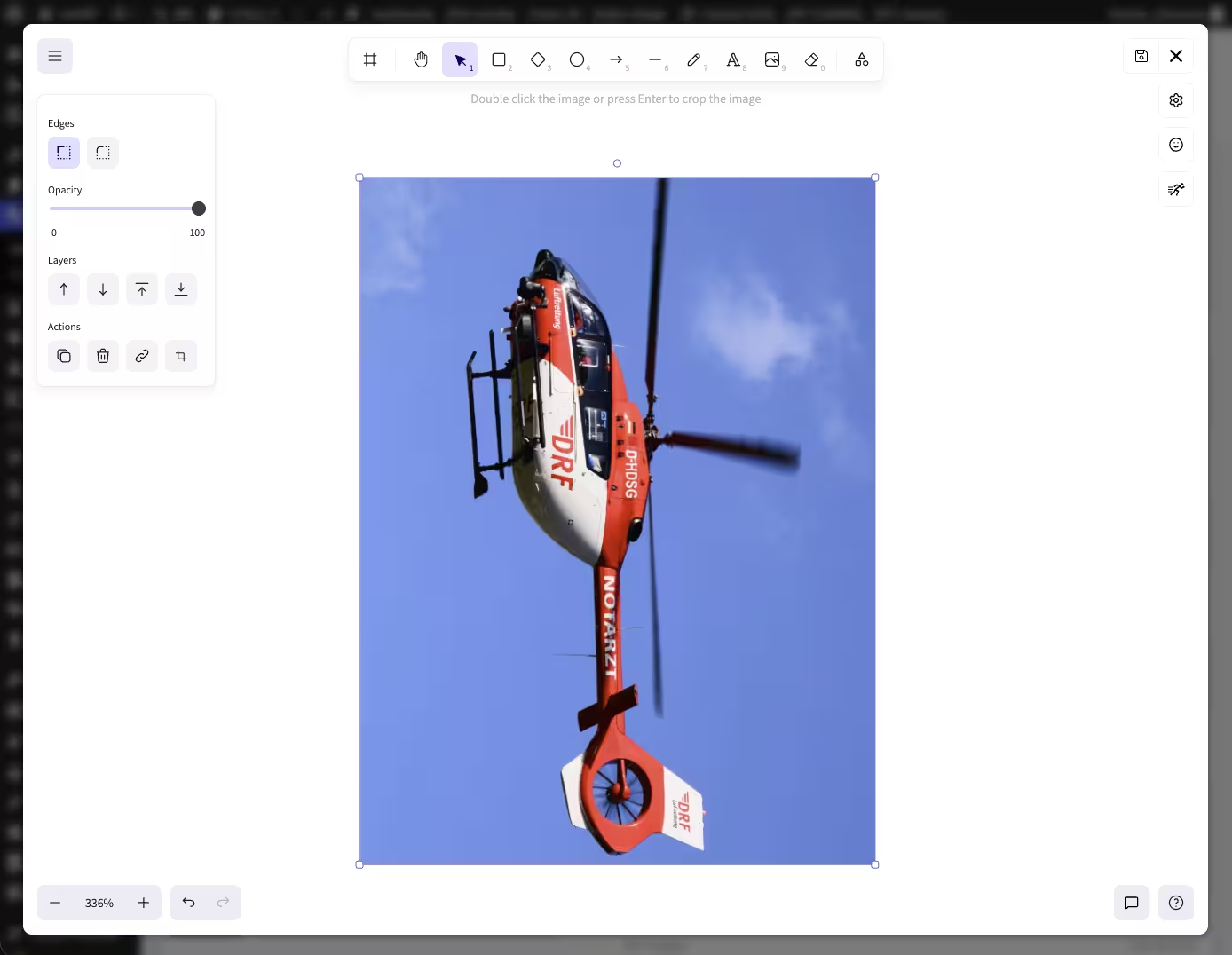
A photo is sideways even though it was taken vertically. Or you want to tilt a product image slightly instead of rotating it exactly 90 degrees until it fits the layout. Directly in WordPress, such a small correction quickly becomes a detour via an external image program.
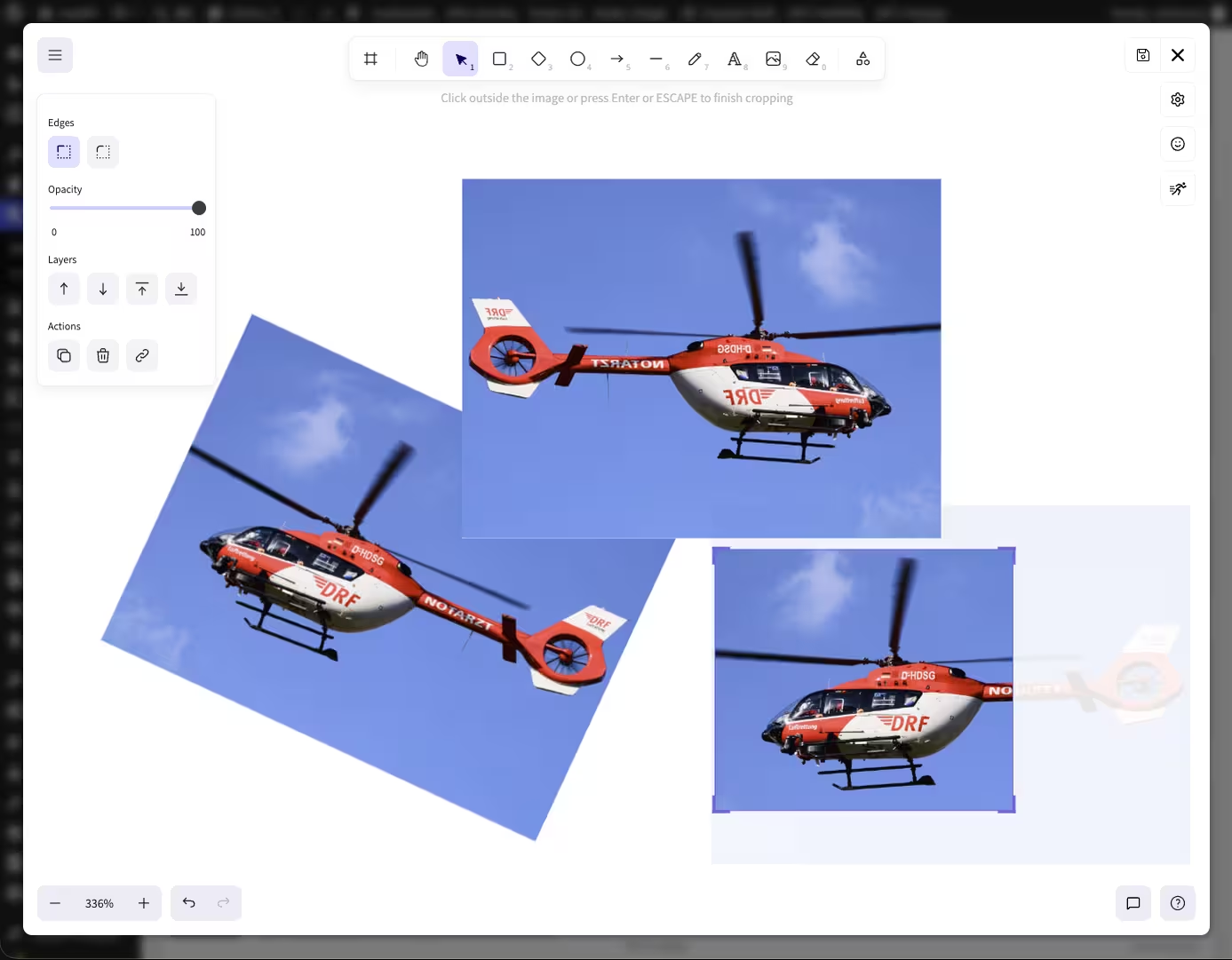
With neoDraw you can rotate images freely in WordPress. JPG and PNG files can be opened from the media library or the page builder as a new editable SVG copy. You drag the rotation handle, hold Shift for fixed steps, or enter an exact angle. The original stays preserved.
This guide is mainly for WordPress users who want to rotate, flip, crop, or add text and annotations to an image. For a single photo on iPhone, Android, Windows, or macOS there are shorter system methods. You will find a brief summary further down.
Rotate images in WordPress: the quick guide
- neoDraw open and select the desired image in the media library or editor.
- For a standard JPG or PNG click Copy & neoEdit. An existing neoDraw-file can be edited directly.
- Select the image on the canvas. The rotation handle appears above the selection frame.
- Drag the handle until the desired angle is reached. With Shift pressed the rotation snaps in 15-degree increments.
- For exactly 90°, 180° or 270° enter the degree value in the properties panel.
- Save and use the new SVG drawing in the post or page builder.
You do not need to download the original image beforehand. neoDraw works in the WordPress backend and creates a new file for a normal raster image. Your JPG or PNG remains in the media library as it was.
Rotate an image freely or in fixed angles
The round rotation handle is intended for quick work. You can move an image smoothly around its center with it. This is suitable for slightly skewed scans, dynamic collages, rotated product cards, or photos that are deliberately off the grid.
For a straight switch between portrait and landscape fixed values are better:
- 90 degrees rotates the image a quarter turn.
- 180 degrees turns an upside-down photo right side up.
- 270 degrees corresponds to a 90-degree rotation in the other direction.
- 0 degrees resets the orientation to straight.
neoDraw displays angles in degrees and also accepts precise values. For example you can use 7.5° for a slight tilt. If you hold Shift while dragging the selection snaps in 15-degree increments. That lets you hit 45°, 90°, or 180° without fiddling.
Rotate multiple images and elements together
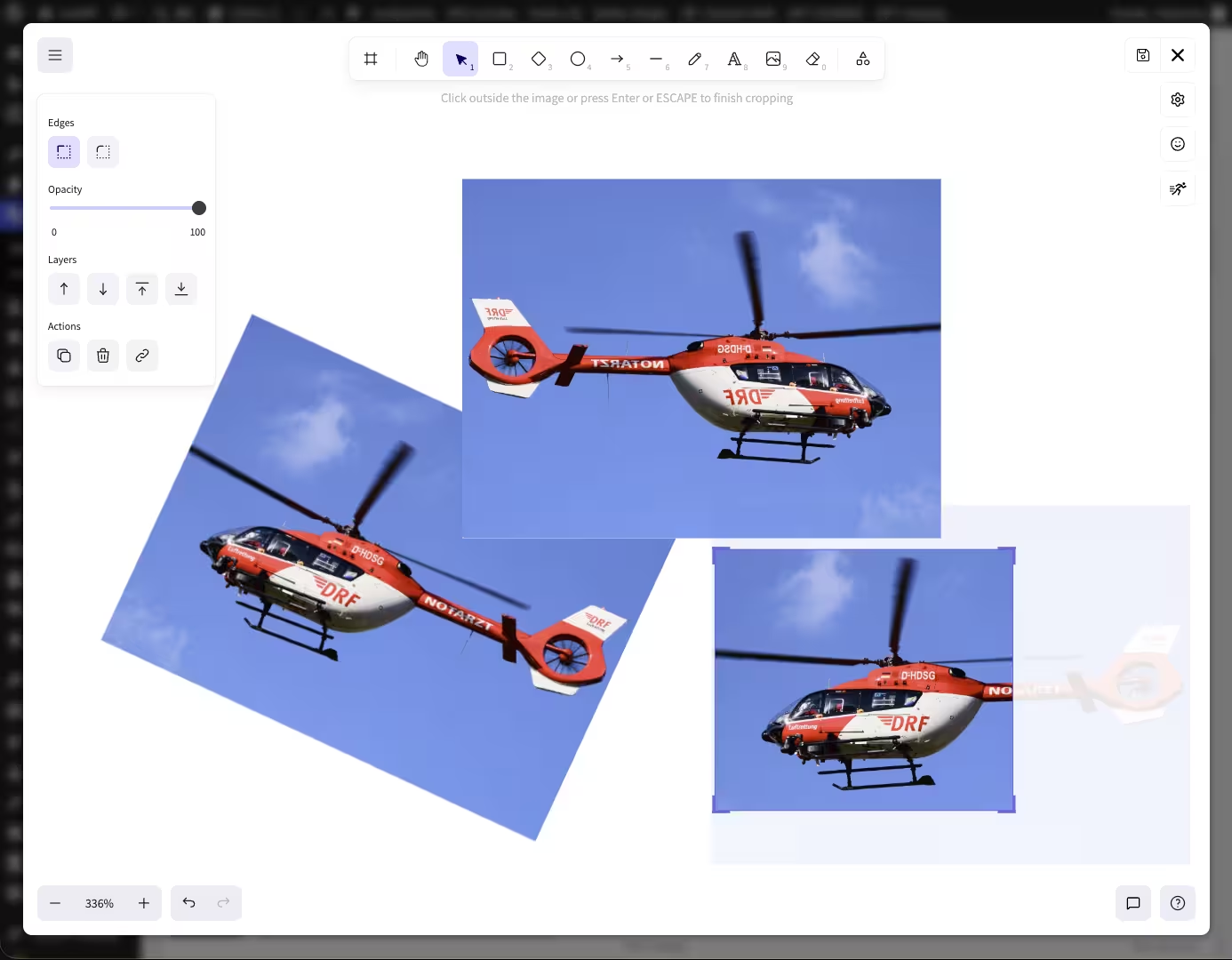
In a neoDrawIn a drawing, multiple selected elements can be rotated together. Photos, shapes, arrows, and labels move around the center point of the entire selection. This is useful when you want to tilt a finished group of images without realigning each part individually.
Important is the boundary to the media library: neoDraw it does not rotate a hundred separate WordPress attachments as a bulk action. The multi-rotation applies to elements that lie together on the same canvas.
Rotate JPG and PNG directly from the WordPress media library
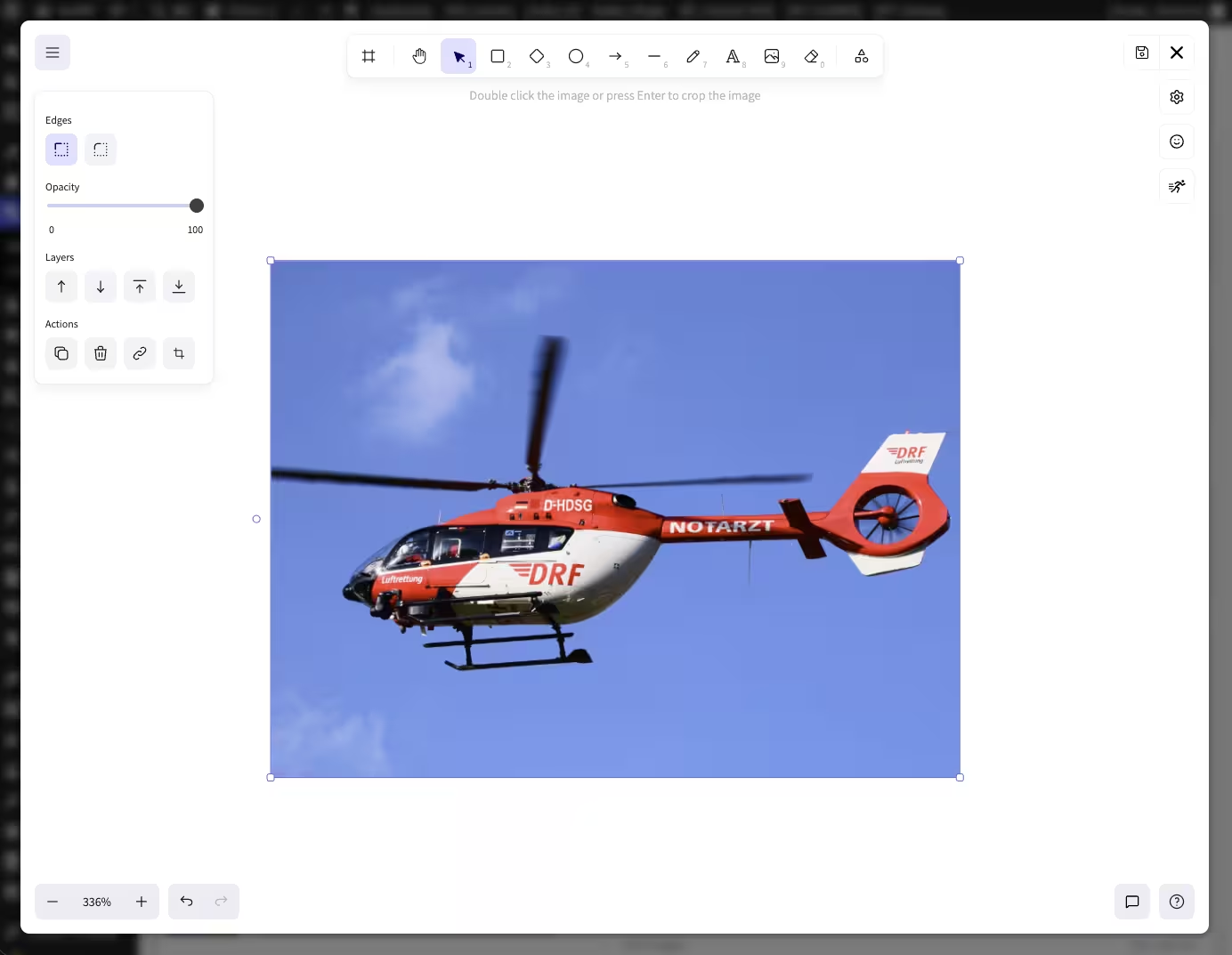
A normal image is not silently overwritten when opened in neoDraw not silently overwritten. Instead the media window shows the action Copy & neoEdit. neoDraw takes the visible JPG, PNG, WebP or SVG onto the canvas and saves the result as a new neoDraw-SVG file.
This separation is useful. The original remains available for other posts, downloads, or later edits. The rotated version is its own WordPress media file and can be used independently. If you later open a true neoDraw-file, you can continue editing it with its elements.
You can start in several places:
- in the WordPress media library and on the attachment edit page,
- at the image block in the Gutenberg editor,
- in image fields of Elementor and Bricks,
- via the neoDraw-button in the Classic Editor.
So you stay where the image is used. After saving, the respective editor updates its preview to the new or edited neoDraw-file.

Rotate, flip and crop images
Rotate and Flip solve different problems. A rotation changes the angle. Horizontal flipping swaps left and right, vertical flipping swaps top and bottom. neoDraw offers both flip directions for selected elements. The keyboard shortcuts are Shift+H for horizontal and Shift+V for vertical.
For a single selected image there is also a crop mode. This lets you remove distracting borders or choose a tighter crop before you rotate the subject. Cropping is usually useful before fine-tuning the angle because the visible frame will then define the final shape.
On the same canvas you can add text, arrows, rectangles, freehand pen lines and icons. This way a rotated photo can become a labeled instruction, a highlighted product graphic or a small collage. Touch input and Apple Pencil are especially suitable for handwritten markings.
Rotate images without recompressing the original
If you search for lossless JPG rotation you usually mean: The photo should not visibly degrade after rotation. neoDraw does not alter the uploaded JPG or PNG file. It creates an SVG drawing in which the image is stored as an element with its angle. The rotation itself therefore does not rewrite the pixels of the original again and again.
When exporting as PNG the finished canvas is rendered to pixels. Choose a sufficient output size for this, especially for small text or thin lines. For direct use in WordPress the editable SVG version is often more useful because you can later change angles, labels and shapes again.
neoDraw supports SVG import and export as well as export as PNG. In the technical export path the canvas can also be rendered as JPEG or WebP. The plugin stores its normal editable WordPress drawing as SVG.
Why a photo appears rotated incorrectly after upload
A smartphone does not necessarily rotate all pixels in the file when taking a photo. It often also stores an EXIF orientation. This information tells an image program which side should be up. Browsers, apps, image editors and upload processes can handle the information differently.
That is why the same photo can look correct on the iPhone and appear sideways or upside down after upload. Saving it again in an image program often fixes the visible orientation. In neoDraw you can instead correct the display in the WordPress graphic and keep the original attachment.
With an intentional free rotation EXIF only matters at the beginning. Once the image is on the neoDraw-canvas you determine the visible angle yourself.
Rotate an image 90 degrees in WordPress without a plugin
For a simple quarter turn the WordPress image editor is sufficient. Open the attachment in the Media Library, choose Edit Image and use Rotate left or Rotate right. According to the WordPress documentation on the image editor each click rotates the image by 90 degrees. The edit can also be reset to the original version there.
The core editor is fine for a single straight photo. It is not designed for free angles, a joint selection of multiple design elements or text and drawing layers. This is exactly where neoDraw interesting.
Rotate image online, on your phone or on your computer
If the photo is not yet in WordPress, you do not necessarily need a plugin for a simple 90-degree rotation:
- iPhone and iPad: Edit the image in Photos, open the crop tool and use the rotate function.
- Android: Open the edit or crop area in Google Photos or the Gallery app and rotate the image.
- Windows: Open the file in Photos and align it using the rotate icon.
- macOS: Open the image in Preview and rotate left or right.
- Online tool: Upload JPG or PNG, select the angle and download the new file.
Online tools are fast but require an upload to a third-party service unless the editing explicitly runs only locally in the browser. For customer images, internal screenshots or regularly used WordPress media, a tool in your own backend is often more convenient. neoDraw also saves the repeated download and upload.
Does rotating an image affect image SEO?
An angle is not a ranking trick. A correctly oriented image is easier to understand and does not look broken on the page. For discoverability, the page content, text near the image, alt text, filename and reachable image URLs and fast delivery matter too. Google Search Central describes these signals in its documentation for Google Images.
Maintain on the new neoDraw-file therefore a meaningful media title and an alt text that describes the visible subject in the page context. The alt text should not explain that an image was rotated by 7.5 degrees unless that angle matters for understanding.
For other tasks the modules remain separate: neo Rename edits filenames and neo Alt creates verifiable alt text suggestions. Rotation and visual editing is handled by neoDraw.
Frequently asked questions about rotating images
How can I rotate an image in WordPress?
Open it with neoDraw, select the image on the canvas and drag the rotation handle. For fixed angles hold Shift or enter a degree value.
Can I rotate an image by exactly 90 or 180 degrees?
Yes. Set 90, 180 or 270 degrees as the exact angle. With Shift held the rotation also snaps in 15-degree increments.
Can neoDraw rotate images at any arbitrary angle?
Yes. The rotation handle allows free angles. In the properties panel the value can also be set precisely in degrees.
Will my original JPG or PNG be preserved?
Yes. For a normal raster image it creates neoDraw a new SVG copy. The original attachment remains unchanged.
Can I rotate multiple images together?
Multiple elements of the same neoDrawdrawing can be selected together and rotated around their common center. This is not a bulk rotation of separate WordPress attachments.
Can I also flip or crop an image?
Yes. You can flip horizontally or vertically. For a single image there is also a crop mode available.
Why is a photo displayed sideways in WordPress?
Smartphones and cameras often store orientation as EXIF data. Programs can interpret this differently, so the photo may appear upright in one place and sideways in another.
Can WordPress rotate images without a plugin?
The WordPress image editor rotates images 90 degrees left or right. Free angles, multiple elements, overlays and an editable composition are possible with neoDraw .
neoDraw open and rotate images directly in WordPress
For a quick 90-degree fix the WordPress image editor is sufficient. As soon as a photo needs a free angle, multiple elements belong together or labels and annotations are added, you can do the work in neoDraw .
Open the neoDrawproduct page, install the plugin and test the rotation first with a copy. The original JPG or PNG remains in your media library.

