
WordPress Sandbox: Test plugins and themes safely in the browser
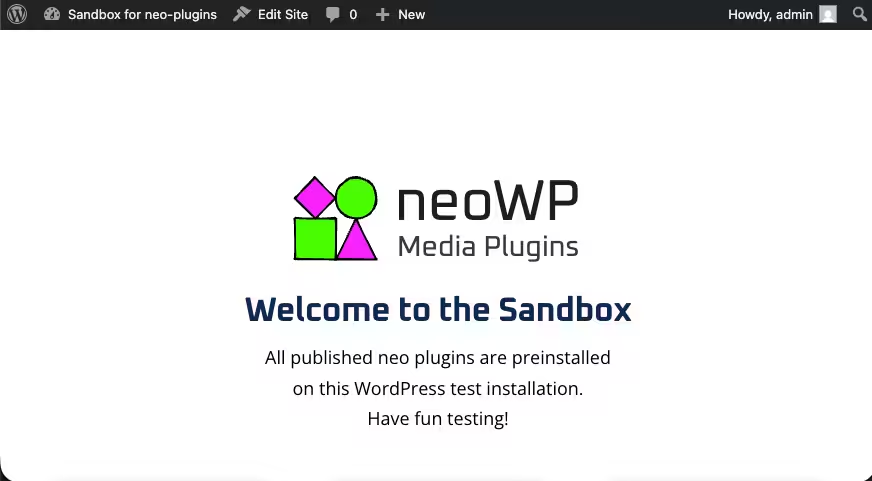
With the neo WP WordPress Sandbox you start a real WordPress installation directly in the browser. You can try plugins, themes, Gutenberg blocks, settings and media without installing WordPress or touching your production website.
Getting started is free and possible without registration. The neo WP plugins are already configured. Still treat the instance as a temporary test area: Save important results outside the sandbox and do not use real customer data.
 Start WordPress sandbox
Briefly explained: What is a WordPress Sandbox?
A WordPress Sandbox is an isolated test environment where you can try plugins, themes, settings and code without changing a production website. The neo WP Sandbox is based on WordPress Playground, runs in the browser and already includes the neo WP plugin suite.
What is a WordPress Sandbox?
The term WordPress Sandbox does not describe a single product type. It always means a separate place for experimenting. What happens there should not change a live website, a real order or any customer data. That is exactly why people also search for terms like WP Sandbox, WordPress test site online, temporary WordPress site or browser based WordPress.
A sandbox can run on a classic server, locally on your computer or entirely in the browser. Some providers delete the environment after a few hours. Others store it in an account. WordPress Playground takes a different approach: WordPress, PHP and a database run via WebAssembly or SQLite in the browser. That way you need neither hosting nor a local development environment.
The neo WP variant is a free WordPress sandbox online that builds on this official Playground project. It loads a current, preconfigured WordPress instance and installs the neo WP plugins automatically. Your own WordPress remains separate. You can first check whether a feature fits your workflow and only install the plugin on your own test or live site afterwards.
What you can test in the neo WP Sandbox
The Sandbox is an interactive WordPress demo site. You work in the WordPress backend, can create test content, and check the result on the frontend. Preinstalled sample data shortens the setup.
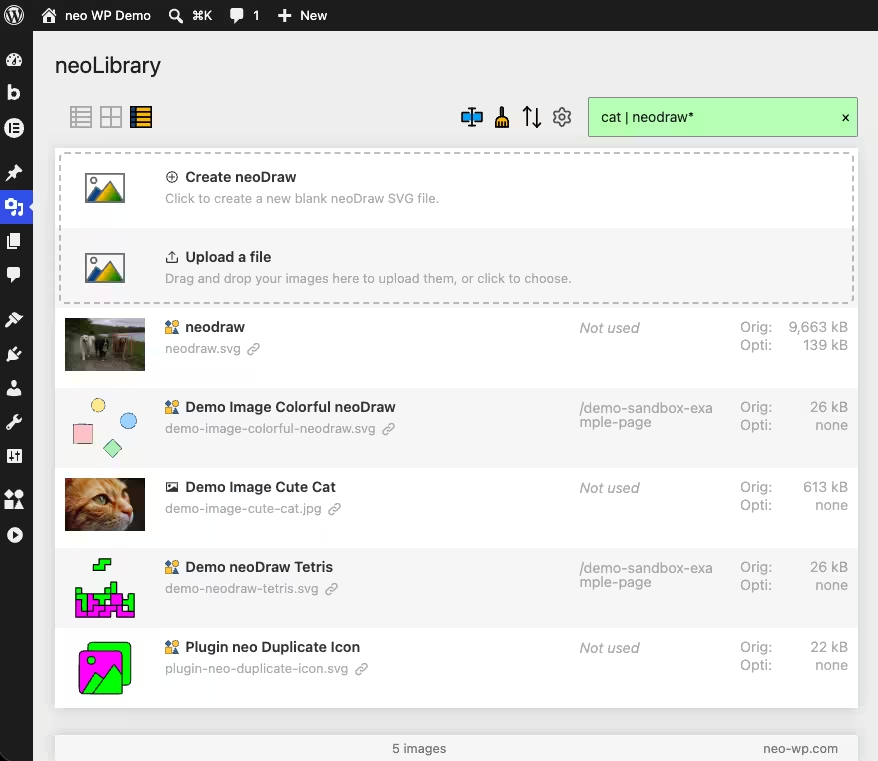
- Organize media: Try tags, filters, folder views, and media workflows with neo Library.
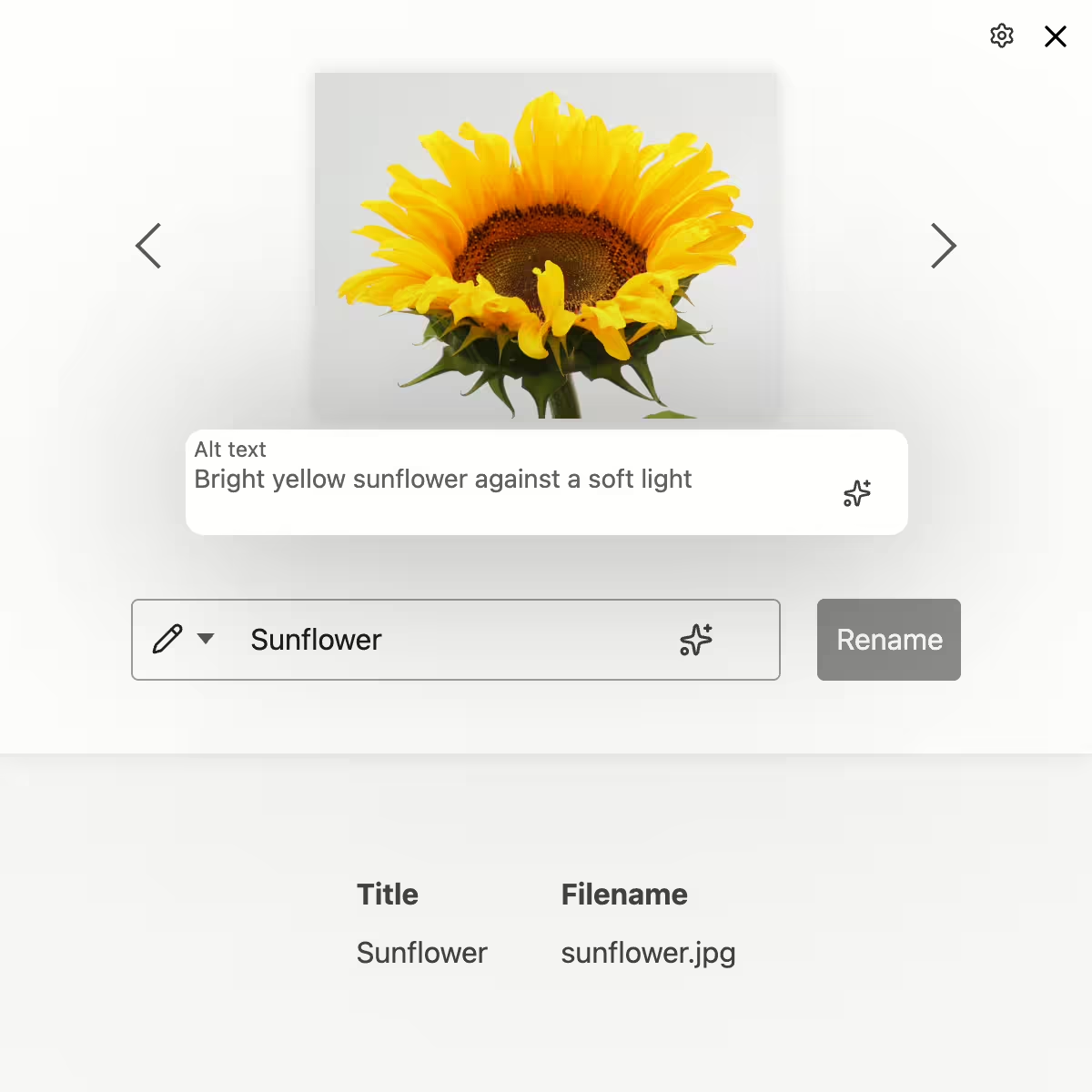
- Rename files: Test how filenames, URLs, and metadata are related with neo Rename,.
- Replace or duplicate media: Run through typical workflows with neo Replace and neo Duplicate.
- Check images and loading behavior: View settings for neo Optimize and neo Lazy. Meaningful metrics for a real website, however, only come under real hosting and caching conditions.
- Draw and animate SVGs: Open neo Draw, neo Animate, and neo Motion and work with the prepared media.
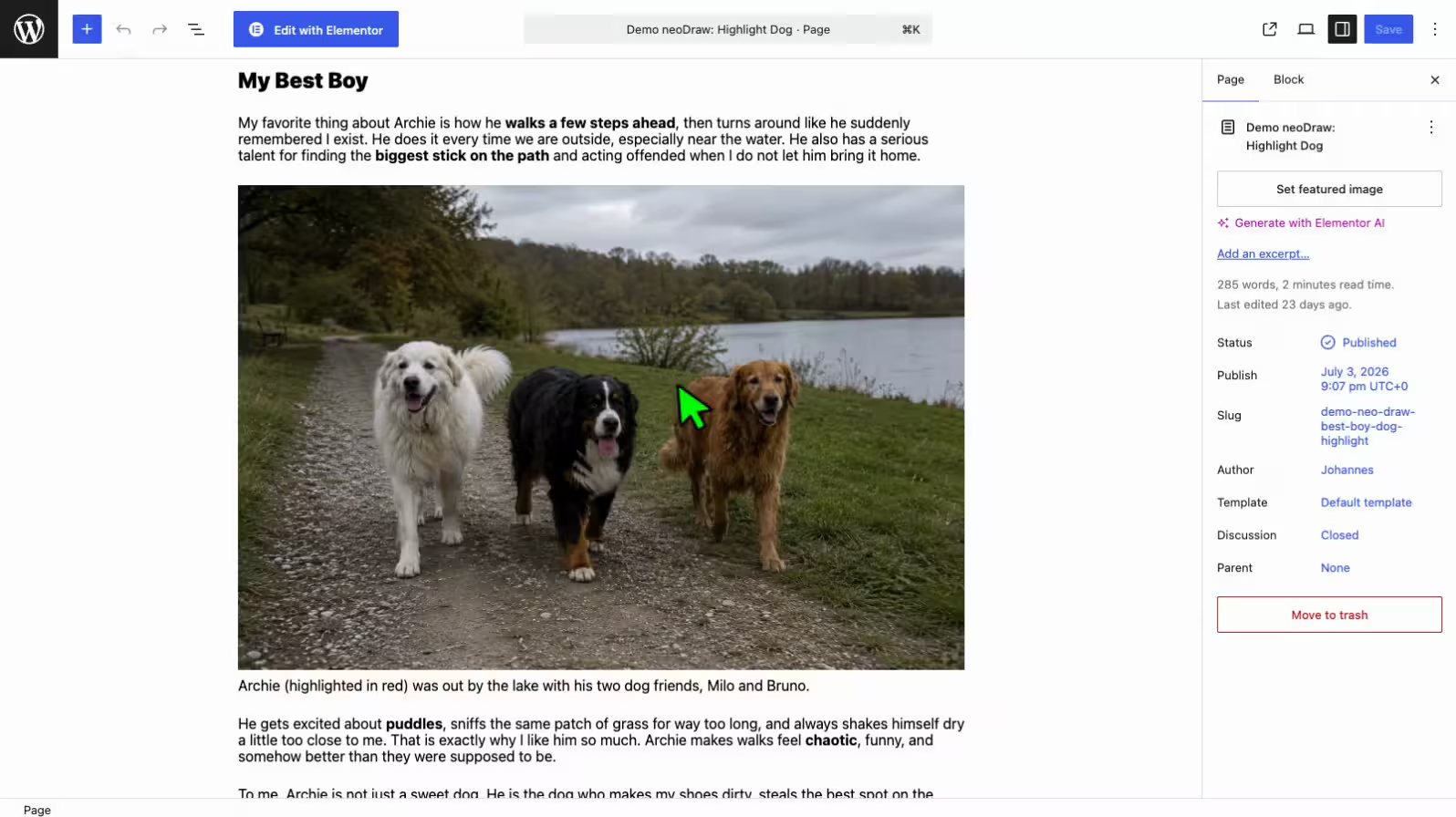
- Gutenberg and editor behavior: Create pages, posts, and blocks. Check how plugins interact in the editor and on the frontend.
- Custom ZIP files: WordPress Playground can install plugins and themes. You can therefore generally upload your own plugin or theme ZIP. Server-dependent features may behave differently in the browser.
If you specifically want to test a WordPress plugin online or safely test a WordPress theme, this gives you a quick first impression. The Sandbox mainly answers the question: Does the UI concept fit, does the basic workflow work, and does the expected result appear?
How to use this WordPress Sandbox
- Start the Sandbox: Click “Start WordPress Sandbox.” WordPress Playground loads WordPress, PHP, the database, and the prepared neo WP package into your browser.
- Open WordPress admin: You are logged in automatically. From the dashboard you can access plugins, media library, posts, pages, and settings.
- Select a plugin or feature: Open the Sandbox overview or go directly to the desired neo WP tool. Many demos already take you to the appropriate area.
- Create test content: Upload a noncritical sample file, create a post, or change a setting. Do not use real customer data.
- Check the frontend: Open the test site and inspect layout, URLs, media, and interactions. If needed, also check the browser console.
- Document results: Note settings and observations outside the Sandbox. Screenshots are useful when you want to discuss a workflow with your team.
- End the instance consciously: Playground may autosave data in the browser depending on storage mode. This is not a permanent backup. A temporary Playground can disappear when closed or fully reloaded; browser data can also be deleted. Export only harmless test states that you truly need to keep.
Start → Test → Evaluate → Discard
Start with a clean test instance
You need neither hosting nor an account. Open the Sandbox, try the desired workflow, and decide afterward which plugin you want to install.
WordPress Sandbox vs. Staging vs. local development
Sandbox, staging, and local development solve different problems. A Sandbox quickly answers an isolated product or feature question. Staging reflects a specific website. A local environment gives developers the most control but requires setup and maintenance.
| Criterion | Sandbox / Playground | Staging | Local development |
|---|---|---|---|
| Setup | One click in the browser | At the host or manually | Software, container or VM |
| Duration | Intended for short tests | Usually long term | Long term on the machine |
| Persistence | Depends on browser and storage mode | Stored server side | Stored locally |
| Live data | None unless you import it | Often a copy of the website | Only after conscious import |
| Plugin or theme uploads | Generally possible | Normally possible | Fully controllable |
| Network access | Available but restricted by the browser | Same as the staging host | Dependent on local configuration |
| Team access | Via demo, blueprint or export | Good for joint review | Additional approval required |
| Security | Isolated from the live site | Must be secured | Not public if configured correctly |
| Best use | Quick plugin, theme and editor testing | Updates and releases of a specific site | Development, debugging and version control |
When searching for “WordPress staging vs sandbox” the most important distinction is not the technology but the relationship to the live site: staging is a preproduction copy or step of a specific website. A sandbox may be completely independent. For a plugin you don’t know yet, the sandbox is usually the faster start. Before a production update, staging is more informative.
Test neo WP features before installing
Test media handling, optimization, drawing and animation in the browser sandbox. If the workflow fits, download the free plugin suite for your own WordPress website.
WordPress Playground: WordPress directly in the browser
WordPress Playground is an official open source project from the WordPress ecosystem. It runs WordPress and PHP with WebAssembly. Instead of MySQL the browser variant uses SQLite with a translation layer. The result feels like WordPress in the backend but is technically not a classic hosting installation.
Blueprints describe how a Playground instance should be built. Such JSON configurations can for example select the WordPress and PHP version, install plugins and themes, set settings, import content and open a specific admin page. neo WP uses exactly this mechanism so the plugins are already installed and you don’t start with an empty WordPress site.
The neo WP configuration also enables network access. External requests from a browser environment still run and may depend on CORS, proxy behavior or an unsupported server feature. WP-CLI is also not available in the Playground for every conceivable command. Pop-ups and links from the embedded WordPress may also behave differently.
A WordPress Playground is very suitable for administration, Gutenberg, media, themes and many plugin workflows. For Apache or Nginx rules, real MySQL behavior, hosting-specific cron issues or production-like load you need a matching server environment.
You can find technical details in the official Playground overview and in the Playground documentation.
When you should use a WordPress sandbox
Use a sandbox when you want to learn or compare quickly and don't need a copy of your own site for that.
- Check a plugin before installing: Open settings, test the core flow and decide if the tool suits you.
- Try a theme: Install a theme, create a simple page and check the editor and the frontend.
- Test Gutenberg blocks: Try block settings, patterns and interaction with plugins without legacy clutter.
- Understand update effects: Recreate versions with a suitable blueprint. For a specific live site, staging remains better.
- Reproduce a support issue: Recreate a bug with neutral test data. That way you can tell if it is general or site-specific.
- Training and demo: Show customers or team members a flow without sharing access to a real site.
- Check a code snippet in isolation: Experiment only with code whose effect you understand. Browser sandboxing does not replace code review.
- Demonstrate a customer feature: Prepare content and plugins in a blueprint and open the relevant page directly.
The free WordPress sandbox is also helpful for beginners: you can explore the dashboard, get to know the media library and publish a post without booking hosting first. If you later build a real site, you will not start from zero.
When a sandbox is not enough
A sandbox is intentionally isolated. That makes it safe and fast, but limits its relevance for infrastructure and production.
- Realistic load tests: CPU, memory, browser and Playground downloads say little about your later web server.
- Hosting-specific errors: Webserver rules, server caches, object cache, firewalls or PHP-FPM configurations cannot be faithfully reproduced.
- Complete WooCommerce and payment tests: You can try product pages. For webhooks, real payments, taxes and order emails you need official test modes and a server-based staging environment.
- Real email delivery: Whether mails reach recipients depends on SMTP, DNS, reputation and hosting.
- DNS and CDN: Nameservers, SSL issuance, edge cache and geo-routing are outside the browser instance.
- Production-like database migration: The Playground uses SQLite in the browser variant and is therefore not an identical MySQL test.
- Server-dependent functions: Shell processes, certain PHP extensions, system services or special file permissions may be missing.
In many projects this works well: sandbox for the initial assessment, staging for your own site, backup and controlled rollout for production.
WordPress sandbox plugin: Do you need a plugin for that?
The search phrase “WordPress sandbox plugin” can mean two different things. First, a plugin that isolates or resets changes within an existing WordPress installation. Second, a new test instance in which any plugin is tried out.
These variants are not equally safe. A sandbox plugin still runs on the same WordPress installation and may, depending on the technique, touch the same database, the same server or the same external services. Therefore do not install an unknown plugin on a live site just because another plugin promises a test mode.
If a test could modify production data, delete files, or run incompatible code, use an external WordPress sandbox or a staging system. For quick evaluation, the neo WP Sandbox is more convenient: it opens separately in the browser, and the neo WP plugins are already installed. You do not need an additional sandbox plugin on your website.
If the workflow fits, you can download the neo WP plugins for free and install them in a controlled way on your own test or staging website.
Frequently asked questions about the WordPress sandbox
Is the WordPress sandbox free?
Yes. You can start the neo WP WordPress sandbox for free and without registration. For individual neo WP products there are also free and paid features.
Do I have to install WordPress?
No. WordPress Playground loads WordPress, PHP, and the database directly in the browser. Nothing is installed on your computer or on your live website.
Can I upload my own plugin?
Basically yes. WordPress Playground supports plugin ZIP files and plugins from WordPress.org. Whether every feature works depends on required server services, PHP extensions, and external connections.
Can I test my own theme?
Yes. You can install themes or upload them as a ZIP and then check pages in the editor and on the frontend. Hosting-specific performance cannot be measured reliably this way.
Will my changes be saved?
Playground can automatically save instances in the browser or intentionally start them as temporary. Browser storage is not a backup and can be lost through cache clearing, private browsing, or a different profile.
How long does the sandbox persist?
The neo WP sandbox is intended as a temporary testing area. Do not rely on a fixed retention period. Document results outside the instance and export only harmless test data you want to keep.
Is WordPress Playground the same as staging?
No. Playground is an isolated, browser-based WordPress environment. Staging is usually a server-side copy or a pre-production instance of a specific website with a similar hosting configuration.
May I use real customer data?
No. Use only fictional or anonymized data and never production passwords, API keys, payment data, or personal uploads.
Can the sandbox reproduce hosting errors?
Only to a limited extent. General WordPress and plugin issues can often be reproduced. Errors caused by web servers, MySQL, DNS, CDN, SMTP, caches, or special PHP-FPM settings require a matching server environment.
Test WordPress and neo WP now in the browser
Start with the free sandbox. Once you have found your suitable media workflow, download the neo WP plugin suite and then test it on your own staging website.

