

Create an OpenAI API Key: Guide for WordPress and API Integration
This guide explains how you create an OpenAI API Key and add it to your WordPress plugin.
For OpenAI features in WordPress, automations, or your own applications you need an API key from the OpenAI dashboard. This key is not the same as a ChatGPT subscription: the API is billed based on usage.
This guide shows how you create an OpenAI API Key, set up a clean project for your website, check billing and limits, and then insert the key into your WordPress software. This works in WP plugins like neo WP AI and in any other plugins and themes in WordPress.
Short & to the point
- Open platform.openai.com and sign in.
- Create or select a dedicated project for the website.
- Check billing, credits, and auto recharge.
- Open the API Keys section in the project.
- Click Create new secret key, give it a name, and copy the key immediately.
- Paste the OpenAI API Key into your WordPress software, for example in neo WP AI or in the OpenAI Connector.
- Set budget, alerts, model access, and rate limits.
1. Open and sign in to the OpenAI Dashboard
Open the OpenAI Dashboard at platform.openai.com and sign in with your OpenAI account. API management is in a separate Platform dashboard and not in the normal ChatGPT interface.

2. Create a dedicated project for the website
Create a separate project for each website. This keeps costs, keys, limits, and permissions separate. In the OpenAI Dashboard you can create a new project via the project selector and name it after the website or client.

3. Check billing, credits, and auto recharge
Check if billing is active and whether you use prepaid credits or a payment method. OpenAI can deduct API usage from existing credits; with Auto Recharge credits are automatically added when a chosen threshold is reached.
Important: API costs arise from tokens consumed by API requests. Long prompts, large responses, and many automatic calls increase costs. A misconfigured plugin or a publicly abused key can therefore generate costs faster than a classic monthly subscription.

4. Open API Keys in the project
Select your project and open the API Keys section there. Create keys ideally in the correct project for this specific website.

5. Create, copy and restrict secret key
Click Create new secret key, give it a unique name such as wordpress-production or neoAI and copy the key. OpenAI will not show the secret API key in full again later.
If possible, do not grant permissions broadly to everything; restrict the key to the endpoints your WordPress software actually needs. For production sites, separate keys for production, staging and testing are advisable.


6. Insert OpenAI API key into WordPress
Then go to your WordPress plugin and paste the API key into the designated backend field. Many tools, for example neo WP AI, then provide a connection test that checks whether the key works with a small request.
If your website uses WordPress 7 Connectors, the OpenAI Connector can be used centrally. Then not every AI plugin needs to manage its own API key setting.
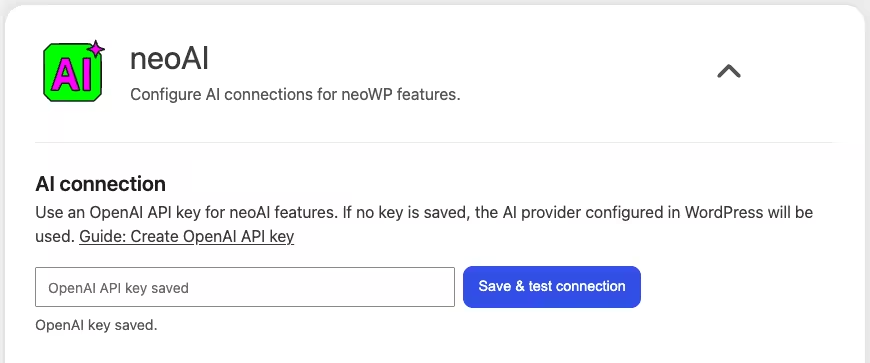
7. Test the connection in the plugin
Test the connection first with a small request. The WordPress plugin usually provides its own test function and reports common issues such as missing billing, a wrongly copied key, missing permissions, an unavailable model or reached rate limits.
8. Set budget, alerts, models and rate limits
Set a monthly budget and appropriate model or rate limits in the OpenAI project. Requests can continue after reaching a budget. Therefore set your budget lower than the absolute maximum amount you are willing to spend.
Monitor usage regularly and rotate keys when a team member leaves or a leak becomes possible otherwise.
Why do WordPress AI plugins often ask for an API key first?
Most WordPress AI plugins are not their own SaaS services, but connect your website to your own provider account. To provide AI features, plugin developers can either send requests to their own servers or directly to the AI provider. These requests consume tokens and are billed based on usage by OpenAI, Anthropic, Gemini or Mistral.
Without your own key you can directly cover the costs for AI usage and the plugin developer forgoes an additional margin compared to pure API prices. That way AI usage stays as cheap as possible.
WordPress 7 Connectors and OpenAI
WordPress 7 introduces Connectors, a central place for external credentials. AI providers like OpenAI, Anthropic and Google Gemini can be offered as a connector. The advantage: a site does not have to store the OpenAI API key in every plugin separately but can make it available centrally.
For OpenAI WordPress uses the option name connectors_ai_openai_api_key. Additionally the key can be provided via the environment variable or PHP constant OPENAI_API_KEY The core logic checks the environment variable and constant first before falling back to the stored database value.
Store API keys securely
API keys must be treated like passwords because they can authorize billable usage. Connector keys stored in WordPress can be masked in REST responses but still exist as site configuration and can be exposed via backups, staging copies, database access or compromised admin accounts.
Common errors with OpenAI API keys
- Wrong dashboard: API keys are managed in the OpenAI Platform dashboard, not in the regular ChatGPT app.
- Wrong project: The key belongs to a different project than the billing or the allowed models.
- Billing missing: Without active credits, a payment method or proper account status API calls can fail.
- Key copied incorrectly: A single missing character can make the key invalid.
- Permissions too strict: Restricted keys need exactly the endpoints the WordPress tool uses.
- Rate limits reached: Too many requests or too many tokens in a short time can be temporarily blocked.
Bonus: free OpenAI API tokens via data sharing
OpenAI offers some organizations free daily API tokens if they qualify and share API inputs and outputs with OpenAI. OpenAI notes that a positive account balance is required and only shared traffic within supported models is counted.
If your account is eligible you will find the note in the Data controls of the Organization Settings. There an Organization Owner can enable data sharing for all projects or only selected projects. Often this is fine for WordPress plugins, because a website usually only shows publicly accessible data that OpenAI has already trained its models on.
First open the OpenAI project settings, switch to the Organization Settings, check billing and then check under Data controls whether your account is eligible for complimentary tokens. If you do not see a corresponding note your account is not currently eligible.


