
Alt text examples for images: Writing good alternative text
A good alt text does not describe every detail of an image. It conveys the information or function that would be lost without the image.
This guide shows six typical alt text examples and then explains in detail how you write alternative texts for WordPress, product images, screenshots, logos, diagrams and decorative images. You will also learn what role the alt-attribute plays for accessibility and image SEO, how long an alt text should be and how you edit many missing image descriptions in a large media library.
If many images do not have an alt attribute with a meaningful description, you can generate suitable suggestions with neo Alt, review them in context and only then save them in WordPress.
Alt text examples: correctly describing six typical images
These six cases cover the most common questions. The purpose of the image on the respective page is decisive.
Photo: Instead of "Dog in the park" say "Golden Retriever catches a red ball in the park" which is more specific. The action distinguishes the subject from thousands of similar photos.
Product image: Instead of "buy shoes cheap" describe "Red leather hiking shoe with black lug sole, side view" which precisely states the visible features that help with product selection.
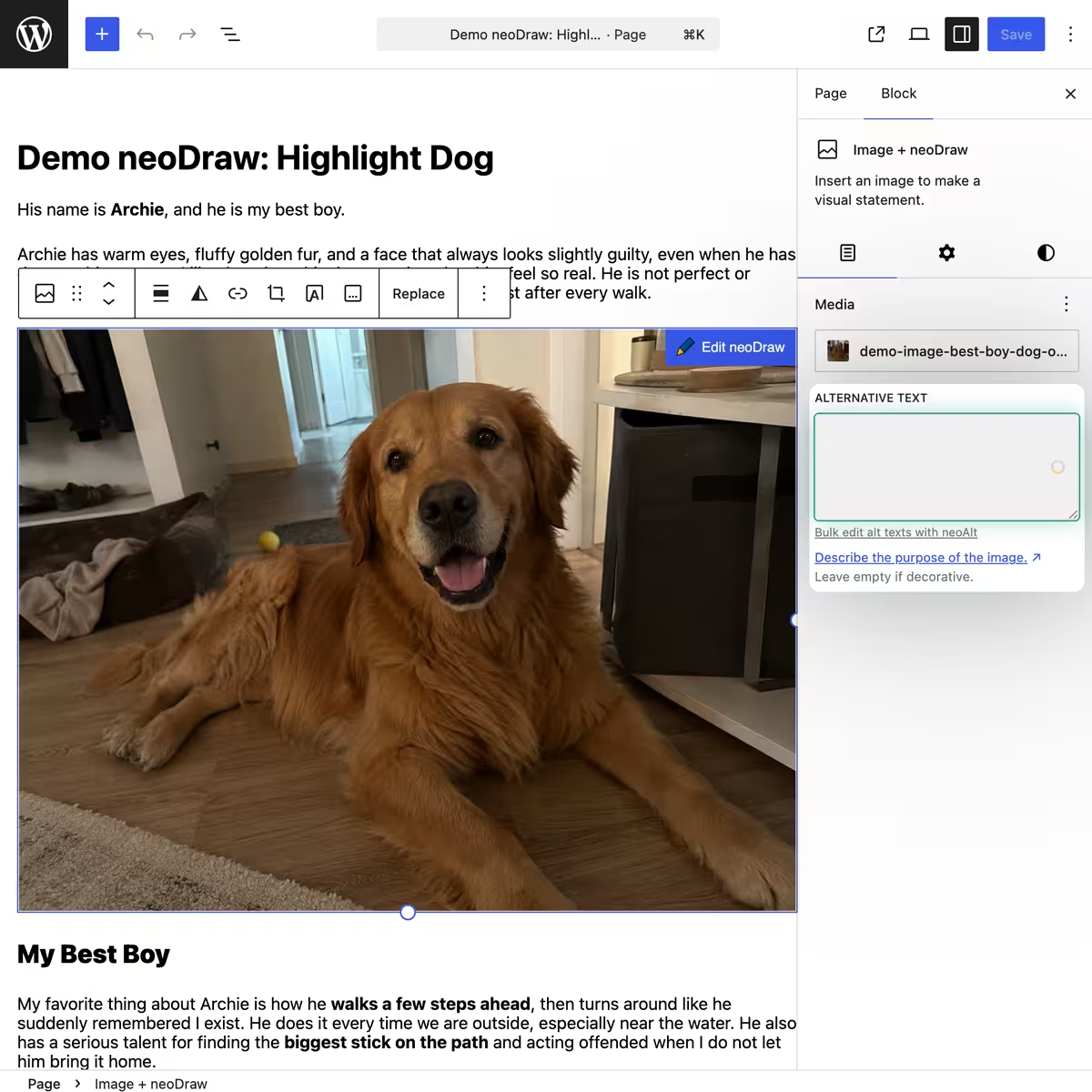
Screenshot: Instead of "WordPress backend" say "WordPress image block with the Alternative Text field open in the right sidebar" which names the area the tutorial explains.
Linked icon: Instead of "down arrow" convey "Download price overview as PDF" which communicates the link function.
Decorative graphic: A wavy line between two sections does not need a description. The correct attribute is alt="".
Chart: Instead of "Revenue chart 2026" summarize "Quarterly revenue rises from 120,000 to 175,000 euros" which expresses the central message.
Good alternative texts are specific, contextual and free of keyword lists. They help people first. Search engines benefit because subject and page content clearly match.
Many images without alt text? neo Alt filters empty alt texts and lets you edit the suggestions before saving.
What is an alt text for images?
The alt text, short for alternative text, appears in the alt-attribute of an HTML image. Screen readers read it aloud when an image conveys information. The text also appears as a replacement if the image file cannot be loaded.
The W3C Web Accessibility Initiative distinguishes informative, decorative, functional and complex images. This classification helps more than a rigid text template because the purpose determines what belongs in the alternative text.
Alt text, image title, filename and caption are not the same
- Alt text: Replaces the information or function of the image for people who cannot see it.
- Image title in WordPress: Helps with management and search in the media library. It is not automatically the appropriate alternative text for every use.
- Filename: Briefly describes the file, for example
red-leather-hiking-shoe.jpg.It does not belong in the alt field as a substitute. - Caption: Visible content for all visitors and may include additional context or a source.
- Title attribute: Shown by some browsers as a tooltip. It does not replace alt text.
A well-named file can still have a poor alternative text. Conversely, a good alt text may belong to a file with an old camera name.
The simple rule for good alternative texts
Imagine the image suddenly isn’t there. What information is missing from the sentence or task? That exact information belongs in the alt text.
Describe the essential first. Name people, products, or places only if you know them for sure. Do not guess skin color, disability, mood, or relationships. Phrases like "image of" and "photo shows" are usually unnecessary because screen readers already announce the element as an image. The form of the depiction can be important, for example for an oil painting or a historical black-and-white photograph.
Which information belongs in a good alt text?
Don’t start with "What do I see?", but with "Why is this image here?" An alt text should fulfill the image’s purpose when it is not visible. For a press photo that can be the person shown and the occasion. For a product photo, details like version, color, or perspective are more important. For a button, the target action matters.
For informative images, three building blocks are often enough: the central subject, the relevant action, and a distinguishing detail. Location, color, material, viewing direction, or condition belong only if they contribute to the message. A complete inventory list of all objects makes the description longer but rarely more helpful.
Include the text before and after the image. If the caption already gives a name, date, or source, the alt text does not have to mechanically repeat that information. If a photo merely provides atmosphere for a paragraph’s statement, an empty alt attribute may be the better choice.
A useful test is reading the text without the image: Do you still understand what information is being added or what action is possible? If the sentence sounds like advertising, a file list, or a string of search terms, the alternative text should be revised.
Describing people and portraits respectfully
For portraits, context is more important than the most precise description of appearance. If the person is known and introduced on a team, author, or event page, name and role usually belong in the alt text. "Lea Wagner, contact for customer support" is more informative than a list of hair color, clothing, and background.
If the identity is not certain, describe only visible and relevant actions. Phrases like "person working with a laptop and notebook in a library" stick to verifiable details. Speculations about profession, origin, relationship, health, or emotional state can be wrong and unnecessary.
For group photos, occasion, location, and a manageable number are more helpful than listing every single person. If a specific person should be found, their position can be added. On a team page, a visible name list is often more useful than a very long alt text with all people.
Search terms like employee photo, team photo, or portrait should not be forced. A name, a role, and the actual occasion usually already provide the precise terms people search for.
Alt text for product images and WooCommerce
An alt text for product images should support a buying decision without becoming advertising copy. Name visible attributes that distinguish the variant: product type, model, color, material, shape, perspective, and a relevant detail. Non-visible claims like "premium", "cheap", or "award winner" do not belong in the image description.
In a WooCommerce product gallery, every view needs its own purpose. The main image can describe the whole product in the chosen color. Additional images should state side view, rear, connector panel, interior pocket, size comparison, or the product in use. If every alt text only repeats the product name, users cannot distinguish the views.
Product name and variant may naturally occur because they precisely identify the image. This is also useful for image SEO.
For large shops, a consistent editorial pattern is worthwhile. It should still leave enough room for category and image type.
For many product images you can search by title or filename in neo Alt, exclude images, and generate alt texts in bulk.
Describing screenshots and images in instructions
For screenshots, the step that the instruction aims to make understandable is what matters. Name the application, the relevant area, and the visible state. Menus, icons, and texts that are not relevant to the described process do not need to be fully reproduced.
A good screenshot alt text helps replace the orientation of the visible image. If the paragraph explains that the "Alternative Text" field is in the right WordPress sidebar, the description can briefly confirm that state. If an error message is the actual content, its meaning must appear in the alt text or in the visible accompanying text.
Long operating instructions do not belong in the altattribute. Write the individual steps as normal HTML text so all readers can use, copy, and search them. The screenshot then only complements the visual position. That improves accessibility, readability, and the chance that an instruction will be found via appropriate WordPress keywords.
Mark logos, icons, and linked images correctly
For logos, the name of the organization, brand, or product is usually sufficient. Colors, geometric shapes, and the addition "logo" rarely provide extra information. If the logo links to the homepage, the alternative text better describes the link target, for example "neo WP homepage".
The same rule applies to icons as to other functional images: describe the action, not the shape. A magnifying glass in a button can mean "search site" or "zoom view" depending on the interface. An arrow can download, go to the next page, or open a menu. The visual object alone does not explain the function.
If a button already has visible text, the additional icon is usually decorative. Then alt="", prevents screen readers from announcing the same content twice. For SVG icons or symbols inserted via CSS, the accessible label must sit on the control element itself.
Linked images need an understandable description of the target. The alternative text takes on the role of the link text. Phrases like "click here" or "icon" remain incomprehensible when links are read out of context.
When do decorative images need an empty alt text?
An image is decorative if omitting it neither changes information nor function. Typical cases are background patterns, shadows, dividers, or an atmospheric stock photo next to a paragraph that already contains the full statement. Such images receive an existing but empty attribute: alt="".
Empty and missing are technically not the same. With an empty alt text, screen readers can skip the image. If the altattribute is completely missing, depending on the software the filename or image URL may be read out. That produces outputs like "IMG_4821.jpg" that are useless.
Whether an image is decorative is decided by its use. A photo of a doctor's office can show the entrance on the contact page and thus be important. The same photo can on a general services page only create atmosphere. That's why the appropriate alternative text cannot reliably be derived from the media file alone.
The W3C examples for decorative images help in borderline cases.
Text in images: banners, infographics, and quote graphics
Important information should, whenever possible, be actual HTML text on the page and not only in a graphic. HTML can be resized, translated, copied, and adapted to individual contrast settings. Search engines can also more reliably connect the content to the page topic.
If text must appear as an image, the alt text conveys the essential message. For an event banner, for example, include name, date, and location, provided these details are not directly next to it as normal text. Decorative typography, font, or background color are usually unimportant.
Quote graphics are a common special case. If the quote already appears visibly in the post, repeating it fully in the alt text would be annoying. The graphic can then be marked empty. If the quote appears only in the image, the wording and, if applicable, the author must be accessible in the alternative text or in a nearby text section.
Logos with wordmarks do not need a description of the type style. Infographics with many text blocks cannot reasonably be pressed into a short alt attribute. For them, a short summary plus a detailed text alternative is the better solution.
Describe charts, infographics, and maps accessibly
Complex images need two levels. The short alt text names the subject and main message. A visible long description explains values, relationships, and conclusions in enough detail that the information remains usable without the graphic.
In a bar or line chart, the core message is more important than color and bar positions. Describe trends, striking differences, and decisive values. If all numbers are relevant, include them additionally in an accessible list or in the body text. A mere phrase like "chart about development" still does not say what is developing.
Infographics often combine a headline, icons, numbers and process steps. Summarize in the alt text what the image is about and where the full explanation follows. The order of the steps should be available as normal text. This benefits screen readers, mobile visitors and search engines alike.
For maps the description depends on the task. For a contact page, entrance, transit stop or an accessible route are more relevant than street colors. An interactive map also needs operable text information. Coordinates or an address alone do not replace directions when the image explains a special access route.
Alt text is not a hidden storage for all data. As soon as the description would need several sentences or a whole table, the detailed version should go into visible page content.
Alt text for galleries and reused images
An image can be used multiple times in WordPress and serve different purposes. A hiking boot photo is a product image in the shop, an example of material photography in the blog and mere decoration on an about page. A centrally stored media-library alt text is therefore a good starting point but is not automatically correct for every embedding.
When inserting, check whether the default text fits the specific page. The WordPress image block can store a different alternative text for this single use. That makes sense when an image conveys different information in different contexts. Changes in the block do not have to replace the central value of the media file.
In galleries each description should make the subject distinguishable. Do not repeat the same generic term ten times. Instead name view, detail, sequence or visible change. For a related icon group a shared text alternative can suffice while the individual decorative symbols remain empty.
Featured images also need a context decision. If the image merely repeats the immediately following headline, it can alt="" be appropriate. If it provides additional information, give it a short description. The filename or post title should not automatically be copied into every alt field.
This contextual dependency is the main reason to check automatically generated alt texts before saving. Image recognition detects motifs. Only page content and editorial decision determine which information the specific embedding needs.
Write alt text for SEO without keyword stuffing
Alt text is part of image SEO but not an isolated ranking trick. Google uses the image description together with image content, filename, caption, surrounding text and page topic. The Google documentation for image SEO recommends helpful, informative texts in the proper context and explicitly warns against keyword stuffing.
The main keyword may appear if it precisely names the visible subject. On a product page “red leather hiking boot” is natural. Additions like “buy cheap shop test-winner offer” do not describe the image and reduce readability. Synonyms do not need to be artificially packed into the same alt attribute.
For good Google image search the image needs a comprehensible context. Use meaningful headings, place the image near the relevant paragraph and add a caption if it provides an additional fact or source. A filename like red-leather-hiking-boot.jpg is more helpful than IMG_4821.jpg, but it does not replace the alternative text.
Technical image optimization remains important too: appropriate dimensions, compressed files, responsive delivery and a stable indexable URL influence usage. Alt text does not solve loading time problems and cannot compensate for thin page content.
Therefore write first for the information need and then check whether a relevant search term is naturally included. This order connects accessible images with sensible WordPress SEO without damaging the text for screen readers.
How long should an alt text be?
The WCAG does not set a fixed character limit for alternative texts. The often cited value of 125 characters is not a general rule but is frequently used. For regular photos, logos and product images a short, complete description is still easier to understand than a paragraph listing every visible detail.
Omit filler words, duplicate information and introductions like “image of” or “photo shows” unless the form of presentation itself is important. Keep concrete nouns and verbs. Often this makes an alt text shorter and more informative.
neo Alt displays a recommendation of 80 to 125 characters and flags very short or long texts. The AI generation provides suggestions of up to 125 characters.
neo Alt shows the character count directly on the alt text and generates AI suggestions for you.
Enter alt text in WordPress
You can edit an alternative text in the media library or directly on the image block. These two places are not always the same.
- Open Media > Library and select an image.
- Enter the default text into the Alternative Text field.
- Open the post that uses the image.
- Check in the image block whether the text fits this usage.
- Leave the field empty if the image is purely decorative in this context.
According to the WordPress documentation on the image block, the media library alt text is used as the default when inserted. If you change it later in the block, the change only applies to that specific post or page. An image can therefore have different alternative texts depending on the context.
Edit many alt texts in WordPress systematically
With ten images, manual maintenance is manageable. A grown WordPress media library often contains hundreds of uploads, generic file names and empty alt fields. neo Alt consolidates this work in its own view under Tools > neo Alt.
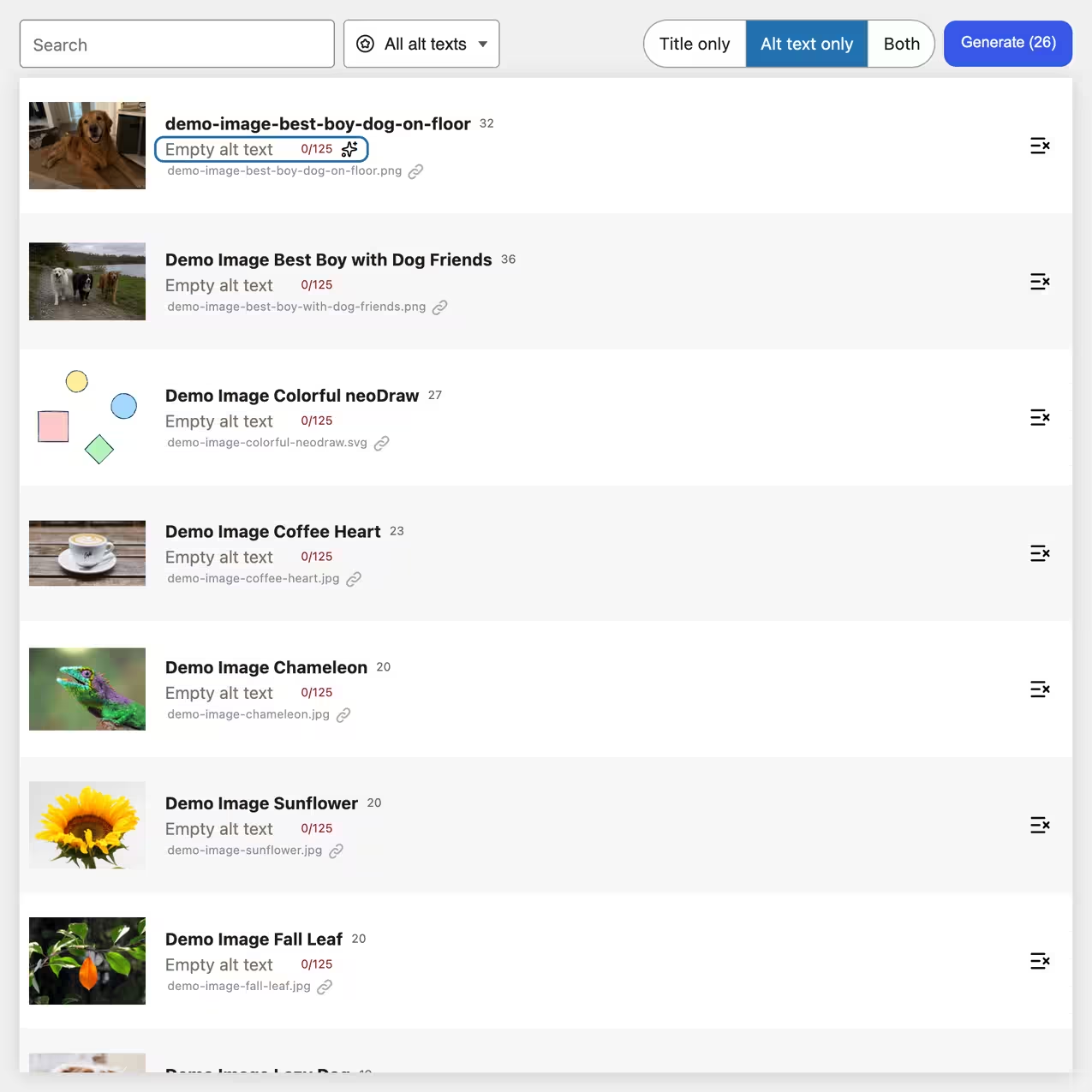
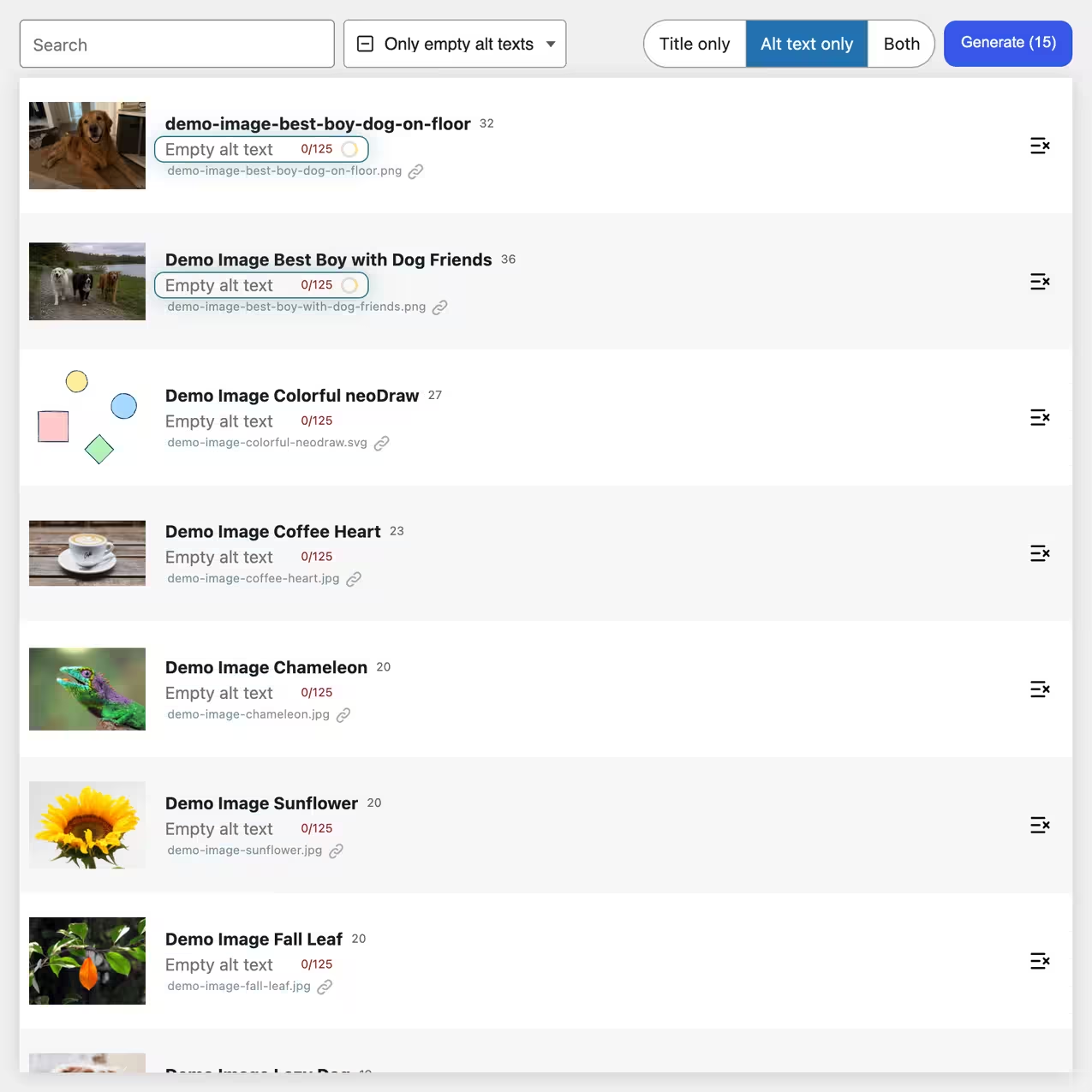
The media overview shows preview, file name, media title and alt text together. You can search specifically by title or file name, show only images with empty alternative text and sort results by upload date, modified date, title or URL. Search terms with spaces are treated together, a vertical bar allows alternatives and an asterisk serves as a wildcard.
For a single image you can generate only the title, only the alt text or both. In bulk mode the same selection applies to multiple visible images. Non-matching media can be excluded before starting. Up to four requests run in parallel and a running process can be canceled.
AI suggestions initially appear as drafts. You can edit them, discard them, restore them or save them individually. "Save all" applies the reviewed results collectively. This turns automatic alt text generation into a controlled editorial workflow instead of a blind mass change.
1. Install neo Alt
Download neo Alt from the neoWP download page. In WordPress open Plugins > Add New > Upload Plugin, choose the ZIP file and activate the plugin. Afterwards you will find the overview under Tools > neo Alt.
Download neo Alt and then open the shared alt text overview under Tools.
2. Filter images with empty alt texts
Choose the filter Images with empty alt texts. Other file types are excluded because a PDF or video does not receive an image alt attribute. Use the search to find media by title or file name. Spaces combine terms as an AND search, | serves as OR and * as wildcard. You can sort by upload date, modified date, title or URL.
3. Generate alt texts individually or in bulk
For individual images click the AI button on the alt field. In bulk mode choose Title only, Alt text only or Both. Individual media can be excluded from the queue. The bulk process handles up to four images in parallel and can be canceled after the current request.
Before starting you can enter an additional instruction, for example "Name material and visible color for product images". This instruction applies to the current run. Persistent instructions for image titles and alt texts can be stored separately in the neoAI settings.
How neo Alt uses page context
Image recognition alone does not know the purpose of an image on your website. neo Alt therefore searches for uses of the image URL in the WordPress database. For found pages it reads the visible content and marks the image position in the text context. Header, navigation, footer, popups and similar page parts are removed.
The prompt can consider image content, existing media titles, previous alt text and the text of the page being used. For image titles, nearby media titles are included as broad context. If the context search fails or takes too long, generation based on the image alone remains possible.
4. Review and edit AI suggestions
For each suggestion check three things: Does the description match the image, does it suit this use, and does it contain no unsupported interpretation? You can edit the text directly in the table. Another click on the AI button generates a different wording and avoids suggestions already discarded in the current page session.
5. Save reviewed alt texts
Save a single title or alt text directly on the table row. With Save all you apply the reviewed drafts in bulk. If neo Rename is available, the previous state is additionally recorded in its undo history.
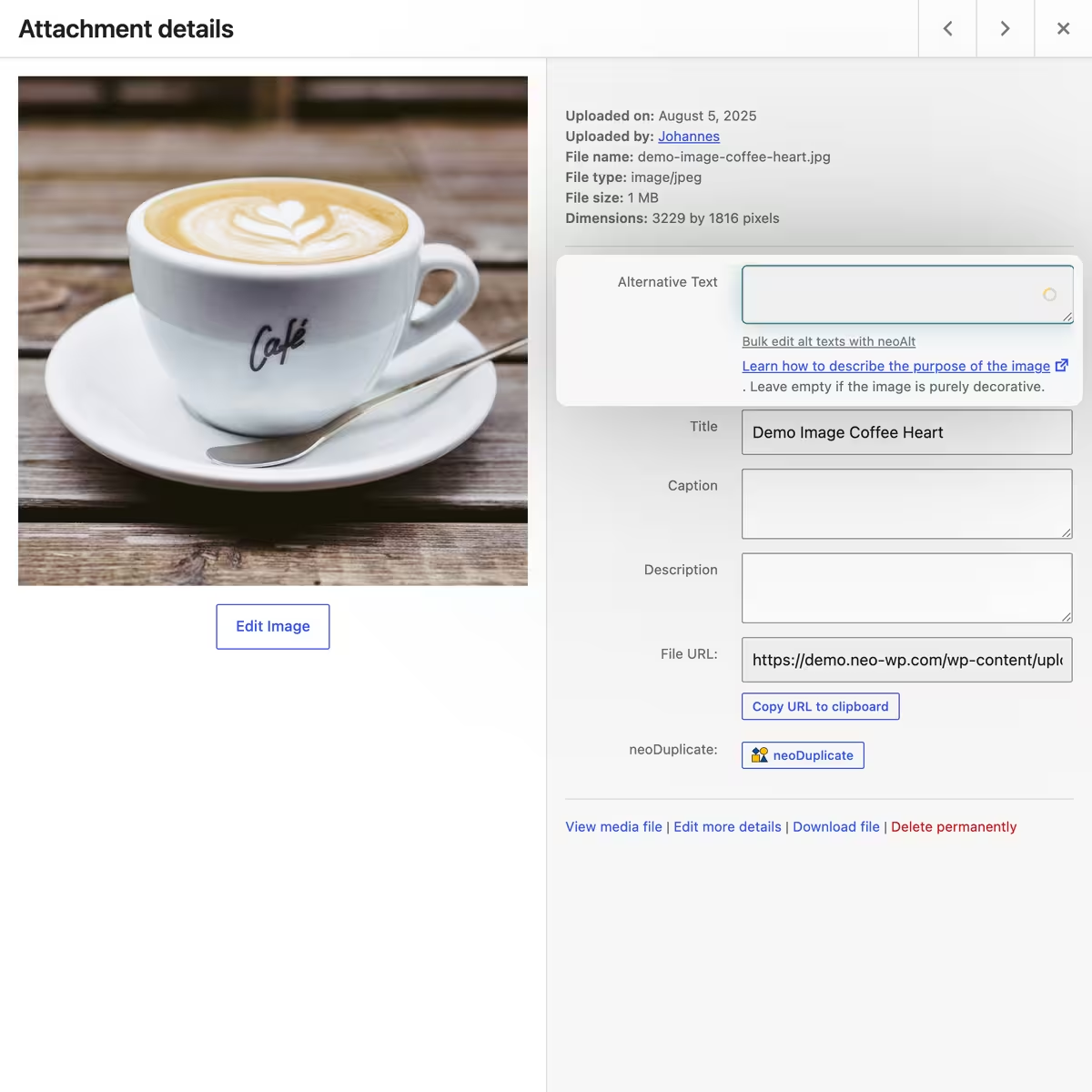
The AI feature also appears in existing WordPress alt text fields: in the media popup, on the attachment page and in the Gutenberg editor for image, cover and media-and-text blocks. There neo Alt inserts the suggestion into the field but does not save the post without your permission.
AI providers, data protection and control
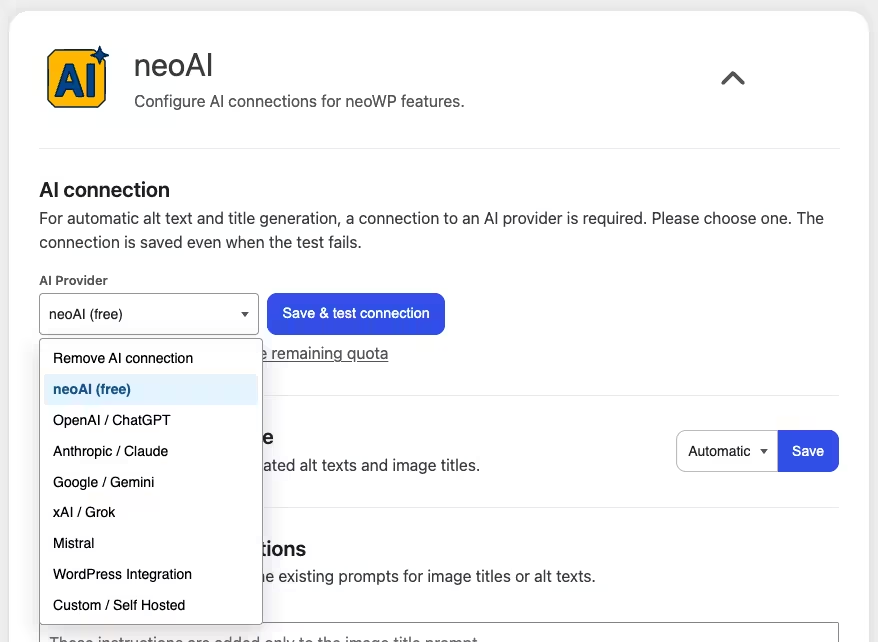
neo Alt uses the shared neoAI connection. Available are the free neoAI provider, OpenAI, Anthropic, Google, xAI, Mistral, the WordPress AI Integration and OpenAI-compatible self-hosted providers. A custom model can be selected depending on the provider.
Which provider suits your website depends on data protection requirements, costs and the desired model. The neoAI settings also show the last prompt and logged token usage.
With neo Alt you can initially use the free monthly neoAI allowance or later connect your own AI provider.
Common mistakes with alt tags and image descriptions
Keyword stuffing: A sequence like "SEO image WordPress plugin alt text generator" is neither a natural image description nor helpful for screen readers. Use only terms that truly explain the subject and context.
Filename as alt text: Values like "IMG_4821.jpg" or automatically copied upload titles tell nothing about the image information. Filename, media title and alternative text serve different purposes.
Describing every detail: Clothing, background, colors and objects are often listed completely, although only one action is relevant. Prioritize the information the surrounding content needs.
Reading out decoration: Decorative elements and redundant images make a page unnecessarily long to listen to. An intentionally empty altattribute is correct in such cases and must not be confused with a forgotten field.
One text for all uses: A central WordPress alt text does not necessarily fit a shop, blog post and landing page. Check the specific embedding and change the description in the image block if the purpose changes.
Saving automatic suggestions without review: An alt text generator can misidentify objects, confuse a product name or overemphasize page context. Compare each suggestion with the visible image and the page's message.
Checklist for a good alternative text
- Does the text convey the information or function that would be missing without the image?
- Does it fit the specific page and not just the image file?
- Are names, places and products known with certainty?
- Does the description stick to visible or verifiable details?
- Can an unimportant part be omitted?
- Is a search term included naturally if it describes the subject?
- Does a complex diagram also need visible explanatory text?
- Is the image purely decorative and therefore should
alt=""be left empty?
Read the alt text directly in the sentence where the image appears. If it sounds out of place there, it is usually too promotional, too technical, or too long.
FAQ about alt texts in WordPress
What is an alt text for images?
An alt text is the text alternative for an image. It conveys its essential information or function when the image cannot be seen or loaded.
How do you write a good alt text?
Briefly describe the information or function the image provides in the page context. Mention concrete visible details and omit unnecessary decoration.
Do decorative images need an alt text?
Decorative images get an existing but empty alt attribute. This allows screen readers to skip them.
How long should an alt text be?
WCAG does not specify a fixed character limit. The text should be as short as possible and as detailed as necessary. neo Alt recommends 80 to 125 characters for regular images and generates suggestions with a maximum of 125 characters.
Is alt text important for SEO?
Google uses alt text along with the image content and surrounding page text to understand an image. Relevant terms help; keyword stuffing harms readability and can be considered spam.
What is the difference between alt text, image title and image caption?
The alt text replaces the image information, the media title manages the image in WordPress, and the caption is visible to all visitors. The three fields have different roles.
Can WordPress create alt texts automatically?
WordPress itself does not automatically describe images appropriately to the content. A plugin like neo Alt can analyze image content, existing title, and the context of the page used and generate suggestions.
Can I edit multiple alt texts in WordPress at once?
neo Alt displays media in a common table. You can filter images, exclude individual media, and generate alt texts or image titles in bulk and then review them.
Writing, reviewing, and maintaining alt texts in WordPress
Start with images whose information would be lost without a description: product views, screenshots, portraits with names, and diagrams. Then check frequently visited pages, important landing pages, and media from the shop. Mark decorative graphics intentionally with an empty alt attribute.
neo Alt finds missing alt texts, creates context-aware suggestions, and saves every text as a draft until you review it. This keeps the editorial decision with you, even when multiple images are edited in one session.
Download neo Alt, open Tools > neo Alt, and start with the filter for images with empty alt texts.

