
Automatically create and bulk-edit WordPress image alt texts
Missing alt texts in WordPress can be added later even for a large media library. In this guide I show you how to find images, generate alternative texts with AI, review the suggestions and save them in bulk. The focus is on neo Alt, a WordPress alt-text generator for single images and bulk processing. We also clarify what a good alt text should contain, when alt="" correct and what to watch out for with Gutenberg images already inserted.
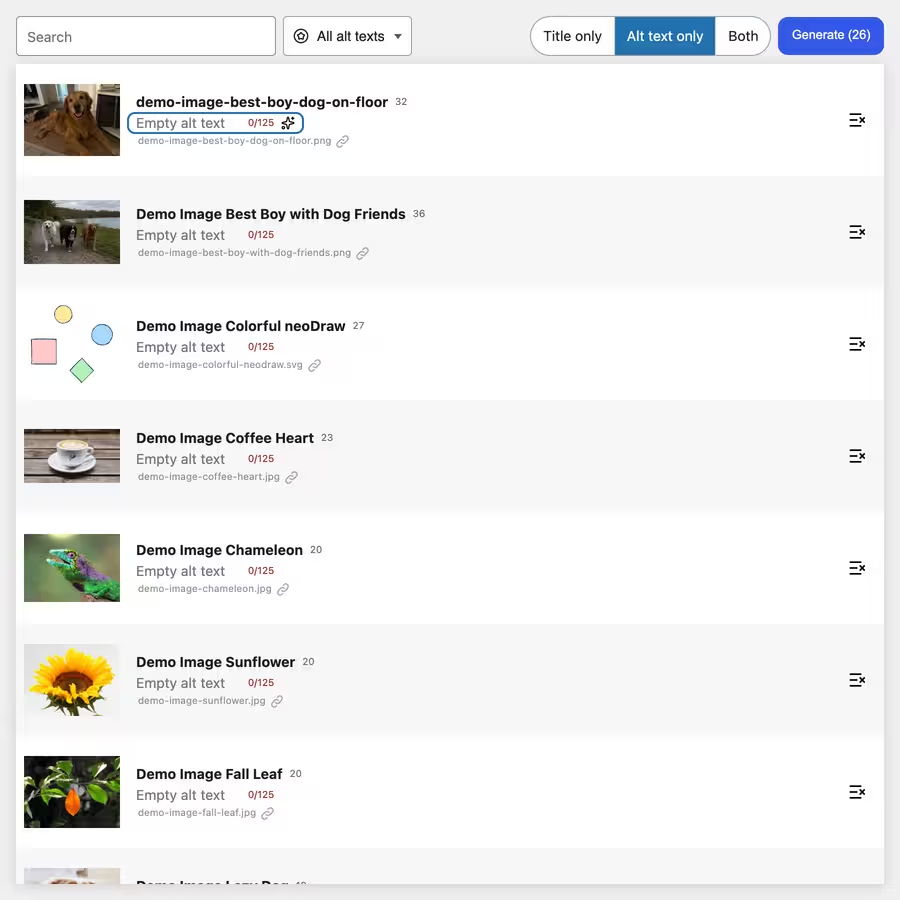
Short & concise: Create WordPress alt texts in bulk
- Install and activate neo Alt
- Open Tools > neo Alt in the WordPress backend
- Select the filter "Images with empty alt texts"
- Optionally exclude individual images from the bulk generation
- Choose Alt text only and start the AI generation
- Read suggestions, edit if needed and then save them all at once
The alt text is the text alternative of an image. Screen readers can read it aloud, and search engines use it together with the image content and the surrounding page text. The WordPress media title is a separate metadata value in the database. neo Alt can edit both, separately or in one pass. For purely decorative images an empty alt text is often the better choice. You can exclude such images with one click before the bulk run.
WordPress alt texts bulk edit: the fast solution with neo Alt
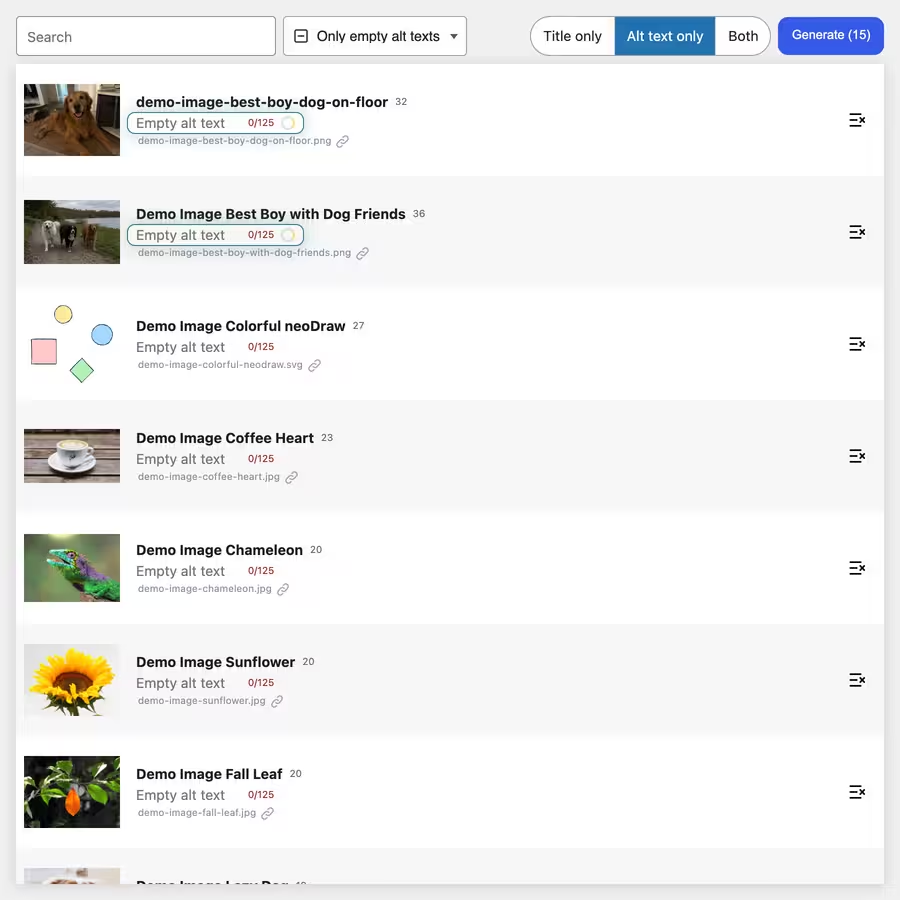
Many images, one reviewable workflow
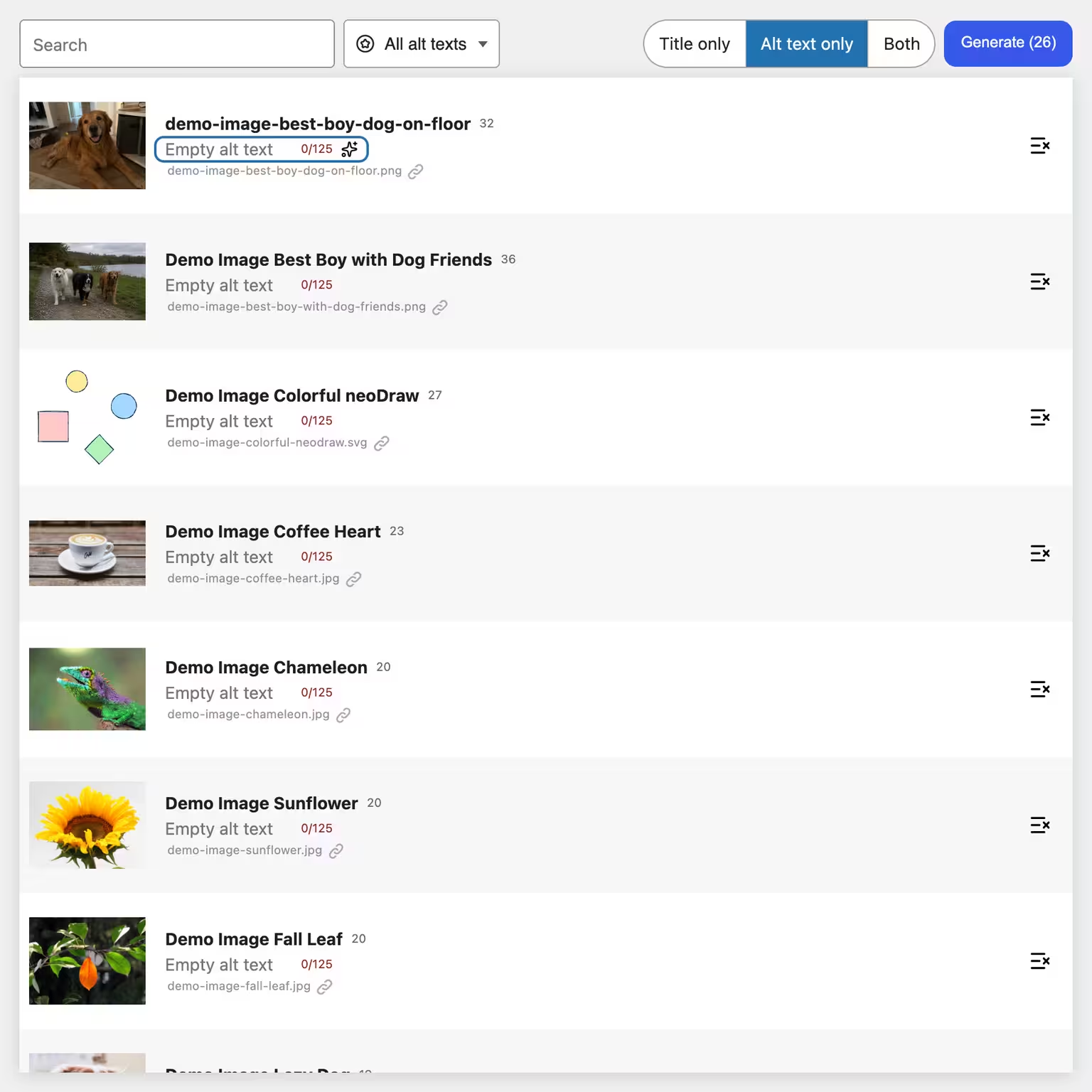
On the neoAlt page you see thumbnail, filename, media title and alt text side by side. The filter reduces the list to images without alternative text. After that you can edit exactly those hits in bulk. That saves time especially on older websites where years of uploads have accumulated without maintained image metadata.
WordPress offers alt text fields but no convenient overview for hundreds of images. That is exactly where neo Alt comes in. Its tools page loads the media library into a fast, virtualized table and combines search, filters, manual editing and AI generation.
- Find missing alternative texts: Filter specifically for images whose stored alt text is empty.
- Automatically generate alt texts: Consider visible image content, existing title and the context of pages using the image.
- Bulk Alt Text Generator: Edit all filtered images while up to four requests run in parallel.
- Review before saving: Generated texts remain suggestions at first. You can edit them, save individually, accept in bulk or discard completely.
- Edit image titles too: Choose title only, alt text only or both.
The AI does not replace editorial decision. It gives you the first draft and removes repetitive work. You keep the final control.
What can the WordPress Alt Text Generator do?
Create appropriate alt texts and image titles directly in your WordPress media library. neo Alt detects image content, takes the context of the page where the image is used into account, and provides clear suggestions for better accessibility and image SEO.
Use filters, search, and bulk processing to add to large image collections quickly. You can review, edit, and only then save each suggestion.
👑 Pro: Get a higher monthly neoAI allowance with neo Media Pro.
All features of neoAlt:
Why is page context important for alt text?
A useful alternative text does not depend only on what is visible in the image. The same photo can serve a different purpose on a team page, a product page, or in an instruction. neo Alt therefore looks for usages and can pass snippets of text around the image as context to the generation. The current image title and any existing alt text also serve as hints. This produces suggestions that fit the specific page better than an isolated image description.
Try and download neo Alt directly
You can first try neo Alt in the browser sandbox or download the WordPress plugin. A free monthly neoAI quota is available for getting started. If you prefer to use your own provider, you can connect, among others, OpenAI, Anthropic, Google, xAI, Mistral, WordPress AI, or a self-hosted model.


neo Alt
Create alt texts and image titles directly in WordPress using AI - 300 free image alt text generations included every month!
Generate alt text directly in the media library and Gutenberg via AI
You don’t have to switch to the bulk view for every image. neo Alt adds a small AI button to existing alt text fields. This works in the regular WordPress media modal and on the standalone attachment edit page. One click generates a suggestion for the currently selected image. The text is first placed in the existing WordPress field so you can read it and save it along with other changes.
Below the field a link leads to the collected neoAlt view. That way you can work on a single missing alt text directly and switch to bulk editing for larger gaps without detours.
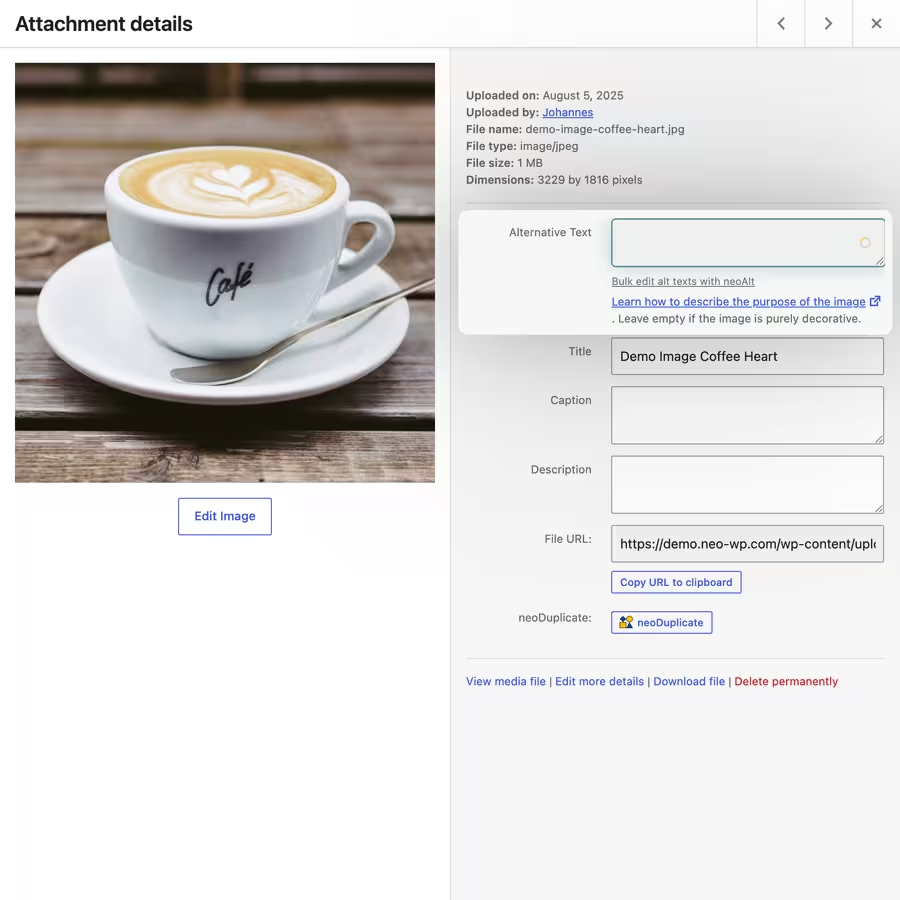
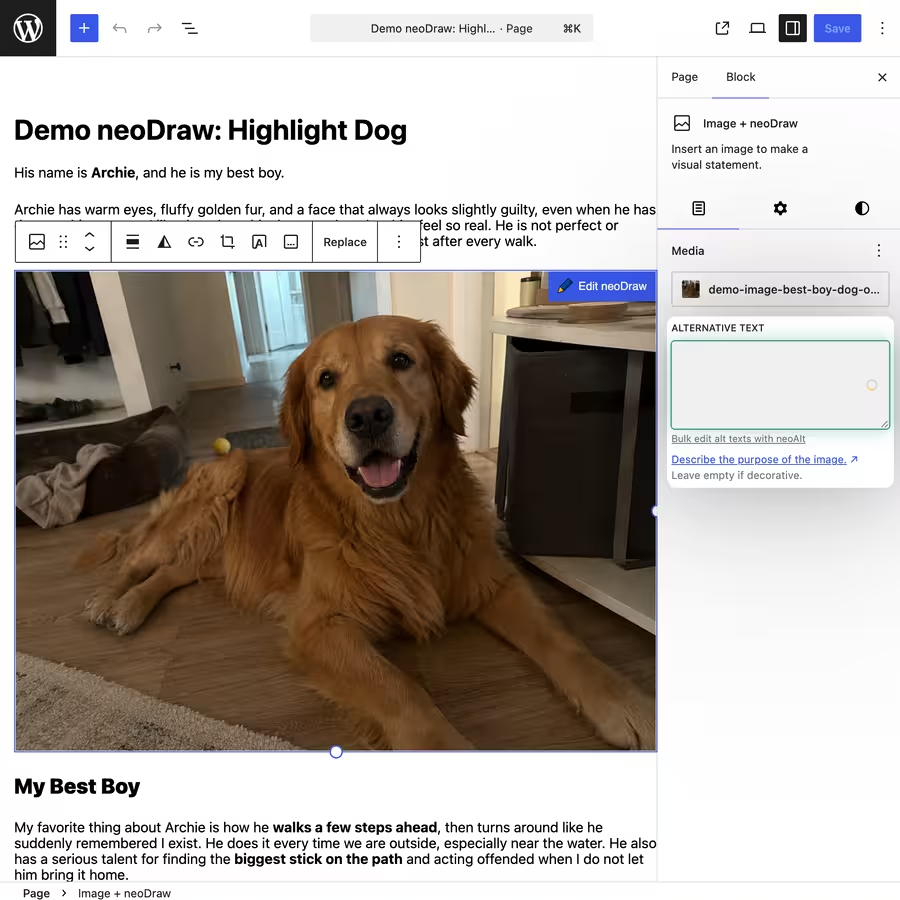
The AI button also appears in the Gutenberg block editor on supported image fields. neo Alt recognizes the Image, Cover, and Media & Text blocks and writes the suggestion into the alt text attribute of the selected block.
Important for existing posts: An alt text in the WordPress media library is the attachment’s default value. It is used when the image is later inserted. However, existing blocks can have their own value saved in the post. A bulk change to the attachment does not automatically overwrite these existing block contents. Therefore check important older pages additionally in the editor. The Gutenberg button helps you do that directly on the specific image.
What is a good alt text for WordPress images?
A good alt text describes the information or function that an image conveys in that spot. Write concretely and concisely. Instead of "Image of a dog" use "Golden Retriever carries a red ball across a meadow" which is more helpful when that exact action is relevant.
- Informative images: Describe the main message and omit unimportant details.
- Decorative images: Use an empty alt text so screen readers can skip them.
- Linked images: Describe the target or function of the link rather than just the appearance.
- Images with text: Include important lettering if it is not already present in the surrounding text.
- Diagrams and infographics: A short alt text alone is often not enough. Provide the detailed information additionally as normal page text.
For the neoAlt interface there is a recommendation of 80 to 125 characters; generated suggestions are limited to a maximum of 125 characters. This is a practical guideline, not a strict rule for every motif. What matters is that the text serves the purpose of the image.
Naturalness also matters for image SEO. Google recommends useful, informative descriptions in the context of the page and warns against keyword stuffing. A relevant search term may occur. A list of variants like "Alt Text WordPress, Image SEO, AI Alt Text Generator, Bulk Alt Text" does not belong in an altattribute.
Automatically generate WordPress alt texts: features and workflow
The neo Alt plugin bundles the steps that WordPress otherwise spreads across individual media windows. You can use the following features individually or run the complete workflow from search to save.
1) Find missing alt texts in the media library
Select "Images with empty alt texts", to hide videos, PDFs and images already maintained. The search also works with media title and filename. A space connects terms as an AND search, the vertical bar | stands for OR and * acts as a wildcard. Sort results by upload date, modified date, title or URL. This lets you work through a large WordPress media library step by step.
2) Generate alt text or image title individually
Each image row has its own AI buttons for title and alt text. Visible image content, current media title, existing alt text and detected page context are taken into account. If you don't like a suggestion, you can regenerate. Previously discarded results are considered within the workflow so the next variant is actually different.
You can edit the text directly and save only that one field. The other value remains untouched.
3) Edit alt texts via bulk generation
Three modes are available for many images: Title only, Alt text only and Both. The button shows in advance how many filtered images will be processed. You can exclude individual motifs, such as decorative graphics, logos or images that need an individual description.
Before starting you can enter an additional prompt instruction, for example "For product images, name material and color if both are visible." Up to four images are processed in parallel. You see the progress and can cancel the remaining queue. Suggestions already generated remain for review afterwards.
4) Review, edit or discard AI suggestions
Generated texts are not quietly distributed in the database. neo Alt marks them as drafts. You can read, manually change and save each title and alt text separately. After a bulk run, Save all and Discard all are also available.
A character counter shows the length of the alt text. Values outside the range recommended in neo Alt are visually highlighted. When leaving the page the browser warns if drafts or ongoing processes are present.
5) Keep image title, URL and filename in view together
In addition to the alt text the table shows media title, filename and URL. The URL can be copied and the original image opened in a preview. If neo Rename is installed, clicking the filename opens the rename dialog. This lets you replace a generic name like IMG_4821.jpg with a descriptive filename without losing sight of alt text and title.
Filename, image title and alternative text serve different purposes. They may match each other but should not be blindly identical copies.
6) Set language, AI provider and custom prompts
In the neoAI settings you set the output language for image titles and alt texts. You can also store permanent instructions separately for both text types. For a single bulk run there is a temporary prompt addition directly at start.
Options include a free neoAI quota as well as your own connections to OpenAI, Anthropic, Google, xAI, Mistral, WordPress AI or self-hosted models. For the free provider neo shows the planned number of requests before the first transfer and asks for confirmation.
FAQ: Alt texts, bulk editing and WordPress
What is the difference between alt text, image title and image caption?
Alt text replaces the image information when the image cannot be seen. The media title organizes the attachment in WordPress. A caption appears visibly below the image. These fields are not interchangeable.
Can WordPress create alt texts automatically?
WordPress itself provides the fields. With an AI alt text generator plugin like neo Alt you can analyze image content and have suggestions generated automatically.
Can I add alt texts for all images at once?
Yes. Filter for empty alt texts in neo Alt and start the bulk generation. Review the results before saving and exclude decorative images.
Does neo Alt overwrite existing alt texts?
The bulk run applies to the currently filtered and not excluded images. If you filter only empty alt texts, already maintained values remain outside the selection. In the overall view you can consciously regenerate existing values or change them manually.
Are alt texts in existing posts updated automatically?
Not in every case. The media library stores the attachment’s default value. Gutenberg blocks already inserted can contain their own alt text in the post. Check central pages in the block editor and use the neoAlt button there.
Should every image have a filled alt text?
No. Informative images need an appropriate text alternative. Purely decorative images should usually have an empty alt attribute so screen readers skip them.
How long should a WordPress alt text be?
There is no length that is right for every image. neo Alt recommends 80 to 125 characters and limits AI suggestions to 125 characters. A simple icon may need far less text, a complex graphic may require an extended description in the page content.
Do alt texts automatically improve Google ranking?
Alt texts help search engines understand images in the page context and mainly improve accessibility. They are not an isolated ranking trick. Use relevant terms naturally and avoid keyword stuffing.
Do I need my own OpenAI API key for neo Alt?
No. A free monthly neoAI quota is available. Alternatively you can connect your own supported provider.
Can I cancel the bulk run?
Yes. Already running requests are terminated and the remaining queue stops. Completed suggestions remain visible and can be reviewed, saved or discarded.
Useful resources on alt text, WordPress and image SEO
- W3C WAI: Alt texts for informative, decorative, functional, and complex images
- WordPress Accessibility Handbook: Alternative Text for Images
- WordPress documentation on the Image Block and alt text
- Google Search Central: Image SEO and descriptive alt texts
- neoAlt: WordPress AI alt text generator with bulk processing
- neoRename: edit image files, filenames, and media metadata
Conclusion: Add missing WordPress alt texts in a controlled way
With ten images, manual maintenance is manageable. With several hundred uploads it quickly becomes busywork. neo Alt solves exactly that part: find missing alt texts, evaluate image content and page context, generate suggestions in bulk and save them only after review.
Start with the filter for empty alt texts. Exclude decorative images and work through the suggestions in sensible stages. Then check important existing posts because block-based alt texts may be saved there. This turns an unruly media library into a clear, reviewable process.
If you also want to tidy up image titles and filenames, you can combine neo Alt with neo Rename. For the first step the alt text view is enough: install, filter, generate, read, save.

