
Crop images and keep original in WordPress
You need a wide header from a photo, a square featured image and maybe later the full motif again. Then cropping an image should not mean you overwrite the original or create five barely distinguishable files just in case.
With neoDraw you crop images directly in WordPress. The crop remains editable, the full image data stays within the neoDraw-drawing and the uncropped original can be downloaded again via right click. This works in Gutenberg, Bricks, Elementor, the Classic Editor and the WordPress media library.
Short answer
How to crop an image and keep the original: Open the existing JPG or PNG with neoDraw, select the image, enable crop mode and draw the desired crop. Save the drawing as SVG. If you want to return to the full image later, reopen the SVG or choose Download original after a right click.
What "keep original" really means when cropping
WordPress behaves differently depending on the interface. When cropping in the image block, an edited variant is saved as a new image file while the original image remains in the media library. The classic media editor can apply changes to the image file and its sizes, but offers a restore original function. The documentation for the WordPress image block describes the variant approach.
For a single, final crop that is often sufficient. It becomes awkward when you want to move the same crop later or work directly with the full motif. That's exactly what neoDraw is handy: The crop is part of an editable drawing. It defines which area is visible but does not remove the rest of the embedded image.
This is how neoDraw keeps the crop editable
A neoDrawfile is an SVG drawing. If you import a JPG or PNG, the raster image remains fully embedded in that drawing. When cropping, neoDraw also saves the position and size of the visible area. Parts of the image outside the crop are hidden, not deleted from the embedded image data.
This has two concrete consequences: You can open and change the crop again later. And you can download the uncut image data from the context menu. The original JPG or PNG file you created the drawing from also remains as its own entry in the WordPress media library.
Crop image in WordPress and keep original: Instructions
1. neoDraw install
Download neoDraw as a ZIP file. In WordPress open Plugins > Add New > Upload Plugin, choose the ZIP file and activate the plugin. If you want to see the process first, you can neoDraw open the demo without installing it.
2. Open an existing image in neoDraw open
Choose the image where you are working: in the Gutenberg image block, in Bricks, in Elementor or directly in the media library. Open it using the neoDrawbutton. From the existing image a new, editable SVG drawing is created. Your uploaded original stays in the media library.
For a clean crop you should work with the largest sensible source file. A preview image already reduced to 300 pixels will not regain detail by cropping later.
3. Enable crop mode
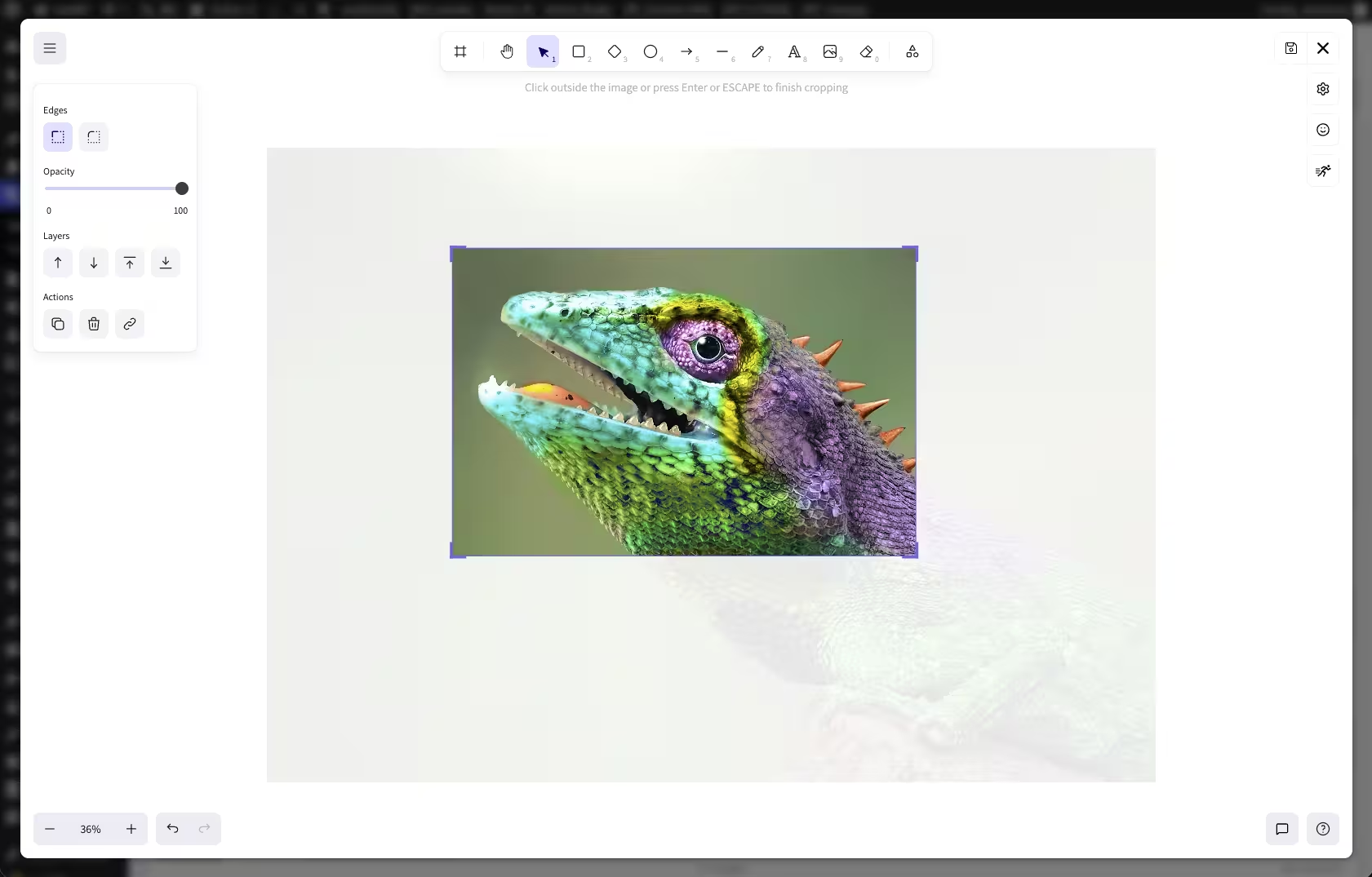
Click in the neoDraweditor on the imported image. Then enable Crop image using the crop tool. Depending on your workflow you can also open the mode by double-clicking the selected image or by pressing Enter.
4. Set the crop area
Drag the edges of the crop frame to the desired section. You can move the image within the frame until the subject sits correctly. Pay attention not only to the main subject but also to text areas, gaze direction and the area that should remain visible on smaller screens.
Click outside the image or press Enter again to finish editing. If the crop does not fit, simply open the crop again. That is the advantage over a permanently exported flat image.
5. Save as editable SVG
Save the drawing in the WordPress media library and then insert it in the post, on the landing page or in the page builder. The visible graphic is an SVG, the embedded raster image data and the crop settings remain part of the neoDrawfile.
If you open the drawing later again with neoDrawyou can correct the crop, add annotations or add text. You do not have to return to the original image file and repeat the whole setup.
Download uncropped original by right clicking
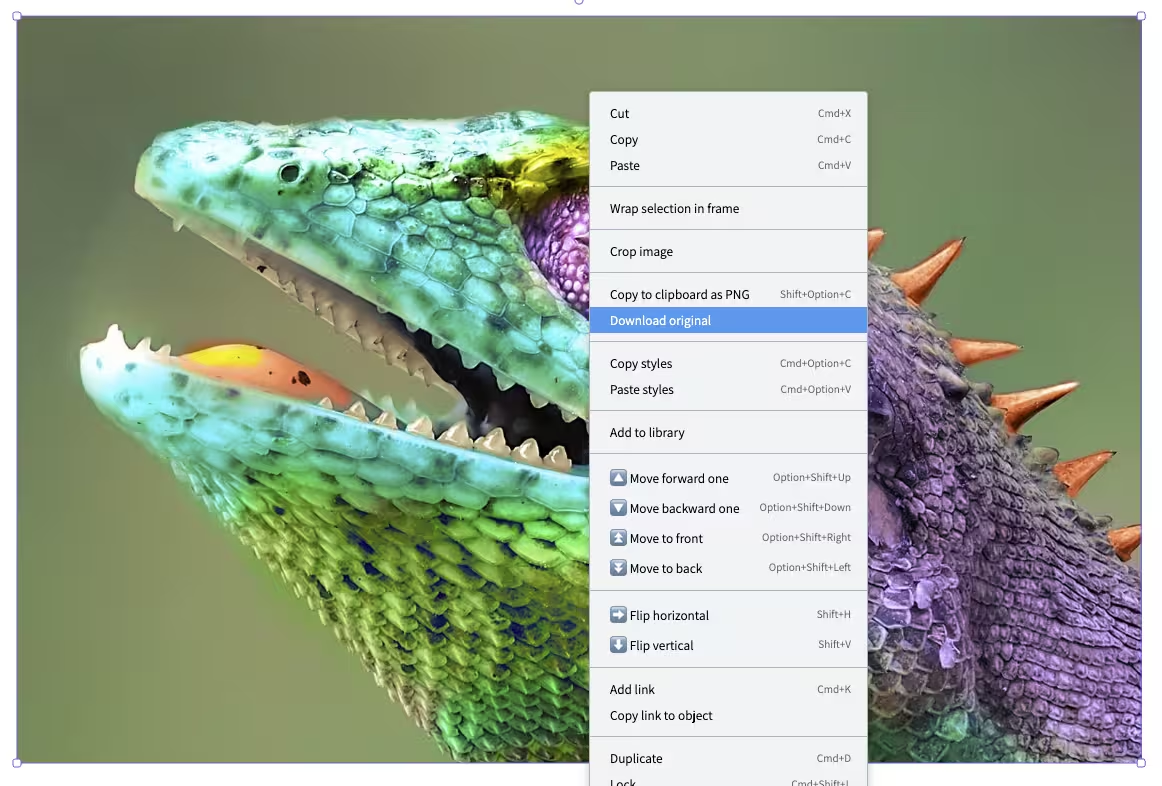
Sometimes you need not just a different crop but the complete original file. To do that, select the image inside the neoDrawDrawing and open the context menu with the right mouse button. Click on Download original.
neoDraw uses the fully embedded image data. The generated filename also contains the original width and height, for example productphoto-2400x1600.jpg. That way you can tell at a glance that you received the uncropped file in its original pixel dimensions.
When an editable image crop is especially useful
- Header and hero images: You shift the subject later when a headline or button needs more space.
- Product images: A detail view can be tightened without losing the full shot.
- Guides and screenshots: You hide unimportant borders and can readjust the crop if the interface is updated.
- Different page formats: From the same source you can create a wide banner, a square preview and a narrow card crop.
For several clearly different formats it is usually clearer to create a separate neoDrawDrawing from the same original. That way each crop remains independently editable and you avoid mutual changes.
WordPress image cropping: Which method fits?
Gutenberg image block
Good for: a quick crop in a single post.
WordPress saves the edited version as a new image variant. The original media remains accessible in the Media Library.
WordPress media editor
Good for: basic changes to a media file.
The original can be restored. For image crops you want to move regularly, the workflow is less direct.
neoDraw
Good for: repeatedly changeable crops, annotations and text.
The crop remains editable in the SVG. The full image data stay embedded and can be downloaded via right click.
Tips for a clean crop without unnecessary quality loss
- Start with a sufficiently large source file. The crop can hide details but cannot create missing resolution.
- Do not enlarge small image areas more than necessary. Check the result at the actual display size.
- Focus on the subject. For people, leave more space in the direction they are looking than in front of the face.
- Test wide crops on a smartphone too. A good desktop crop can still look awkward in a narrow container.
- Keep the neoDraw-SVG if you want to change the crop later. An additionally exported flattened image is no longer editable in the same way.
Frequently asked questions about image cropping with Original
Does neoDraw overwrite the original image when cropping?
No. neoDraw stores the visible crop in the editable SVG drawing. The complete embedded image data remains intact. If you open an existing JPG or PNG from WordPress, the original media file also stays in the Media Library.
Can I change the crop later?
Yes. Reopen the neoDraw-drawing, select the image and enable crop mode again. You can move, enlarge, shrink or set a completely new crop.
How can I download the un-cropped original?
Select the image within neoDraw , open the context menu with the right mouse button and click "Download original". neoDraw downloads the embedded original data and adds the original pixel dimensions to the filename.
Does cropping work in Gutenberg, Bricks and Elementor?
Yes. neoDraw is integrated into Gutenberg, Bricks, Elementor, the Classic Editor and the WordPress Media Library. You open the selected image in the neoDraw-editor, crop it and save the result again as an editable SVG file.
Does cropping cause the original to lose resolution?
The crop does not change the embedded original data. It determines which area is visible. The original pixel dimensions remain available for download later. How sharp the image appears on the website also depends on display size and WordPress image optimization.
Can I create multiple crops from the same image?
Yes. Create separate neoDrawdrawings from the same original for different uses, for example a wide header, a square thumbnail, and a detail view. The original image file remains unchanged.
Change the crop without giving away the original
With neoDraw a crop remains an editable choice. You set the visible area directly in WordPress, save it as an SVG, and can move it again later. If you need the full file, retrieve it via Right click > Download original.
This makes neoDraw especially suitable for images that will be used in multiple formats or adjusted later. Download the plugin, open an existing image, and try the first crop directly in your WordPress editor.

