
The Uploaded File Could Not Be Moved to wp-content/uploads: 8 Solutions
WordPress reports:The uploaded file could not be moved to wp-content/uploads/YYYY/MM.
You upload an image, a PDF or another file to the WordPress Media Library and the process ends with exactly this message. It means: WordPress accepted the temporarily stored file but could not move it to the final uploads folder.
First test a second small JPG or PNG file. Then check Site Health, free disk space and inodes, the configured upload path, permissions and owner as well as the PHP temp directory. The numeric path is not fixed: depending on the month it could be around wp-content/uploads/2026/01, 2026/02, 2026/04 or 2025/12 listed. In this guide we therefore use /YYYY/MM.
Short answer: The error means that WordPress could not move the temporary upload into the target folder. Check in this order disk space and inodes, the upload path, owner, file permissions and the PHP temp directory. Change permissions only after a backup and do not use 777 as a permanent solution.
What does “The Uploaded File Could Not Be Moved” mean?
The message comes from WordPress upload handling. WordPress first checks upload status, file size and file type. Then wp_upload_dir() determines the destination and tries to move the temporary PHP file there. If this final step fails, the message “The uploaded file could not be moved to …”. appears. This can be traced in the WordPress core upload handling.
A WordPress upload file permission error is a common cause but by no means the only one. A full hosting account, exhausted inodes, incorrect ownership or an inaccessible temporary directory can look the same to WordPress in the end: the target file cannot be written.
Quick Diagnostic Checklist
- Test another small file: Upload a known JPG or PNG file of a few kilobytes. If it works, check file type, filename and the size limit of the original file separately.
- Check WordPress Site Health: Open Tools > Site Health > Info > Filesystem Permissions. The entry “The uploads directory” should show “Writable”. This section is present in recent WordPress versions.
- Check disk space and inodes: One free gigabyte does not help if the inode limit has already been reached.
- Check the upload path: Determine whether WordPress really uses
wp-content/uploads/YYYY/MMor an old custom configuration. - Compare permissions and owner: Check the main folder and the current year/month folder.
- Check PHP temp directory:
upload_tmp_dirmust be reachable and writable by the PHP process. - Contact hosting support: Provide the exact path and a concrete time so the host can check the appropriate PHP and web server logs.
Diagnostic decision tree

Check Site Health correctly
Open Tools > Site Health > Info > Filesystem Permissions and look for The uploads directory. If it says Writable, WordPress can generally write to the uploads folder. Next check storage, inodes, destination path and the PHP temp directory. If it says Not writable start with permissions and ownership.
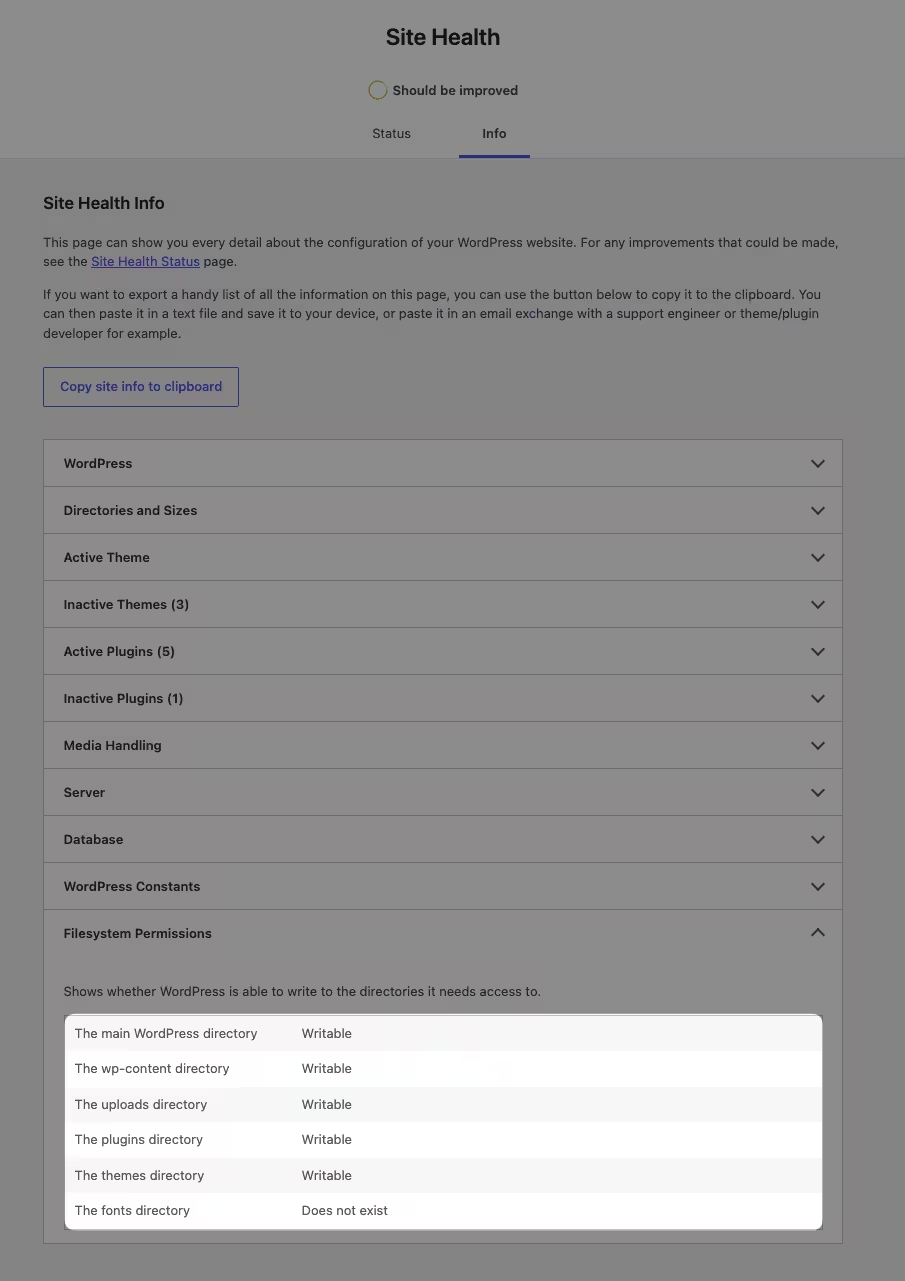
In the screenshot: The uploads directory is writable. The cause is therefore probably not the basic write permissions of the folder.
Causes at a glance
Storage or inodes full
Identified by: Several uploads suddenly fail even though you did not change anything.
Next step: Check hosting usage and multisite quota.
Upload folder not writable
Identified by: Site Health shows "The uploads directory" status as "Not writable".
Next step: Check permissions and owner of the affected path.
Wrong upload path
Identified by: The error message names an unexpected or old folder.
Next step: Check upload_path, UPLOADS and involved plugins.
PHP temp directory
Identified by: Various file types fail even though the destination folder seems correct.
Next step: Have the host check upload_tmp_dir and open_basedir.
Security rule blocked
Identified by: Only certain file types or individual upload requests fail.
Next step: Check WAF, ModSecurity and security plugin logs.
Fix 1: Check storage and inodes
Start here because this cause can be ruled out without changing files or configuration. A hosting account can have reached its disk quota even though the uploaded file is small. Uploads often create preview images in addition to the original file. Caches, backups, logs and updates also need space.
A inode roughly represents a filesystem entry. If the hosting shows free storage but no free inodes, PHP cannot create a new file. Do not delete anything blindly. First check whether old backups, cache files, or staging copies explain the usage, and use your host's or plugin's cleanup tool.
With a WordPress Multisite an additional limit applies: a single site’s upload quota can be exhausted even though the server still has space. As network admin, check the storage limit of the affected site.
These read-only commands are helpful via SSH:
df -h
df -i
df -h shows used disk space, df -i shows inode usage. On managed hosting the account can have an extra quota that these server values do not fully reflect. In that case the hoster’s display is authoritative.
Upload working again? With neo Rename you can then manage media filenames and existing upload paths clearly. The plugin does not repair server permissions but helps clean up the media library afterwards.
Fix 2: Check upload directory
The default path is wp-content/uploads. If the option to organize by year and month is active, WordPress appends the date folder. The structure then looks like this:
wp-content/
└── uploads/
    └── YYYY/
        └── MM/
            └── your-file.jpg
Check via SFTP, FTP, or the hosting file manager whether uploads, the year folder and the current month folder exist. A missing month folder is not automatically an error: WordPress tries to create it itself. If it cannot, the parent folder is usually not writable or is misassigned.
WordPress also internally considers the older option upload_path. The constant UPLOADS in wp-config.php can override this path. The official documentation for wp_upload_dir() describes this order. Only look for a special configuration if the error names an unexpected path or the site was migrated. Do not change the path without reason.
The date folder itself is not the problem. If you intentionally want to remove years and months from existing media URLs, that is a separate guide for moving WordPress uploads out of date folders. For the current error you must first restore writability.
Fix 3: Correct directory permissions
Open the properties of the affected directory in your SFTP client or file manager. 755 for directories and 644 for files are sensible starting values on many Linux hostings. They are not a universal rule. Some hosting setups use group permissions, ACLs, or a different PHP runtime mode.
Check the permissions from the path outside in: wp-content, uploads, YYYY and MM. The PHP process needs write access to the target directory and access to the parent folders. The official WordPress guide to File Permissions explains owner, group, and public permissions.
Before making any changes: Create a backup of the affected files and note the previous permissions. Do not set 777 permanently. That makes files writable by every server user without fixing the real cause like a wrong owner.
If you are confident with SSH, this command shows the current values without changing them:
ls -ld wp-content wp-content/uploads wp-content/uploads/YYYY wp-content/uploads/YYYY/MM
Change permissions only for the path demonstrably affected and according to your hoster's guidelines. A recursive chmod over the entire WordPress installation is unnecessary for this troubleshooting.
Fix 4: Correct ownership
Permissions determine what owner, group, and other users may do. Ownership determines which user and which group are the owner. That is why chmod 755 can look correct and uploads still fail.
This pattern often appears after a manual migration, a restore as root, a deployment via SSH, or copying files between hosting accounts. The folder then belongs for example to the SSH user while PHP runs under a different account or in a different group.
Compare owner and group of wp-content/uploads with a folder that WordPress can demonstrably write to. Do not execute a copied chownDo not run the command until you know the correct hosting user. On shared hosting usually only support can reliably fix the ownership. Send them the target path and specifically ask them to check owner, group and ACLs for the PHP/Webserver process.
Your uploads working again? neo Rename renames media directly in WordPress and updates related references. That way you do not have to fix filenames later via SFTP in uploads work.
Fix 5: Check PHP temp directory
A browser upload first lands in a server temporary directory. Only afterwards does WordPress move the file into the media library. The PHP setting upload_tmp_dir can specify its own folder. If this folder is missing, full, or PHP cannot read and write it, a WordPress temporary folder upload error occurs.
Also open_basedir can restrict access. The temporary folder and the final upload directory must be within the paths allowed for the website. On managed or shared hosting you should check these values in the hoster's PHP info area or ask support. Edit php.ini or .user.ini only if the host documents this method. A random file from a foreign tutorial can damage PHP settings for the entire website.
With SSH these commands provide clues, although the CLI PHP configuration can differ from the web PHP version:
php --ini
php -i | grep -E 'upload_tmp_dir|open_basedir'
If Site Health reports the upload folder as writable, memory and inodes are free and still every small file fails, this check is especially worthwhile.
Fix 6: Recreate current upload folder
This solution only makes sense if the current YYYY/MMfolder is missing, empty, or demonstrably created with wrong ownership. Never delete a month folder with existing media files.
- Create a full backup of
wp-content/uploadsand the database. - Check if there are files in the affected month folder. If files exist, repair permissions and ownership instead of recreating the folder.
- Create only a missing folder via SFTP or the file manager, for example first
YYYYand inside itMM. - Copy permissions, owner and group from a working neighboring month folder of the same hosting account.
- Upload a small test file. Then check if it appears in the media library and is reachable via its URL.
If an empty folder is broken, first move it to a backup name with the help of the host instead of immediately overwriting it. That way the change is reversible.
Fix 7: Check security and hosting rules
Security plugins, a web application firewall, ModSecurity or a hosting rule can block uploads. This is more likely if only certain file extensions, filenames or requests are affected. A blocked file extension usually produces a different message in WordPress than the failed move. Treat it as a separate error class.
Test a small standard JPG file. If it works, compare file extension, MIME type, filename and size with the problematic file. Check the event or blocking logs of the existing security tool. Do not disable all plugins indiscriminately. If a short test is necessary, create a backup first, use a maintenance window and disable only the specific security component.
For repeatable errors note the exact second of the occurrence. The host can then correlate WAF, ModSecurity, PHP and web server logs precisely.
Clean up after repair: If you then want to deliberately clean up date folders or unclear filenames, neo Rename applies path and reference changes within WordPress.
Fix 8: Contact hosting support with the right information
A general message like "uploads do not work" often leads to follow-up questions. Instead copy this checklist and replace the placeholders:
Support request:
Exact message: "The uploaded file could not be moved to wp-content/uploads/YYYY/MM."
Affected target path: wp-content/uploads/YYYY/MM
Timestamp with timezone: 2026-08-10 14:30:00 Europe/Berlin
Test file: test.jpg, 120 KB
Result with a second small JPG file: also failed
Storage status: [free/used]
Inode status: [free/used]
Site Health, Filesystem Permissions: The uploads directory = [Writable/Not writable]
Please check: owner, group, ACLs, disk and inode quotas, PHP upload_tmp_dir, open_basedir, and the appropriate PHP, web server, and ModSecurity logs.
Attach the Site Health excerpt, but remove public IP addresses, server paths, and other details the support team does not need. With a reputable host these data are usually enough to distinguish between quota, ownership, and PHP configuration.
What you should not do
- Do not set permanent 777 permissions. They make
wp-content/uploadsunnecessarily writable and often hide an ownership error. - Do not make the entire wp-content writable. For a media upload the specific upload path is relevant.
- Do not modify WordPress core files. The error message is a symptom of the server or path configuration.
- Do not insert random wp-config.php snippets. A new
UPLOADSconstant can create a second incorrect path. - Do not deactivate all plugins first. Memory, inodes, Site Health, path and owner can be checked faster and with less risk.
- Do not disable the dated folders to work around the error. An unwritable parent folder will remain unwritable.
Frequently asked questions
Why does the error include a year and month?
WordPress can automatically organize uploads by year and month. That is why the message names the current target folder, for example wp-content/uploads/2026/04. Next month the numeric value changes. The diagnosis stays the same, which is why a single timeless instruction with /YYYY/MM is sufficient.
What permissions should wp-content/uploads have?
755 for directories and 644 for files are a reasonable starting point on many Linux hostings. However, owner, group, ACLs and the way PHP is executed are decisive. If your host documents different values, follow their guidelines.
Why does chmod 755 not fix the error?
chmod changes permissions but not owner and group. If PHP runs under a different user, a quota is full or blocks open_basedir the path the folder remains unusable for the actual process despite 755 permissions.
Can a full disk cause this message?
Yes. A full inode quota or a multisite quota can also prevent WordPress from creating the target file. A 50 KB file can therefore fail even though it hardly needs space itself.
Is this related to the maximum upload file size?
Usually not. An exceeded upload_max_filesize or post_max_size usually produces its own message. “Could not be moved” appears later in the process after the temporary file has already been accepted. If only large files fail, you should check both classes of errors.
Does WordPress create upload folders automatically?
Yes. WordPress attempts to create the needed upload path and, when date-based organization is enabled, the year and month folders. If this fails, the parent folder is often not writable or a custom path is incorrect. Only create folders manually if you can correctly set permissions and ownership.
Test uploads and then continue cleanly
After each change upload the same small test file. That way you know which step fixed the error. Then check the file in the Media Library, open its URL and verify that WordPress generated the expected thumbnails.
If uploads work again you can tidy the library at your leisure. neo Rename helps rename and move media and updates references within WordPress. For large libraries neo Library adds search and organization without having to browse server folders by hand.
Manage WordPress media without SFTP manual work: Download neo Rename for free and edit file names and media paths directly in WordPress. Server permissions remain a hosting task but ongoing media maintenance becomes much clearer.

