
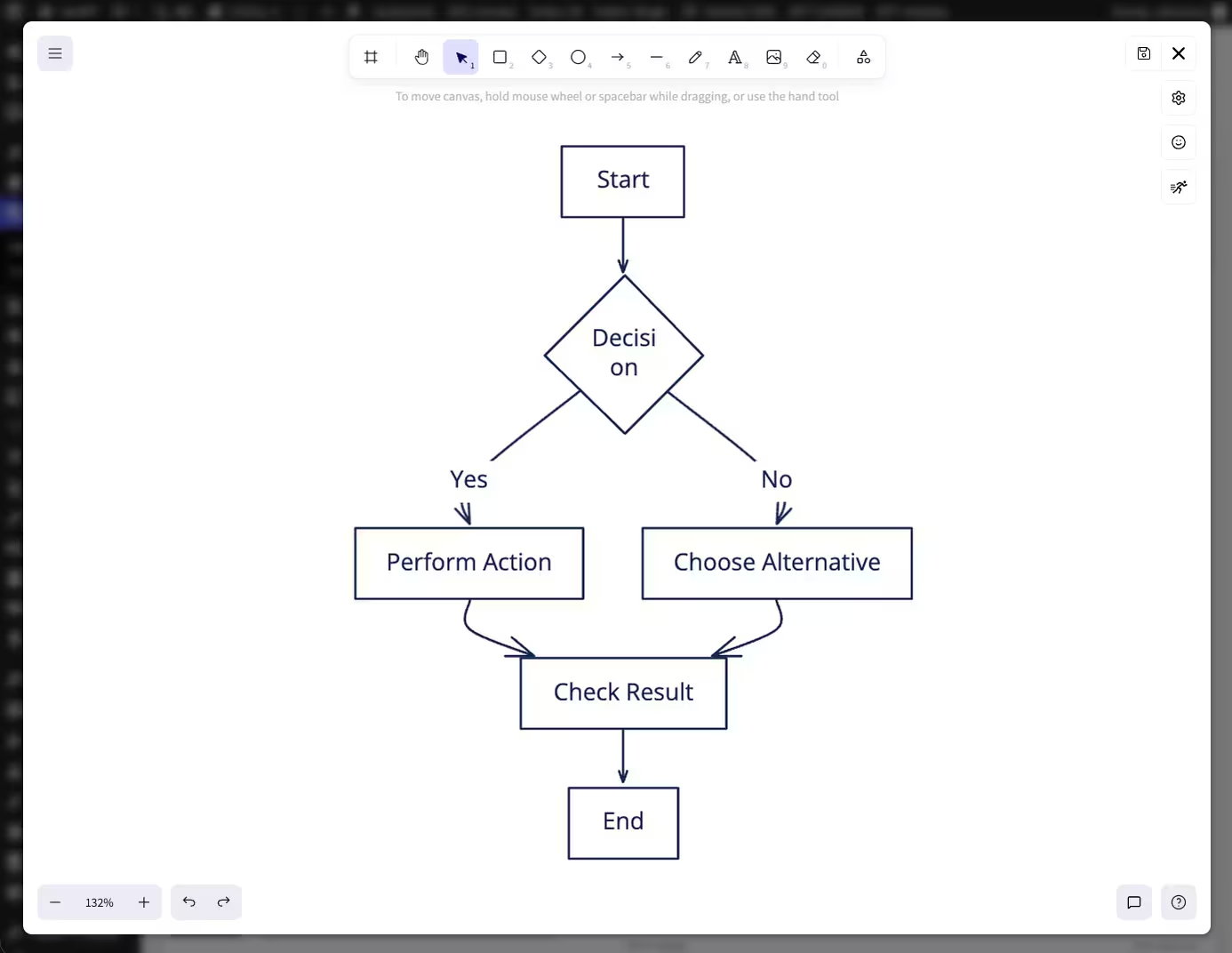
Mermaid drawings in neoDraw import and edit visually
You have a Mermaid diagram as code and want to show it in WordPress? The automatically generated graphic is a good start. For a finished article you often need to adjust spacing, colors or labels.
For that you can use neoDraw. The free WordPress plugin brings an Excalidraw-based drawing editor directly into your site. You paste your Mermaid code, check the preview and take the diagram as an editable drawing. You do not need prior knowledge: This guide takes you from download through import to the finished SVG file in the WordPress media library. neoDraw The process is suitable for technical documentation, software architecture, processes and UML diagrams. You will also find a ready-to-use GPT prompt and examples for flowcharts, sequence diagrams and class diagrams.
Create Mermaid diagram in WordPress: the short solution

download for free, install and activate in WordPress.
- neoDraw Open a new
- drawing in the media library or directly in the page builder you use. neoDrawIn the editor click More tools and then Mermaid to Excalidraw.
- Paste the Mermaid syntax on the left and check the preview on the right.
- Click Insert, edit shapes and texts visually and save the drawing.
- stores the result as an SVG in the WordPress media library. From there you can insert the diagram like a normal image in Gutenberg, Bricks, Elementor or the Classic Editor.
neoDraw What makes a Mermaid drawing different from a normal image
Mermaid describes a diagram as text. Nodes, connections and direction are in the code while the renderer computes the graphic. This is convenient for README files, wikis and versioned documentation because a change to a process can be saved as a small text change.
For a website the automatically computed rendering is often not enough. Maybe a decision node should stand out more, a connection should take a different route or the drawing should match the site design. A static screenshot only solves the problem superficially. It remains an image. After converting to
you can instead select the generated shapes, arrows and texts and modify them with the tools of the Excalidraw-based editor. neoDraw Why convert Mermaid to Excalidraw in
? neoDraw Import saves the mechanical part of the work. Mermaid builds the structure,
applies the styling. For a flowchart you do not have to create the boxes one by one and then connect them with arrows. After inserting you can still move, label, recolor or delete any supported element. neoDraw Use existing Mermaid code as a starting point
- Import diagrams generated with ChatGPT or another LLM as-is
- Edit flowcharts, sequence diagrams and class diagrams visually
- Add sketch style, colors, fonts, icons and additional notes
- Save the finished diagram as a scalable SVG file in WordPress
This is especially useful for technical articles, onboarding documents, process descriptions, API flows, decision trees and UML diagrams that should look clear and may need to be edited later.
Generate Mermaid code with GPT or ChatGPT
You do not need to know the Mermaid syntax by heart. A language model can produce a useful first draft from a process description. Specify diagram type, reading direction, desired labels and the output format. Request plain Mermaid code only, without explanation, so you can copy the result directly.
A prompt that works for a simple approval process:
Create a Mermaid flowchart for a WordPress editorial process. Reading direction left to right. Steps: write draft, review for accuracy, if changes needed return to draft, otherwise publish. Output only valid Mermaid code in a code block. Use short German labels and no additional steps of your own.A possible result looks like this:
flowchart LR
    A[Entwurf schreiben] --> B{Fachlich freigegeben?}
    B -- Nein --> A
    B -- Ja --> C[Veroeffentlichen]
Check the logic yourself anyway. GPT can omit a step, invent a branch or use characters that Mermaid interprets differently than expected. The preview in neoDraw shows such issues early.

Mermaid in neoDraw import: step by step
The Mermaid import runs entirely in the neoDraweditor. You do not need an external Mermaid Live Editor and do not have to save a PNG file in between.
1. neoDraw install and open a drawing
Download the free ZIP file from neoDraw Open in WordPress Plugins > Add Plugin > Upload Plugin, choose the ZIP file and activate the plugin. After that you can create a new drawing either via the action link neoDraw create in the plugin overview or via the WordPress media library.
If you are already working on a page, you can neoDraw also open it from the image area of Gutenberg, Bricks, Elementor or the Classic Editor. The editor appears within your WordPress workflow.
2. Open Mermaid to Excalidraw
Click More tools in the toolbar. In the Generate area you will find the entry Mermaid to Excalidraw. The dialog consists of two panes: on the left the field Mermaid syntax, on the right the preview.
neoDraw remembers the last entered Mermaid code locally in the browser. If you open the dialog again later you can continue working there. Do not rely on this temporary storage for important diagrams. Keep the original code in your documentation or version control.
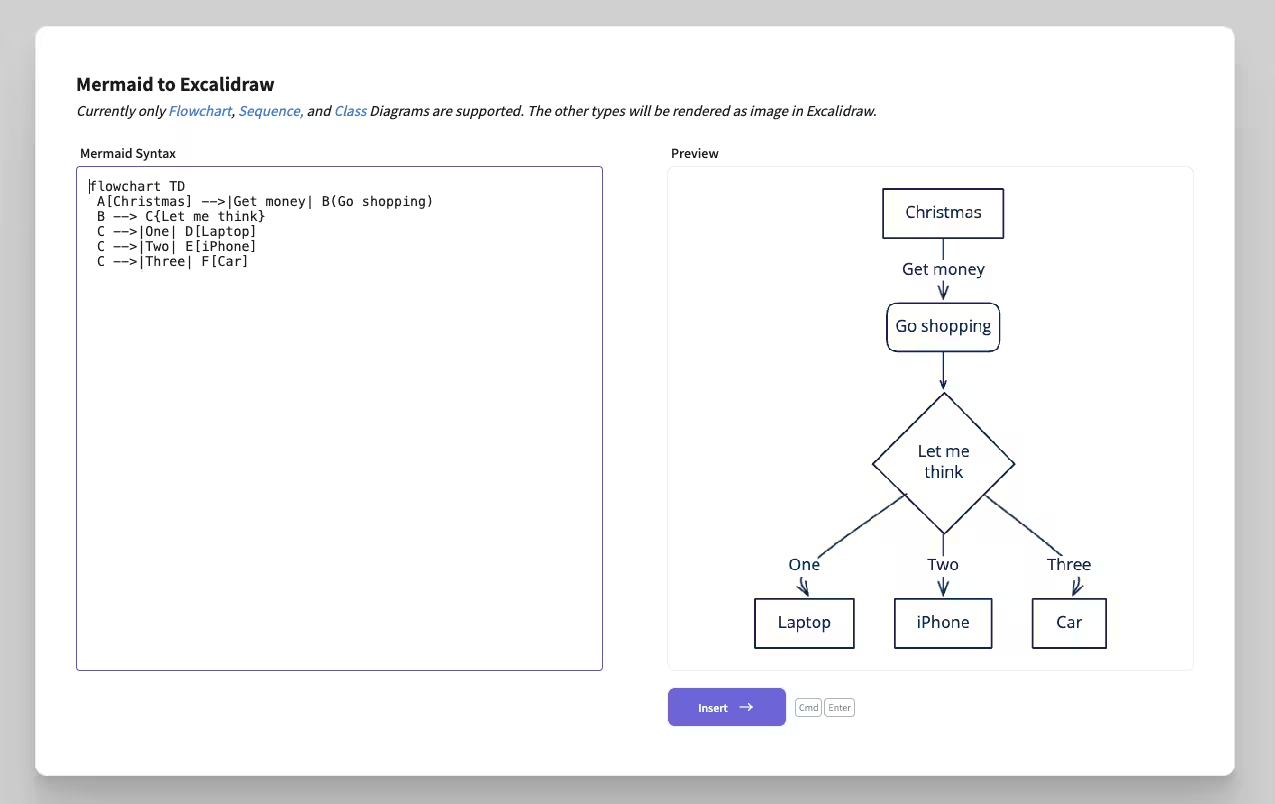
3. Insert Mermaid syntax and check preview
Replace the example in the left field with your Mermaid code. The preview updates while you type. A correct diagram appears directly to the right. With invalid syntax the dialog shows an error instead of inserting an incomplete result into the drawing.
A small flowchart is good for a first test:
flowchart TD
    A[Request] --> B{Complete?}
    B -- No --> C[Clarify]
    C --> A
    B -- Yes --> D[Process]
Keep labels short at first. Long sentences enlarge nodes and make the automatically calculated layout restless. You can add the detailed text later in neoDraw or explain it next to the diagram.
4. Insert the diagram as editable elements
If the preview is correct, click Insert. neoDraw closes the dialog, places the diagram in the center of the canvas and adjusts the view to the new content. Supported Mermaid types are converted into Excalidraw elements. So you can click a node, change its text, reconnect an arrow or move multiple elements together.
This distinguishes the workflow from exporting a Mermaid SVG or screenshots. The graphic is not reduced to a finished pixel or vector representation. It becomes the starting point for further work in the editor.
5. Adjust styling and save as WordPress SVG
After import you can change colors, line width, arrowheads, font, opacity and sketch style. Add freeform shapes, hand-drawn marks, icons, images or links if needed. For an article it often makes sense to highlight only the main path in color and keep side paths calmer.
Then save the drawing in neoDraw. The plugin places an SVG file in the WordPress media library and embeds the editor data. This keeps the drawing editable later. At the same time you can use it like a normal media object in posts and pages. SVG stays sharp across different screen sizes.
Which Mermaid diagrams are supported neoDraw?
The current Mermaid dialog names three directly supported diagram types:
- Flowchart: Processes, decision trees, workflows and dependencies
- Sequence Diagram: Messages and calls between people, services or software components
- Class Diagram: Classes, attributes, methods and relationships in UML-like models
These types are converted into editable Excalidraw elements. Other Mermaid formats, such as Gantt, Mindmap, State Diagram, ER Diagram, User Journey or Pie Chart, can be rendered by the dialog as an image. The result can then be moved or scaled as a whole but not edited node by node. If visual post-editing is crucial, build the content as a flowchart, sequence diagram or class diagram where possible.
Mermaid examples for flowchart, sequence diagram and class diagram
A Mermaid flowchart starts with flowchart or graph. LR arranges the flow from left to right, TD from top to bottom:
flowchart LR
    A[Ticket received] --> B{Priority high?}
    B -- Yes --> C[Assign immediately]
    B -- No --> D[Backlog]
    C --> E[Check solution]
    D --> E
Mermaid sequence diagram for an API flow
A sequence diagram is suitable for time-ordered communication. This example shows a simplified WordPress REST call:
sequenceDiagram
    participant B as Browser
    participant W as WordPress
    participant A as API
    B->>W: Submit form
    W->>A: Send request
    A-->>W: Return result
    W-->>B: Display output
After import you can move participants, shorten labels and highlight important messages with color.
Mermaid class diagram for a simple media structure
Class diagrams depict static relationships. For a small WordPress media logic the code could look like this:
classDiagram
    class MediaItem {
        +String filename
        +String altText
        +save()
    }
    class Drawing {
        +String svgData
        +edit()
    }
    MediaItem <|-- Drawing
In neoDraw you can add additional explanations after conversion without making the actual Mermaid syntax more complicated.
Edit Mermaid diagram visually after import
Start with the rough layout. Mark related nodes and move them as a group before you correct individual arrows. Then do a second pass for typography and colors. This prevents having to adjust fine details multiple times.
For technical diagrams a limited color system usually works better than one color per node. For example use one color for inputs, one for decisions and one for results. neoDraw has rectangles, diamonds, ellipses, arrows, freehand pen, text, frames, icons and a library. You can also add clickable links when a node should lead to documentation or a subpage.
The converted elements then behave like normally drawn Excalidraw objects. That lets you enhance the intentionally hand-drawn look or make the lines calmer depending on whether the diagram should appear more like a workshop whiteboard or like technical documentation.
Use Mermaid diagrams in Gutenberg, Bricks and Elementor
neoDraw stores drawings in the WordPress media library. That is more important for daily use than an extra export folder: the SVG file has a normal attachment entry, can be selected, found again and reopened in the editor.
In Gutenberg, Bricks, Elementor and the Classic Editor it adds neoDraw direct entry points to the respective image fields. Page builders that take images from the media library can also use the stored SVG. So you create the Mermaid diagram where you will later edit the article.
When you update a drawing check the affected pages afterwards and clear the page or CDN cache if necessary. For important process graphics you should also keep a local copy of the original Mermaid source code. The SVG contains the neoDrawEditor data, but does not replace versioned technical documentation.
Common errors when importing Mermaid
- The preview stays empty: Check the first line. It must match the diagram type, for example
flowchart TDorsequenceDiagram. - A flowchart breaks on the word end: Mermaid can treat a lowercase
endas a control word. WriteEndwith an initial capital letter or put the label in quotation marks. - Special characters cause a syntax error: Put longer labels in quotation marks and simplify the text first. Add typographic details later in neoDraw.
- The diagram is too wide: Switch from
LRtoTD,shorten labels or split a large flow into two drawings. - Elements cannot be selected individually: You are probably using a Mermaid type that is rendered only as an image. For directly editable nodes use Flowchart, Sequence, or Class diagram.
- The GPT code contains explanatory text: Copy only the content of the Mermaid code block. Sentences before or after the code do not belong in the syntax field.
Mermaid code and neoDraw drawing are two states of work
What remains editable after conversion
For the supported types shapes, texts, and connections remain as Excalidraw elements. You can edit them in the neoDraw-editor and save them together with other objects. For publishing in WordPress this visual state is usually the relevant one.
What does not get synchronized back to Mermaid
The import is not a permanent two-way connection. If you edit a node after inserting it in neoDraw when you rename or draw a new arrow, the editor does not write that change back into your original Mermaid code. If you want to maintain code and graphic in parallel, decide ahead of time which version is the source.
For technical documentation, Mermaid as the source is a good option: change the code, reimport it, and then make only a few visual adjustments. For an editorial website graphic, neoDraw can be the source once the basic structure has been imported.
Prepare Mermaid drawings for SEO and accessibility
A diagram can make an article easier to understand, but it does not replace the explanatory text. Search engines and screen readers capture complex relationships in a graphic only to a limited extent. Therefore describe the main flow in the surrounding paragraph and give the saved SVG a concrete alt text.
A sensible alt text names the diagram type and main message, for example: Flowchart of the WordPress editorial process from draft to publication. Do not write every node into the alt text. For a complex UML or sequence diagram, a detailed text alternative belongs in the article.
Use the main keyword where it describes the content. Repetitions like "Mermaid diagram Mermaid drawing Mermaid editor" do not help readers and are not a good SEO strategy. Meaningful H2 headings, an appropriate page title, visible examples, and a clear answer to the search question are more valuable.
Frequently asked questions about Mermaid drawings in WordPress
Can I edit a Mermaid diagram in WordPress?
Yes. neoDraw converts flowcharts, sequence diagrams and class diagrams into editable Excalidraw elements. Other Mermaid types are displayed as an image.
Where do I find Mermaid to Excalidraw in neoDraw?
Open the neoDraw-Editor More tools and click in the Generate area on Mermaid to Excalidraw.
Can ChatGPT create Mermaid diagrams?
Yes. Describe diagram type, reading direction, nodes and connections as concretely as possible and request pure Mermaid code. Then check the flow in the preview.
Which Mermaid diagram types are neoDraw directly editable?
Flowchart, Sequence Diagram and Class Diagram are directly supported. Other types are rendered as an image by the import.
Can I save a Mermaid diagram as SVG?
Yes. neoDraw saves the inserted and edited drawing as SVG in the WordPress media library.
Does the Mermaid code remain synchronized after editing?
No. Changes to Excalidraw elements are not written back into the original Mermaid code.
Is neoDraw free?
The instructions described in this guide neoDrawThe -version can be downloaded for free and installed in WordPress.
Do I need an external Mermaid editor?
No. Input field, preview and insert are located directly in the neoDraw-editor.
Create, import and finish Mermaid diagrams where they are needed
Mermaid is powerful when a logical structure needs to emerge quickly from text. neoDraw takes care of the part where a diagram must work for real readers on a WordPress page. You import the code, correct the presentation with visual tools and save the result as an SVG that remains editable in the media library.
For the first try the small approval flowchart from this guide is sufficient. Import it, move a node, change a color and save the drawing. After that the process is the same for larger process diagrams software architecture and technical documentation.
neoDraw download for free
Install neoDraw in WordPress and open the Mermaid dialog directly in the drawing editor. The download leads to the full free ZIP file.
Edit Mermaid drawings directly in WordPress
Download neoDraw download for free import your Mermaid code and save the finished diagram as SVG in the WordPress media library.

